Staff Onboarding
When your organization invites you to Applyology, a short guided tour introduces your workspace: what you can access, how supporting candidates works, and the most useful first tasks for your role. It's four quick steps tracked in a progress sidebar, and you can skip it at any time.
Welcome
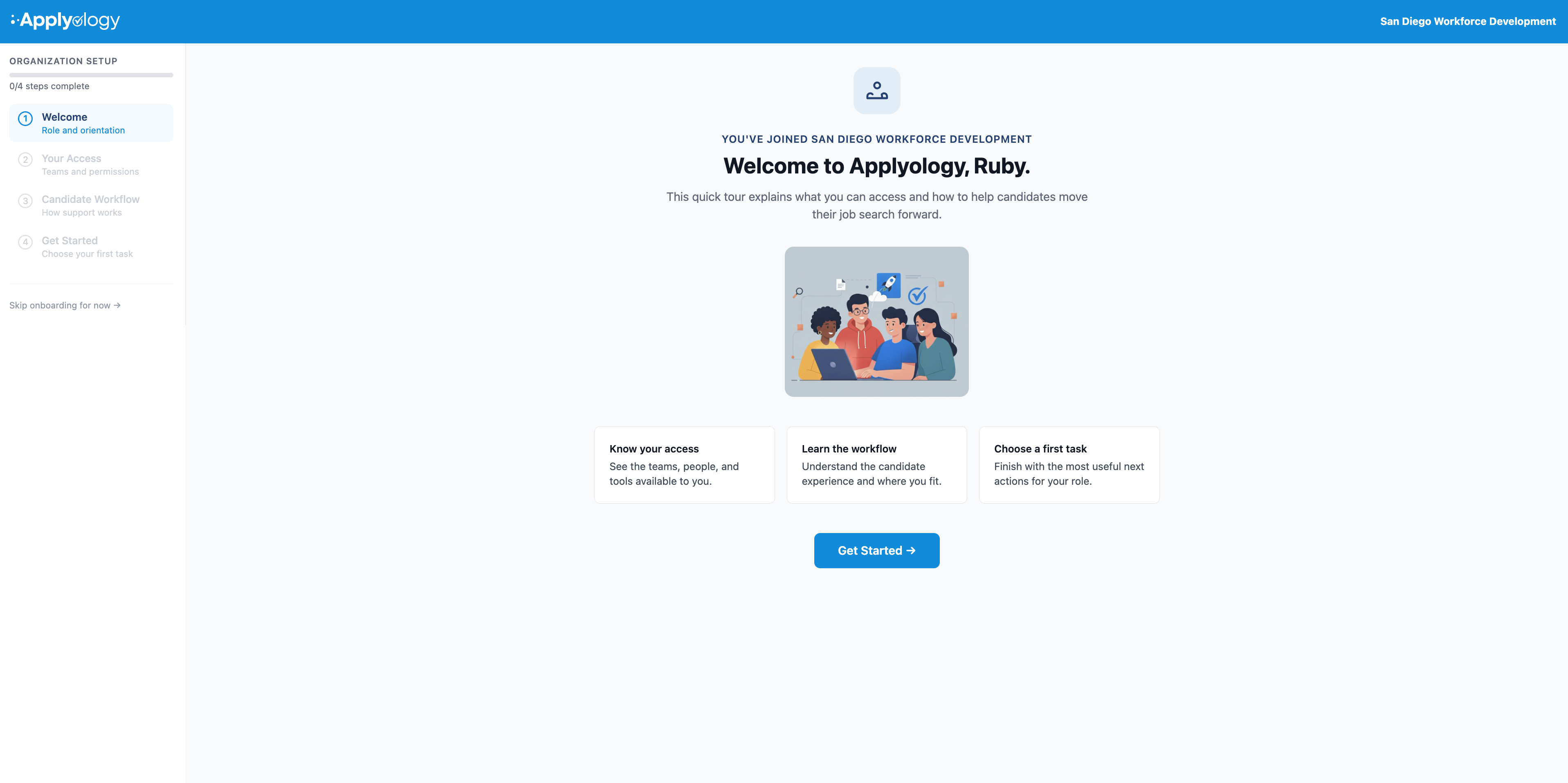
Follow the link in your invitation email to set up your account. The first time you sign in, the Welcome step greets you and previews what's ahead - knowing your access, learning the workflow, and choosing a first task.
Your Access
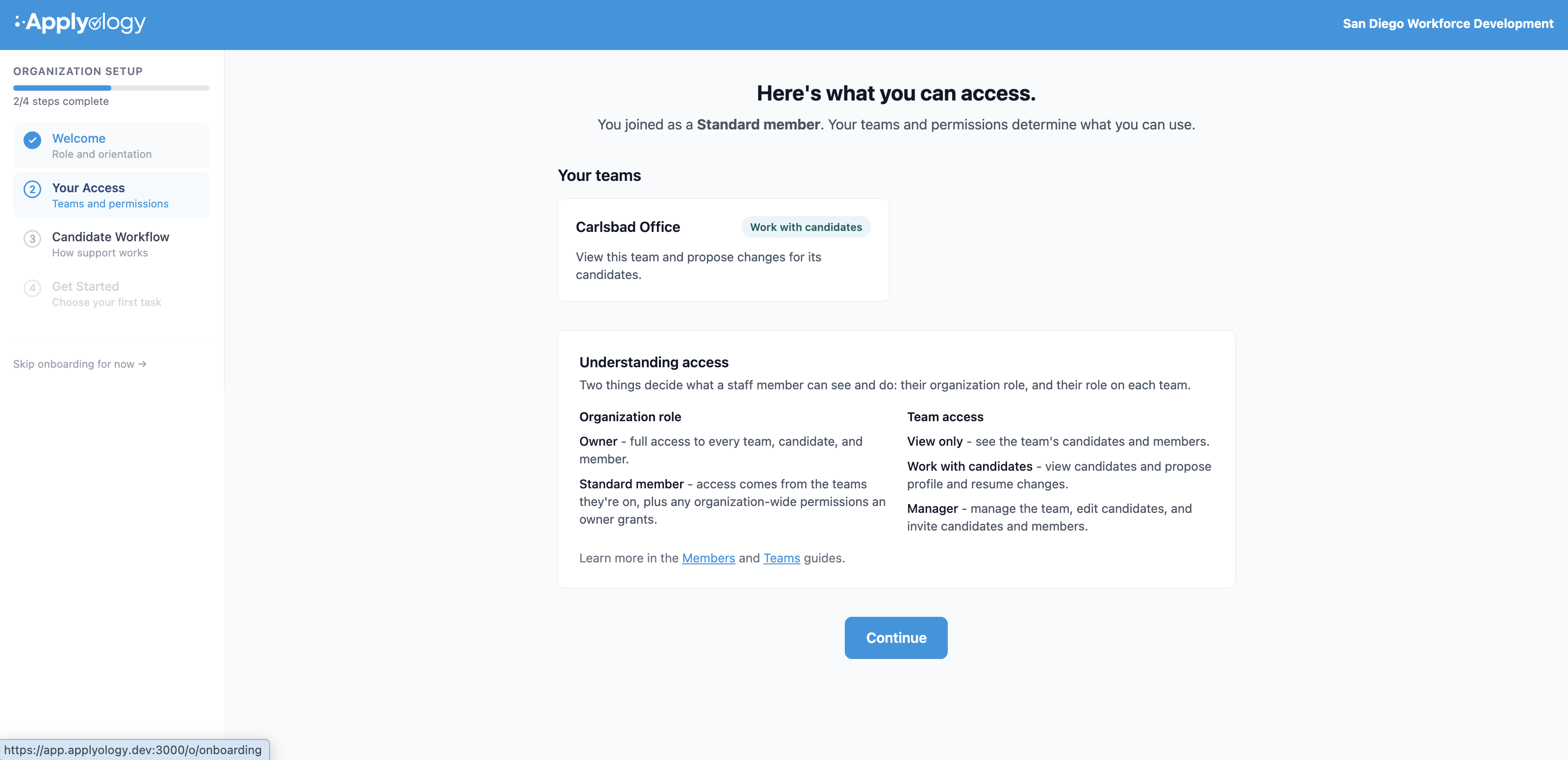
The Your Access step shows how you fit in. Two things decide what you can see and do - your organization role and your role on each team.
Your organization role is one of:
- Owner - full access to every team, candidate, and member.
- Standard member - access comes from the teams you're on, plus any organization-wide permissions an owner grants.
On each team, your access is one of:
- View only - see the team's candidates and members.
- Work with candidates - view candidates and propose profile and resume changes.
- Manager - manage the team, edit candidates, and invite candidates and members.
Candidate Workflow
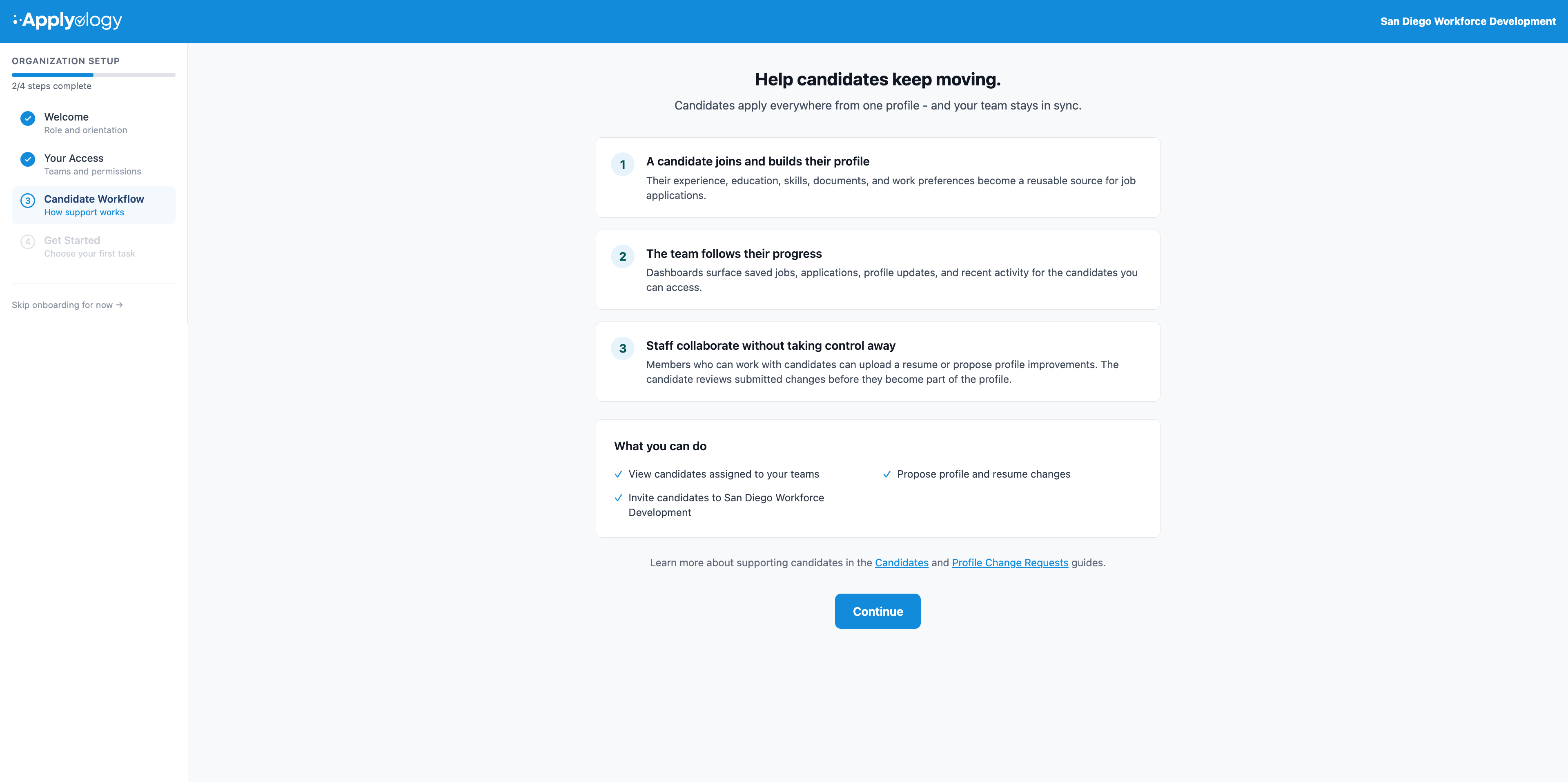
The Candidate Workflow step explains how you support candidates:
- A candidate joins and builds their profile - their experience, education, skills, documents, and work preferences become a reusable source for job applications.
- The team follows their progress - dashboards surface saved jobs, applications, profile updates, and recent activity for the candidates you can access.
- Staff collaborate without taking control away - members who can work with candidates can upload a resume or propose profile improvements, and the candidate reviews submitted changes before they become part of the profile.
A What you can do panel lists exactly which of these actions your access allows.
Get Started
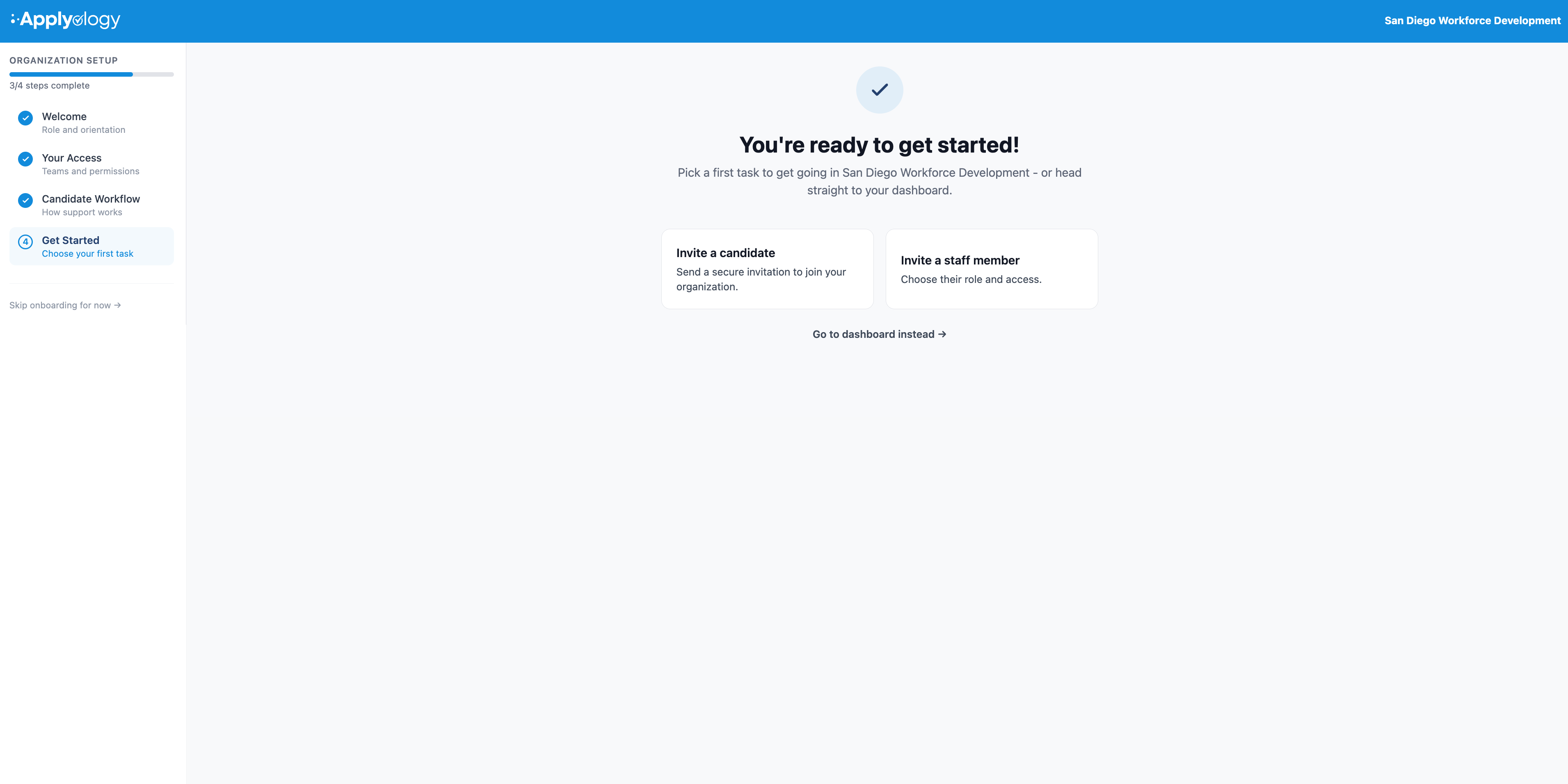
The final Get Started step offers your most useful first tasks, based on your access - for example Invite a candidate, Invite a staff member, or Create a team. Pick one to jump straight into it, or choose Go to dashboard instead to head to your dashboard.
You can revisit any of these areas later from your dashboard. Learn more in the Members, Teams, and Candidates guides.