Teams
Teams let you organize members and candidates within your organization, controlling who can access and manage which candidates.
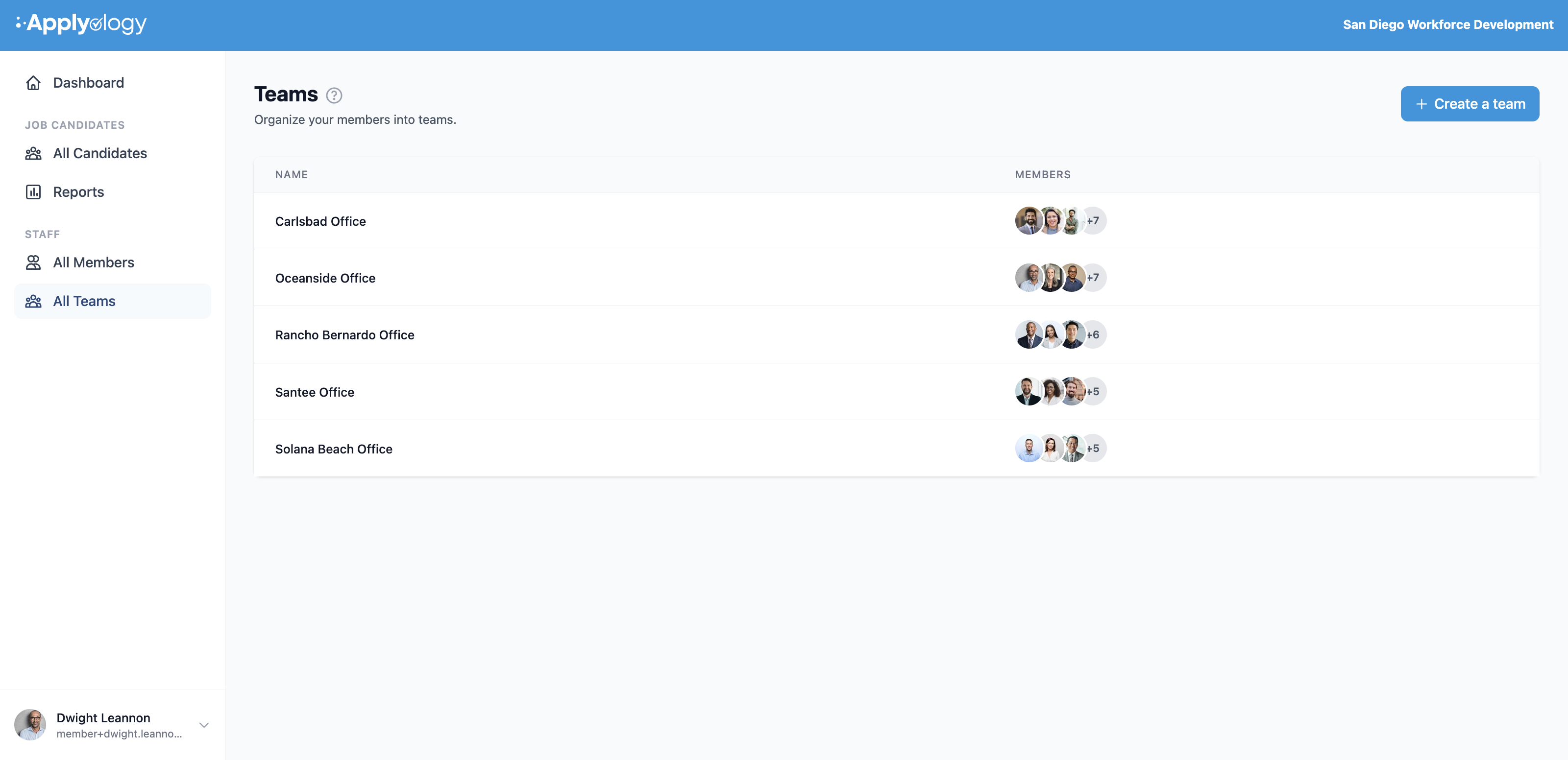
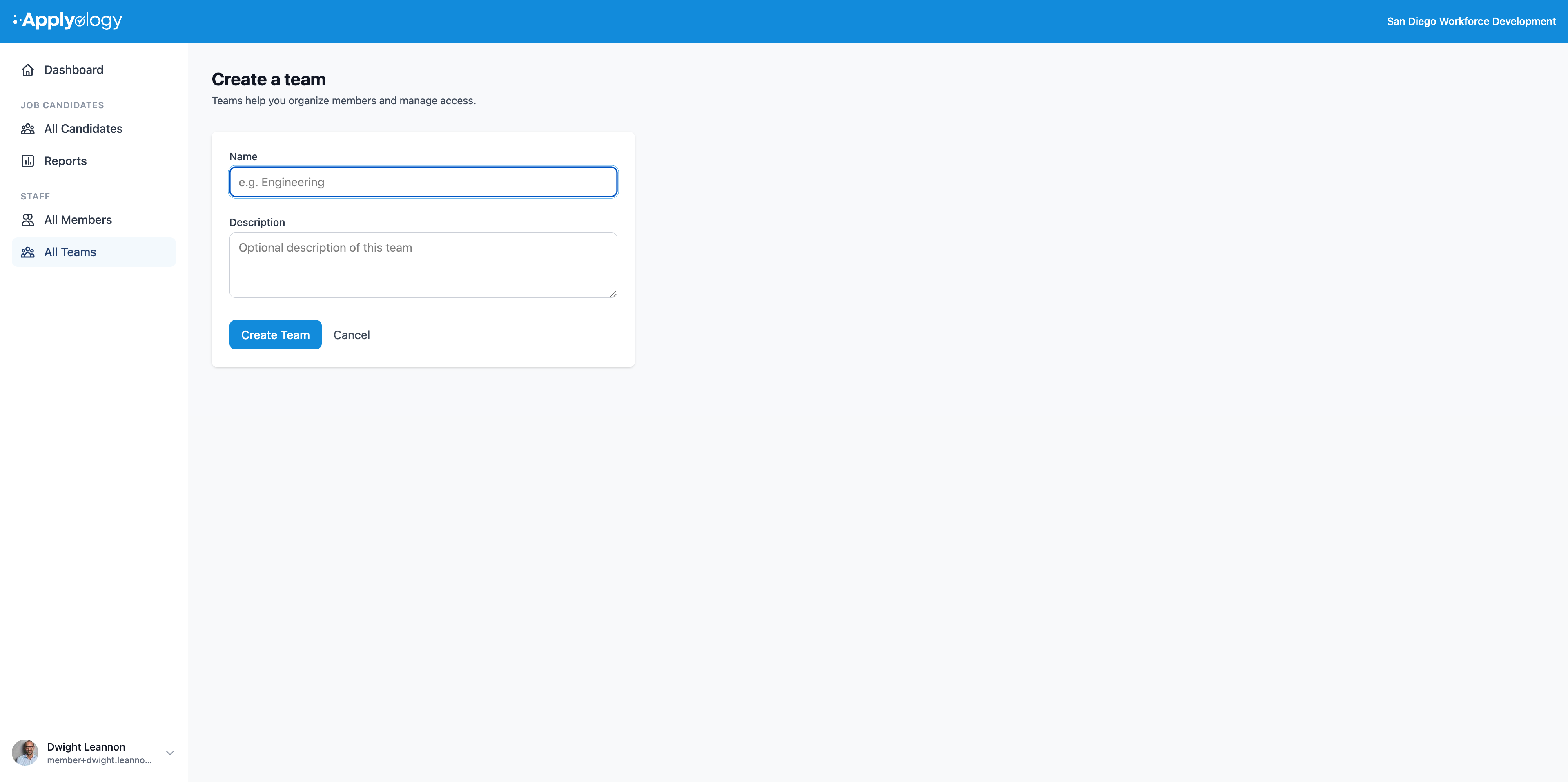
Create a team
Members with the Create new teams permission can create a team. Go to Teams and click Create a team. Give the team a name and an optional description, then click Create Team.
Team page
Each team has a page showing:
- Candidates assigned to the team
- Team Members in a sidebar, with a Manage link for those with the Edit and delete teams permission
Member roles
Each member on a team has one of three roles:
- View - can view candidates and members on the team
- Assist - can propose profile and resume changes for candidates on the team
- Manager - can manage the team, add/remove members, and assign candidates
Owners and Primary Owners are always assigned the Manager role on any team they belong to and cannot be changed.
Manage team members
Members with the Edit and delete teams permission can access the Manage page for a team. From there you can:
- Add a member - select from active organization members not already on the team, and set their role
- Change a member's role - update their role using the dropdown (not available for Owners)
- Remove a member - remove them from the team
Assign candidates
Members with the Edit and delete teams permission can assign candidates to a team from the team's page. Select a candidate from the Assign Candidate dropdown. Candidates can be removed from the team at any time.
Edit or delete a team
From the team page, members with the Edit and delete teams permission can rename the team or delete it via the Actions menu. Deleting a team removes all candidate assignments and team memberships.