Reports
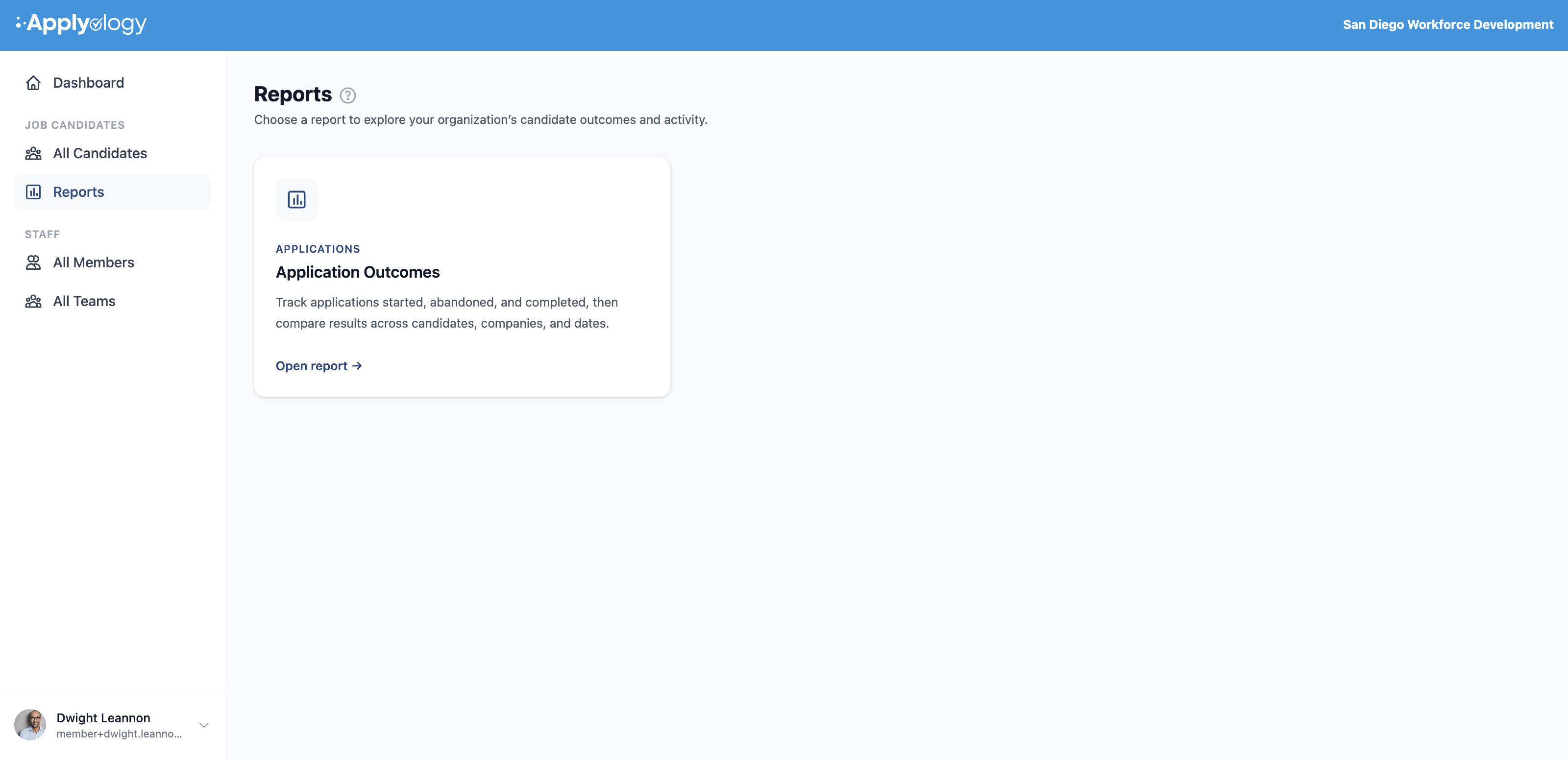
The Reports section lets you "Choose a report to explore your organization's candidate outcomes and activity." It's available to members with permission to view candidates, and every report is scoped to the candidates you can access.
Today there is one report: Application Outcomes. Open it from the Reports landing page (Open report →).
Application Outcomes
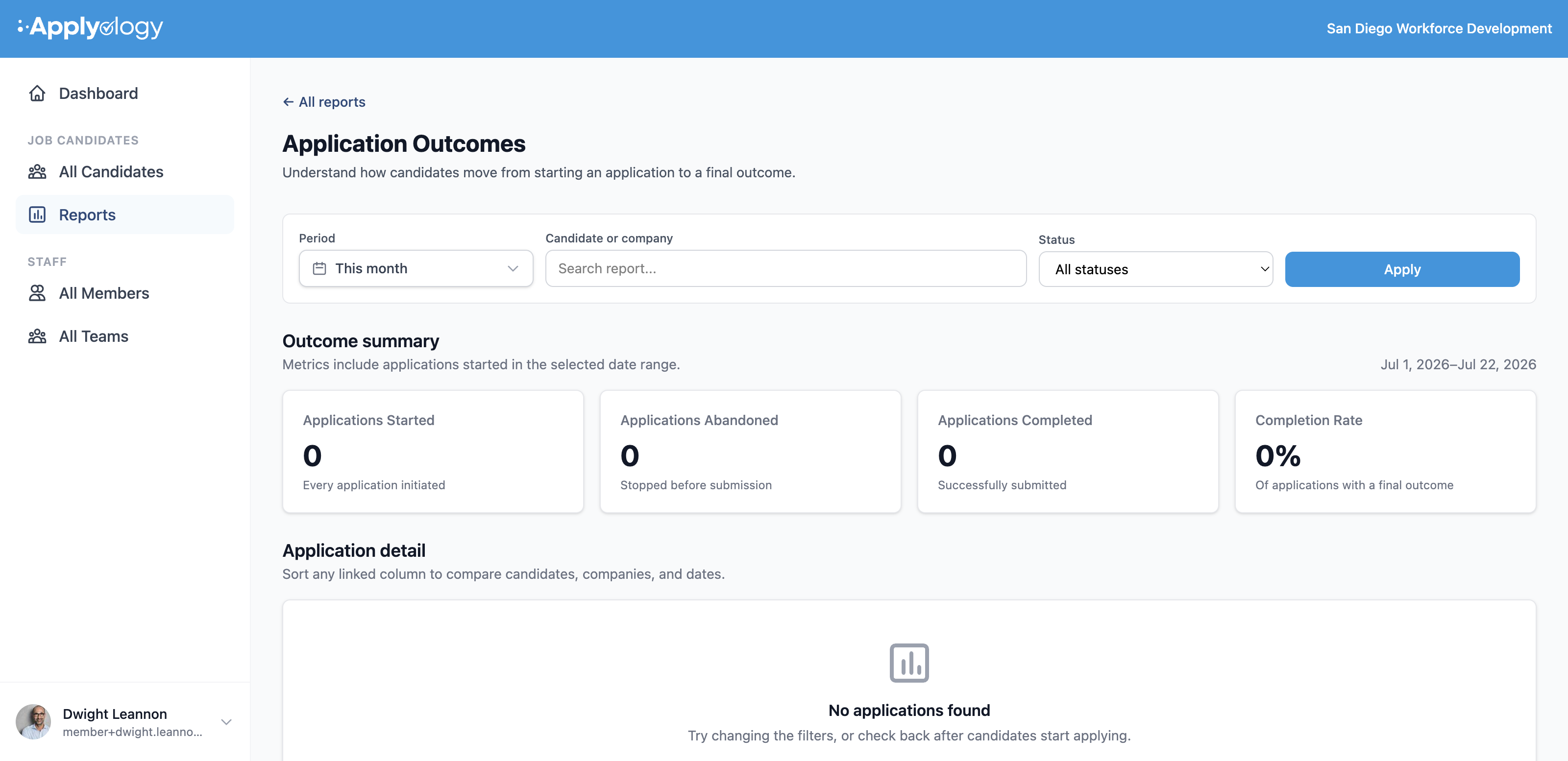
"Understand how candidates move from starting an application to a final outcome."
An "outcome" here is the lifecycle status of a candidate's application - there's no separate interview/offer/hire tracking, and outcomes aren't entered by hand; they're derived from application activity. Three statuses are reported:
- In progress - started but not yet submitted
- Completed - submitted
- Abandoned - stopped before submission
Filters
Use the filter bar to focus the report, then click Apply (a Clear link appears when a non-default filter is active):
- Period - This month (default), Last month, Year to date, Past year, All time, or Custom (which reveals Start date / End date inputs).
- Candidate or company - search by candidate name/email or company.
- Status - All statuses (default), or one of In progress / Completed / Abandoned.
Outcome summary
Four cards summarize applications started in the selected range:
- Applications Started - every application initiated (the total of all three statuses: In progress + Completed + Abandoned)
- Applications Abandoned - stopped before submission
- Applications Completed - successfully submitted
- Completion Rate - completed ÷ (completed + abandoned), as a percentage
Application detail
A sortable table lists the underlying applications, with a "Showing X–Y of N applications" count. Columns are Candidate (links to the profile), Company, Role, Started, and Status. Sort by candidate, company, started date, or status to compare across your pipeline; results are paginated.
If nothing matches, you'll see No applications found - "Try changing the filters, or check back after candidates start applying."