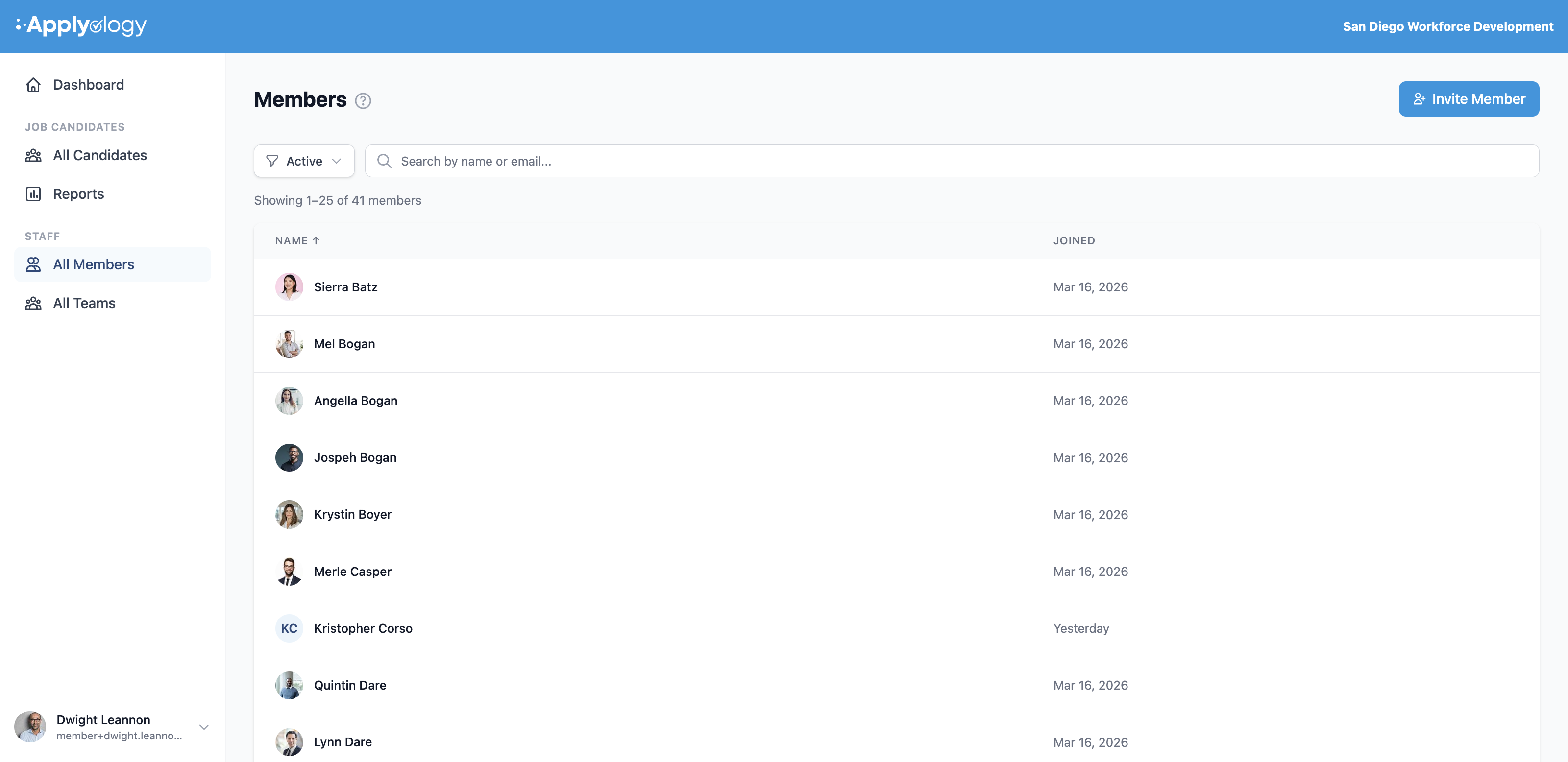
Members
Your organization's staff live under the Members section. From there you can see who's on your team, invite new members, and manage their roles and permissions. Group members into Teams to control who can access which candidates.
Invite a member
From the Members section, click Invite Member. Enter the person's first name, last name, and email address - they'll receive an email with a link to set up their account.
Then choose a Member type:
- Standard member - access is based on the teams they're on. Best for most people.
- Owner - full access to every team, candidate, and member in the organization.
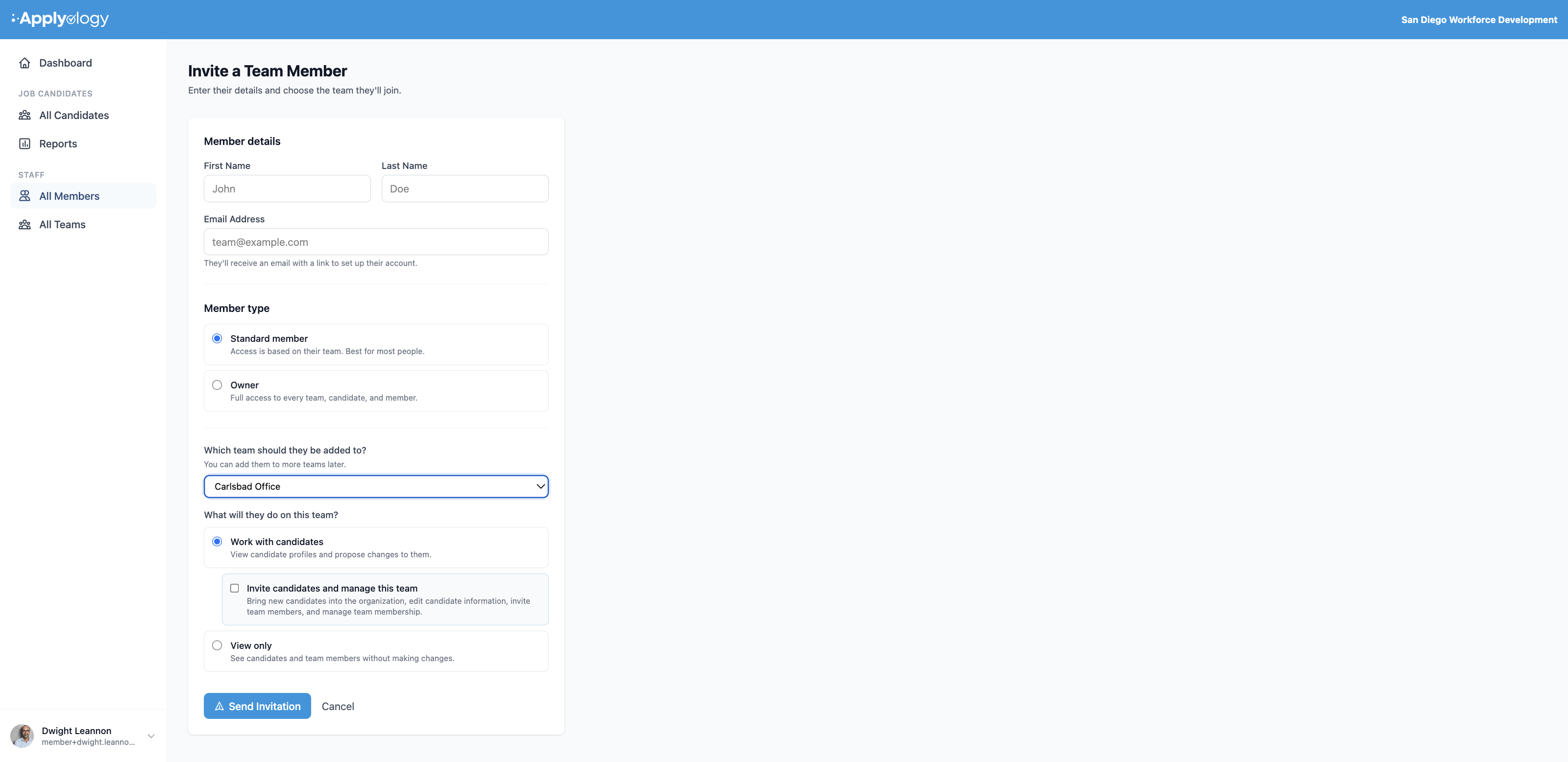
Standard member: team and access
When you invite a Standard member, pick the team they'll join - you can add them to more teams later, or create a new team inline. Then choose what they'll do on that team:
- Work with candidates - view candidate profiles and propose changes to them. You can also check Invite candidates and manage this team, which lets them bring new candidates into the organization, edit candidate information, invite team members, and manage team membership.
- View only - see candidates and team members without making changes.
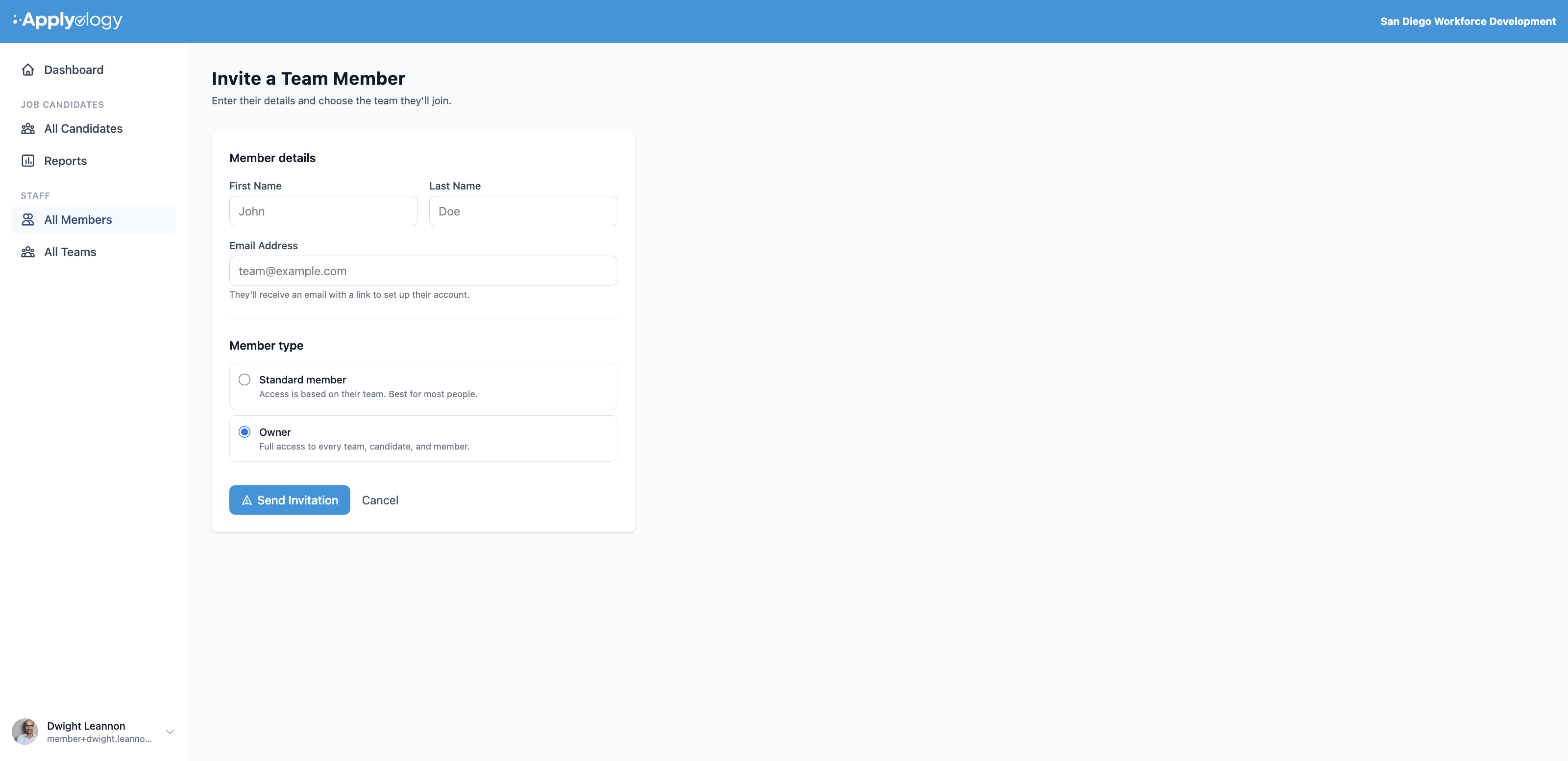
An Owner has full access, so there's no team or access to choose - just their details.
A Standard member needs a team (or an organization-wide permission) before they can access anything after signing in.
Manage pending invitations
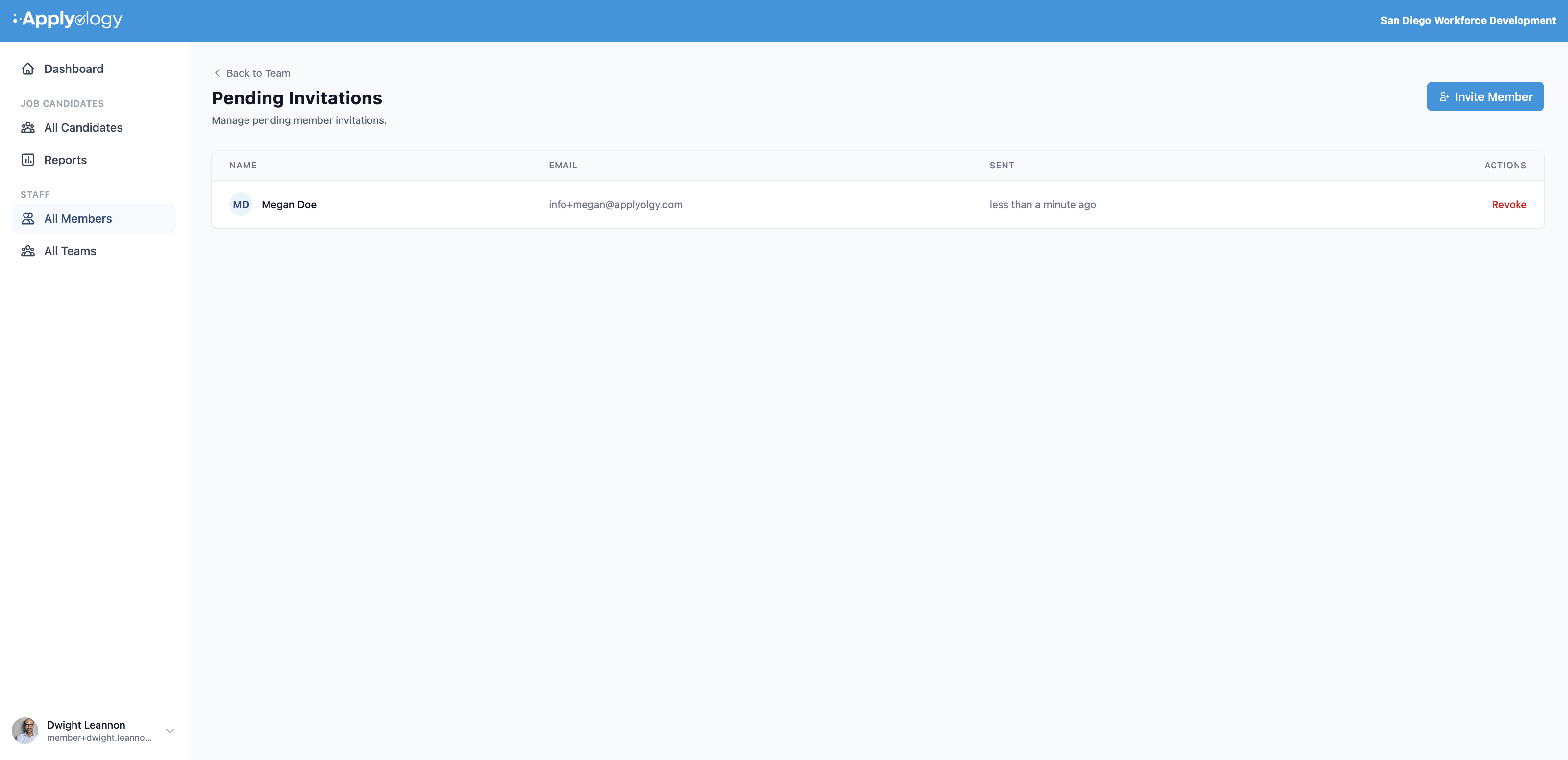
Pending member invitations appear under the Invited filter in Members, and on the Pending Invitations page. Each shows the person's name, email, and when the invite was sent - click Revoke to cancel any you no longer need.
Member roles
Every member has an organization role:
- Primary Owner - full control over the organization; cannot be removed
- Owner - full access to all teams, candidates, and members in the organization
- Standard - can only access data on teams they belong to
Advanced permissions
Owners can grant individual organization-wide permissions to a Standard member, independent of team membership:
| Permission | Description |
|---|---|
| View candidate profiles | View candidate profiles across the org |
| Propose profile/resume changes | Suggest edits to candidate profiles and resumes |
| Directly edit candidate profiles | Make direct edits to candidate profiles |
| Invite candidates | Invite candidates to the organization |
| Release candidates | Remove candidates from the organization |
| View organization members | See the member list |
| Invite new members | Send member invitations |
| Manage member accounts | Edit and manage member accounts |
| View teams | See all teams |
| Create new teams | Create teams |
| Edit and delete teams | Manage existing teams |
| Manage billing and seats | Access billing settings |
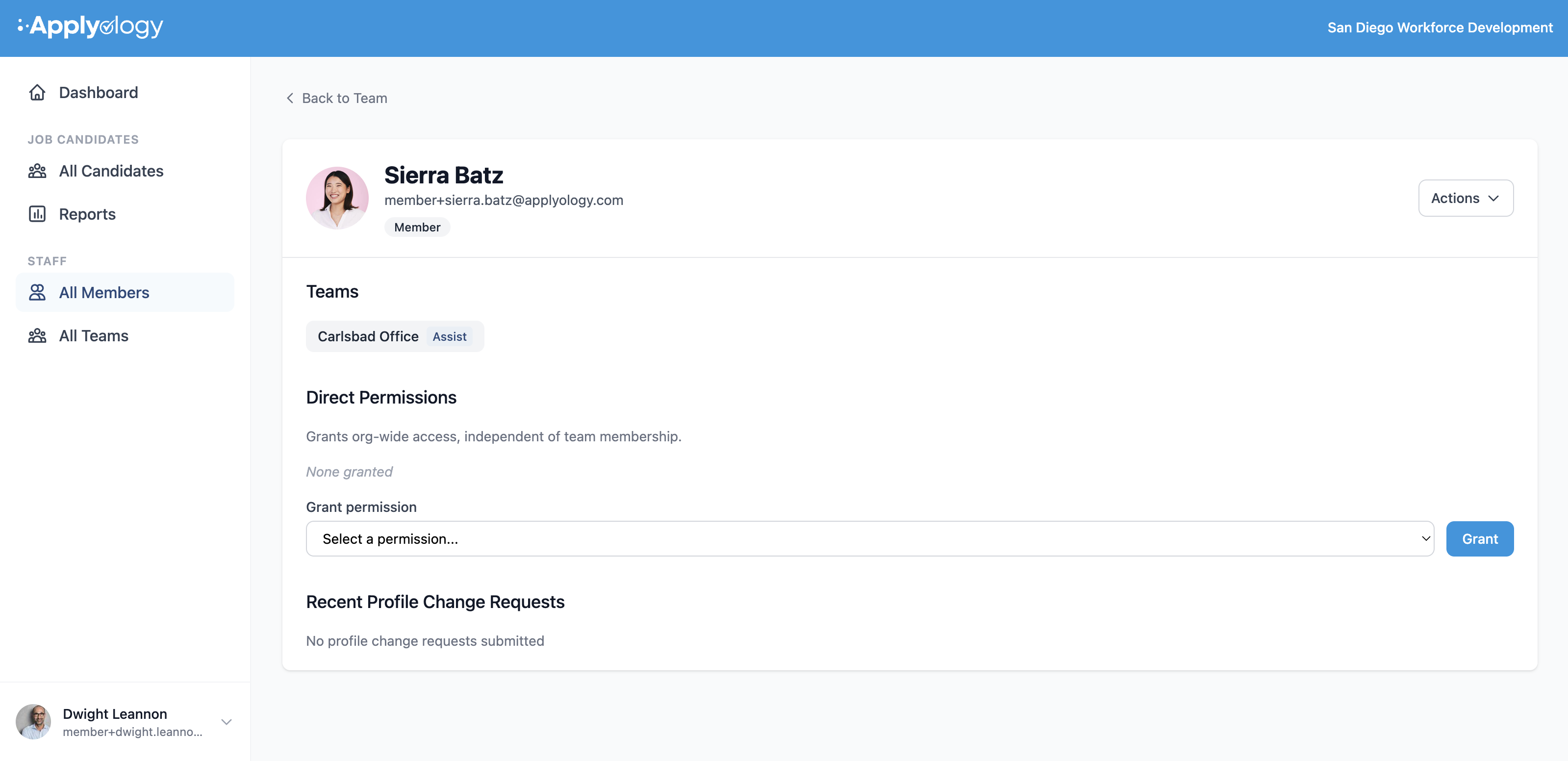
Open a member to see their detail page, where you can review their Teams and team roles, grant or revoke Direct Permissions, and see their Recent Profile Change Requests.