Candidates
Once candidates have joined your organization, you can view and manage them from the Candidates section. Depending on your permissions, you'll see either every candidate in the organization (owners and members with org-wide candidate access) or only the candidates on your teams.
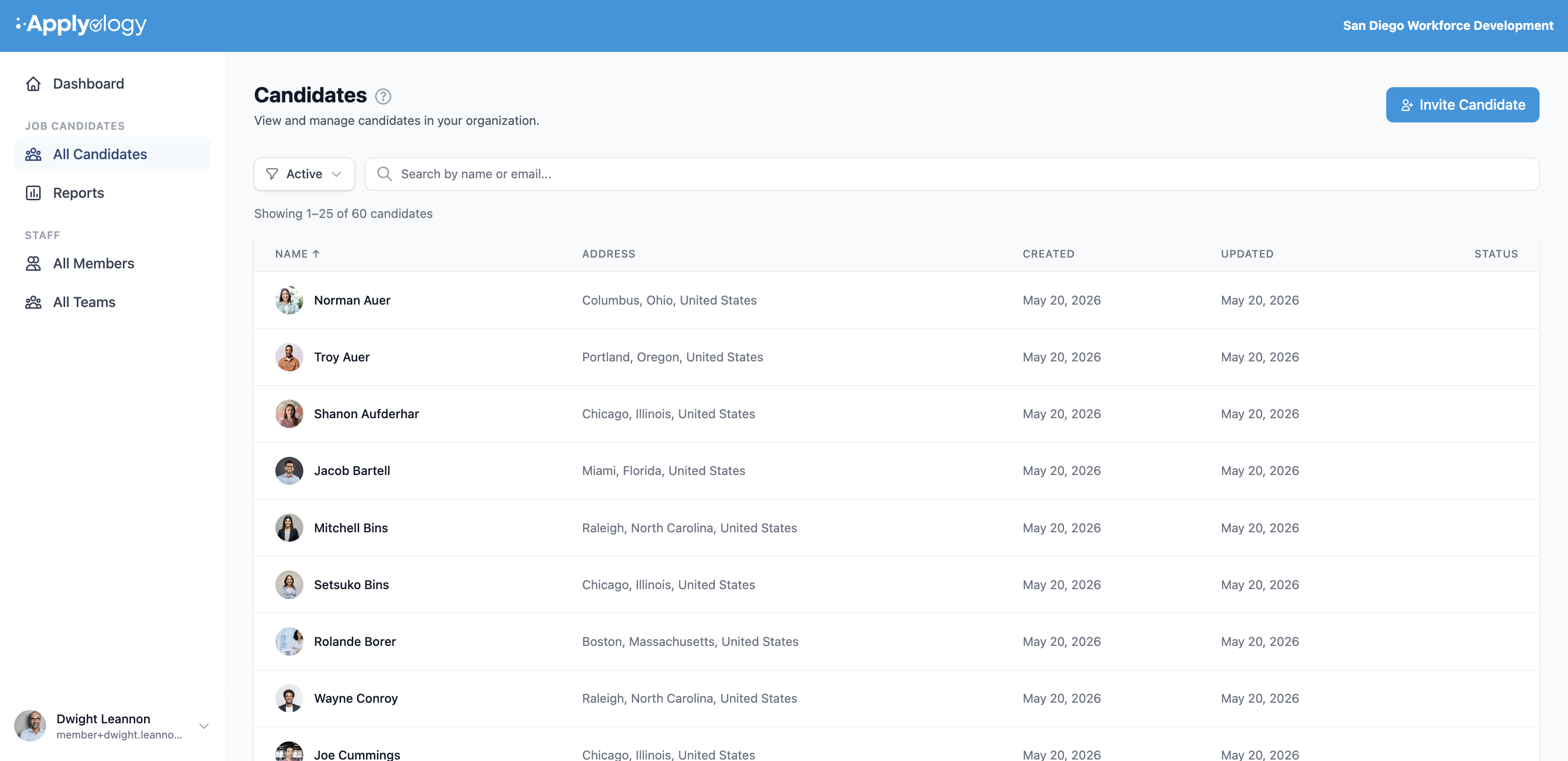
Candidate list
The candidate list defaults to showing Active candidates, sorted by last name. You can:
- Filter by status - Active, Invited, or Released
- Sort by name, date created, or date updated
- Search by name or email
Invite a candidate
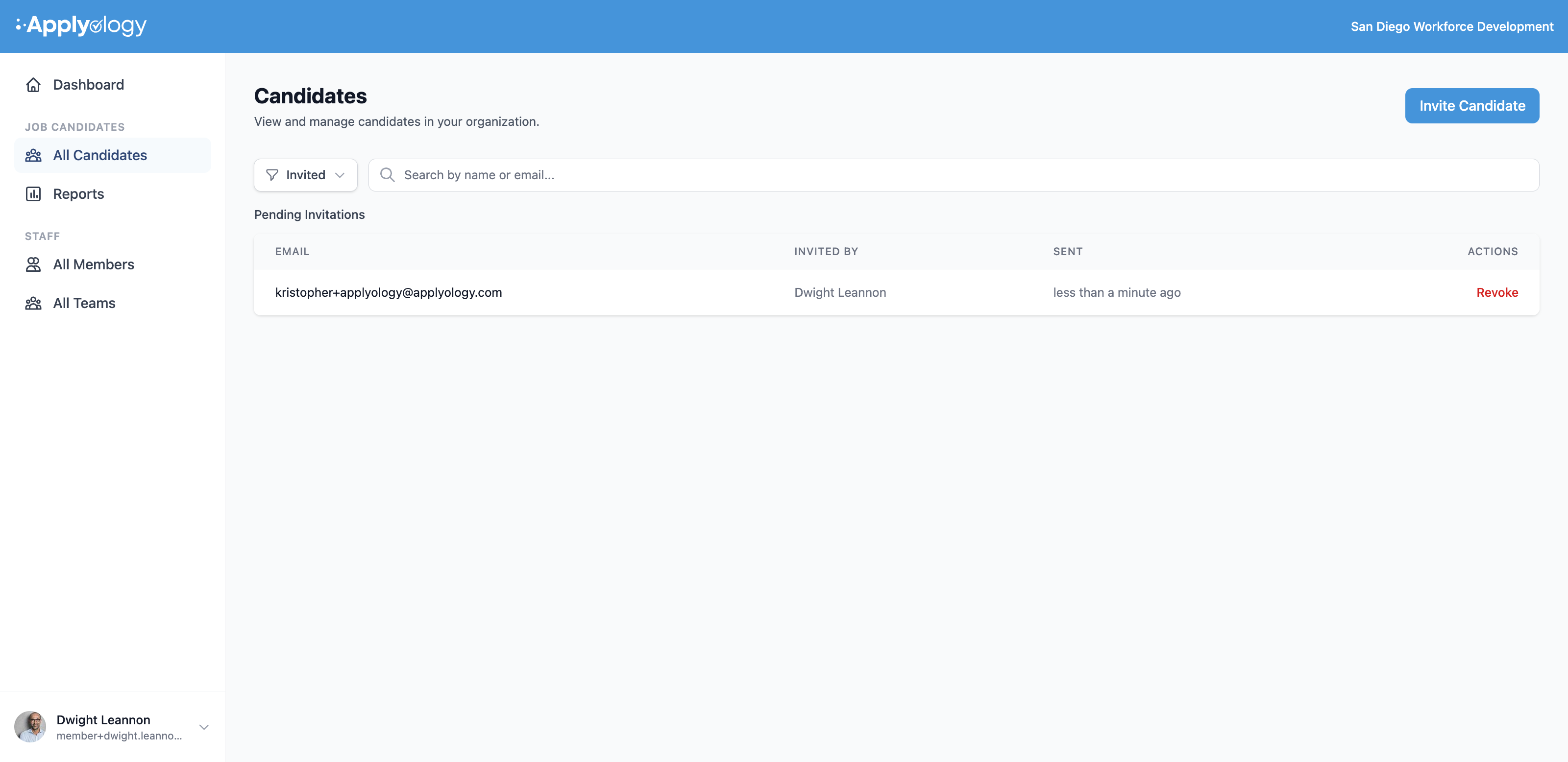
From the Candidates page, click Invite Candidate to open the invitation form. Enter the candidate's email address - "The candidate will receive an email with a link to create their account." You can optionally assign the candidate to one or more teams at the same time, then click Send Invitation.
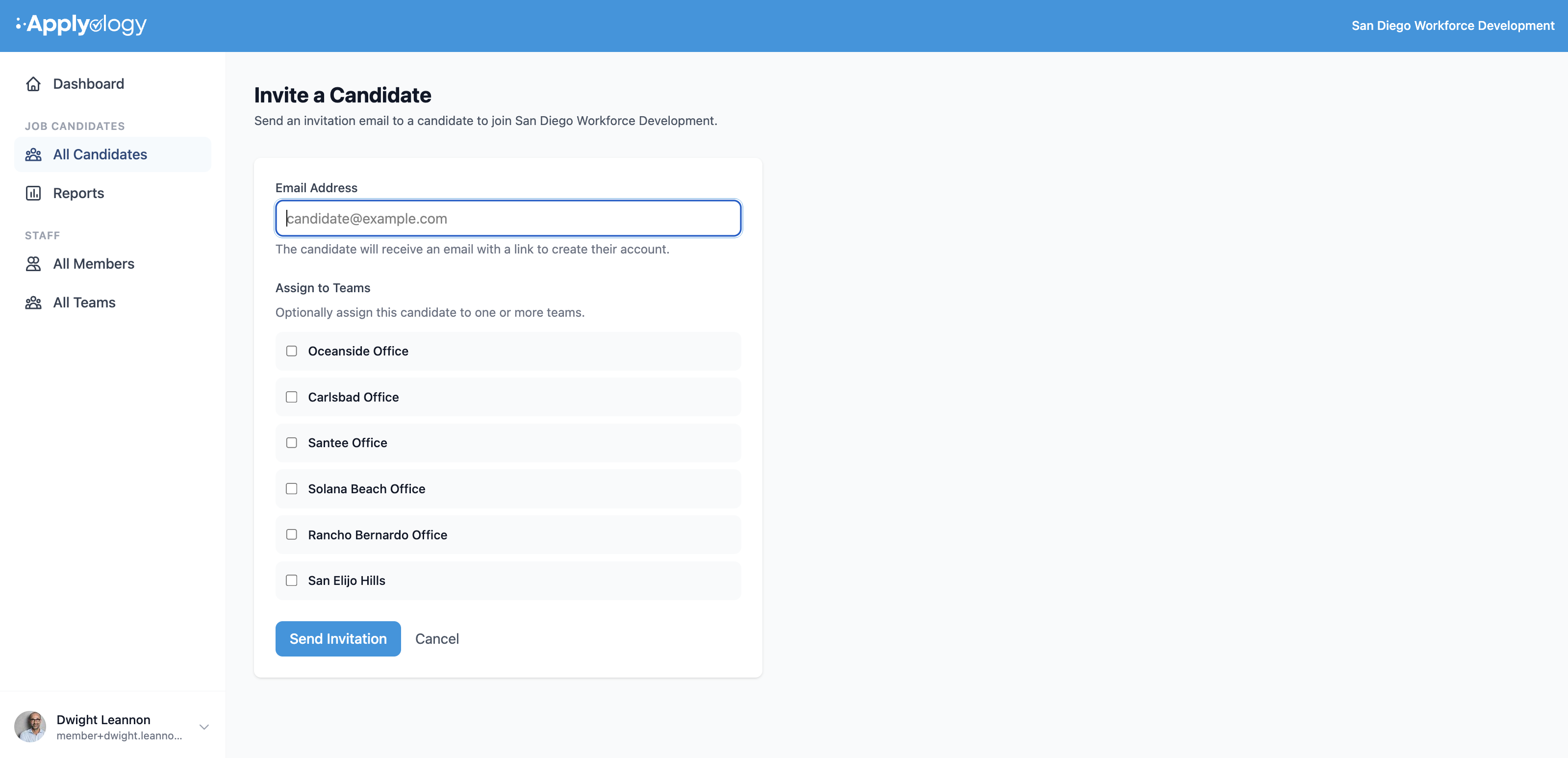
Pending candidate invitations appear under the Invited filter on the Candidates page. The list shows each invite's email, who invited them, and when it was sent. Click Revoke to cancel any invitation that hasn't been accepted yet.
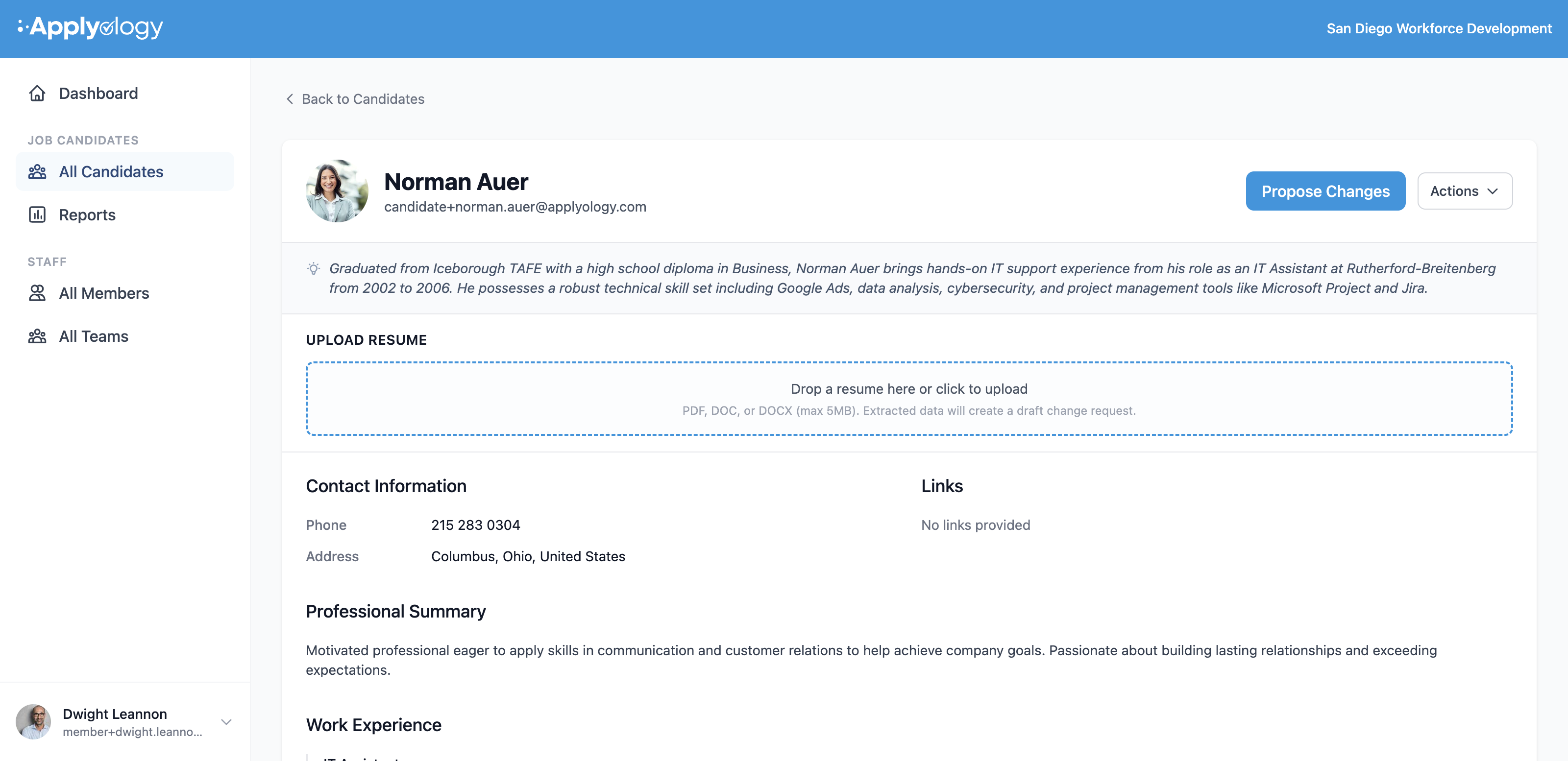
Candidate profile
Click any candidate to open their profile. The profile shows:
- Contact information (phone, location)
- Links (LinkedIn, portfolio, etc.)
- Professional summary
- Work experience
- Education
- Skills
- Awards and certifications
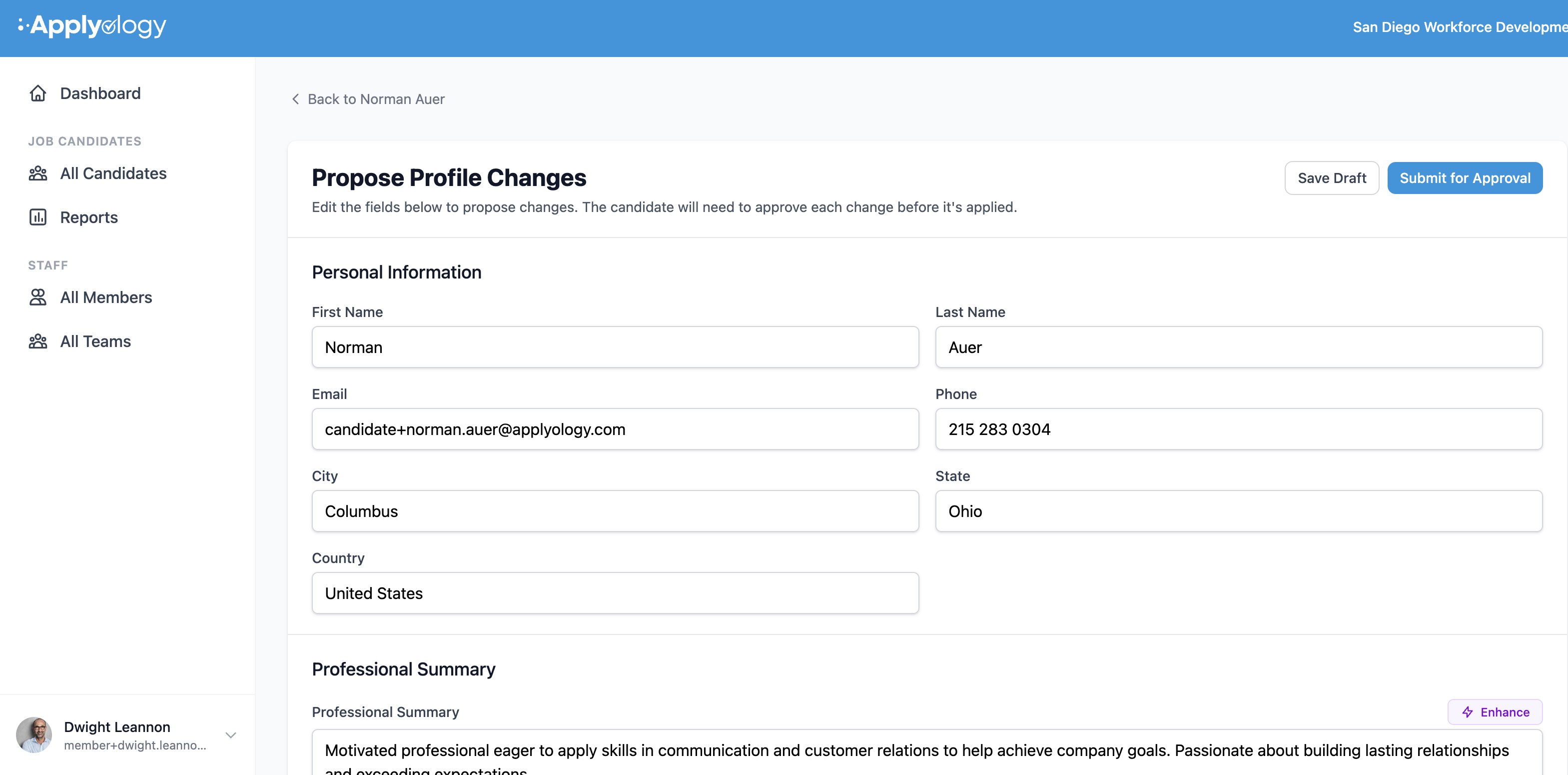
Propose changes
Members with the Propose profile/resume changes permission can suggest edits to a candidate's profile. Proposed changes are submitted as a change request that the candidate must review and approve before they take effect - see Profile Change Requests.
If a draft change request already exists, you'll see a Continue Editing Draft button instead. If a change request is pending candidate approval, you'll see View Pending Changes.
Upload a resume
Members with the Propose profile/resume changes permission can upload a resume (PDF, DOC, or DOCX, max 5MB) directly on the candidate's profile. The extracted data will automatically create a draft change request for review.
Release a candidate
Members with the Release candidates permission can release a candidate from the organization via the Actions menu. Releasing a candidate creates an independent Applyology account for them and removes them from your organization. Released profiles are read-only.
View history
The Actions menu also provides access to the full history of change requests for that candidate.
Pending change requests
When a candidate has a change request awaiting their approval, it will be flagged in the candidate list and on their profile. The Dashboard Overview also shows a count of all pending change requests across your organization. For the full proposal-and-approval flow, see Profile Change Requests.