Dashboard
The organization dashboard is where an organization's members manage their candidates and team. A navigation sidebar on the left gives you a section for each area (some labels change with your permissions - owners see "All …", others see "My …"):
| Section | What it's for |
|---|---|
| Dashboard | Your at-a-glance overview of candidate and application activity. |
| Candidates | View, invite, and manage candidates. |
| Reports | Explore application outcomes across your candidates. |
| Members | Your organization's staff - invite them and manage roles and permissions. |
| Teams | Group members and candidates into teams. |
Proposing edits to a candidate's profile? See Profile Change Requests. Manage your own login and profile from Account Settings.
Dashboard home
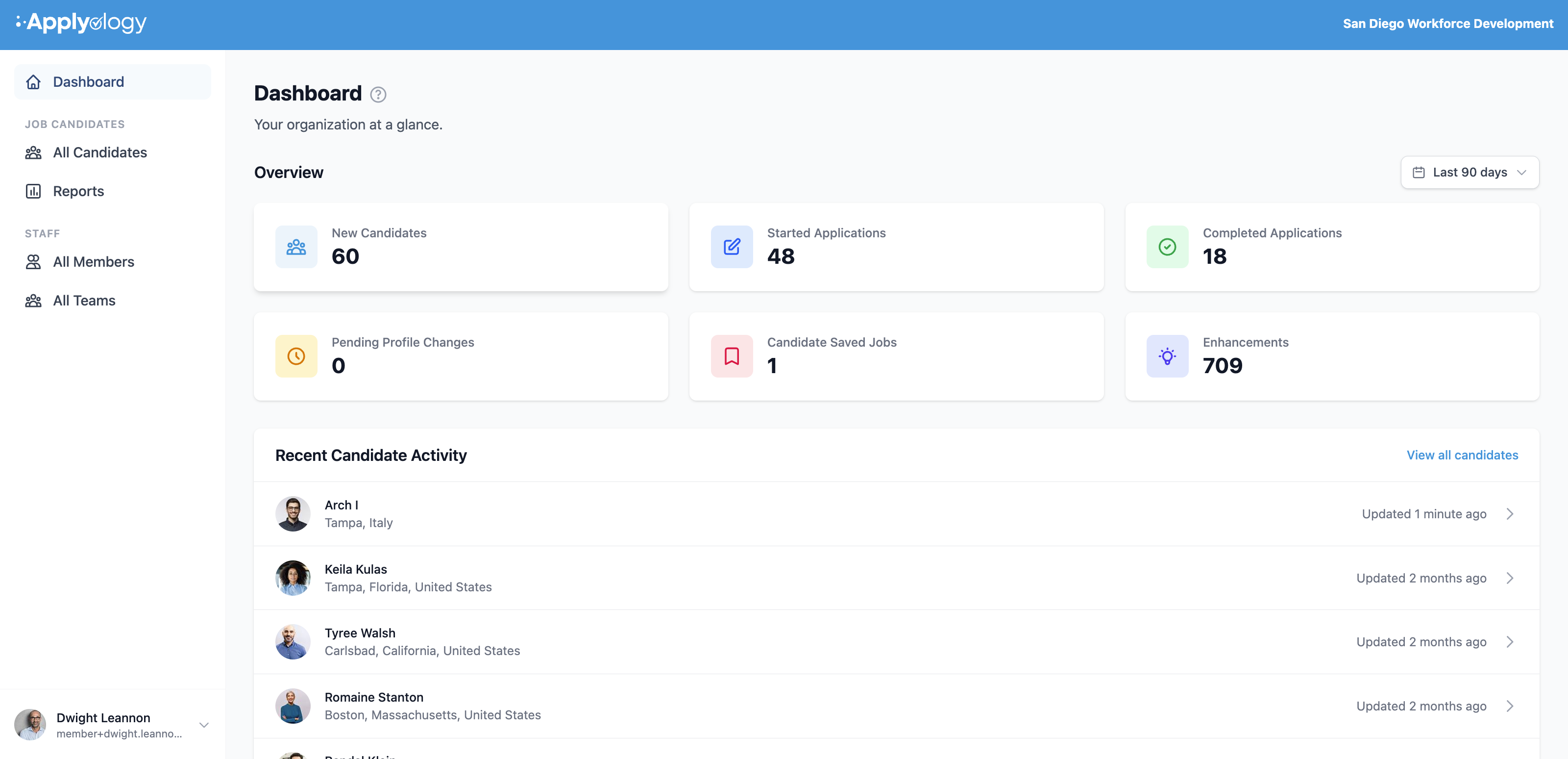
The Dashboard page opens on an Overview of activity across the candidates you can access. A time-period dropdown in the top right filters everything on the page - Last 7 days, Last 30 days, Last 90 days (the default), Last 12 months, or All time.
Overview stats
Six cards summarize activity for the selected period:
- New Candidates - candidates who joined (their account was created) during the selected period
- Started Applications - applications currently in progress
- Completed Applications - applications that have been submitted
- Pending Profile Changes - change requests awaiting candidate approval
- Candidate Saved Jobs - jobs your candidates have bookmarked
- Enhancements - Enhance requests made on behalf of candidates
Recent Candidate Activity
Below the stats, Recent Candidate Activity lists your five most recently updated candidates - each with their name, location, when they were updated, and a Pending Profile Changes badge when they have a change request waiting. A View all candidates link jumps to the full Candidates list. If you haven't added anyone yet, you'll see No candidates yet with an Invite Candidate button.