Billing & Seats
Applyology bills your organization for candidate seats. Each candidate you support needs one licensed seat - organization members (staff) are always free.
Who can manage billing
Billing & Seats is only available to:
- The organization's primary owner, and
- Any member who has been granted billing permission.
Everyone else sees the seat status (so they understand why invitations may be paused) but cannot make changes. If you can't reach the page, ask a primary owner to open Billing & Seats or grant you billing permission.
Open it from Billing & Seats under the Organization section of the sidebar, or from Account Settings → Billing & Seats.
Seat usage
The Seat usage panel shows where your organization stands at a glance:
- Licensed - the number of seats you're paying for.
- In use - candidates who currently occupy a seat (active candidates plus pending invitations).
- Available - licensed seats not yet in use.
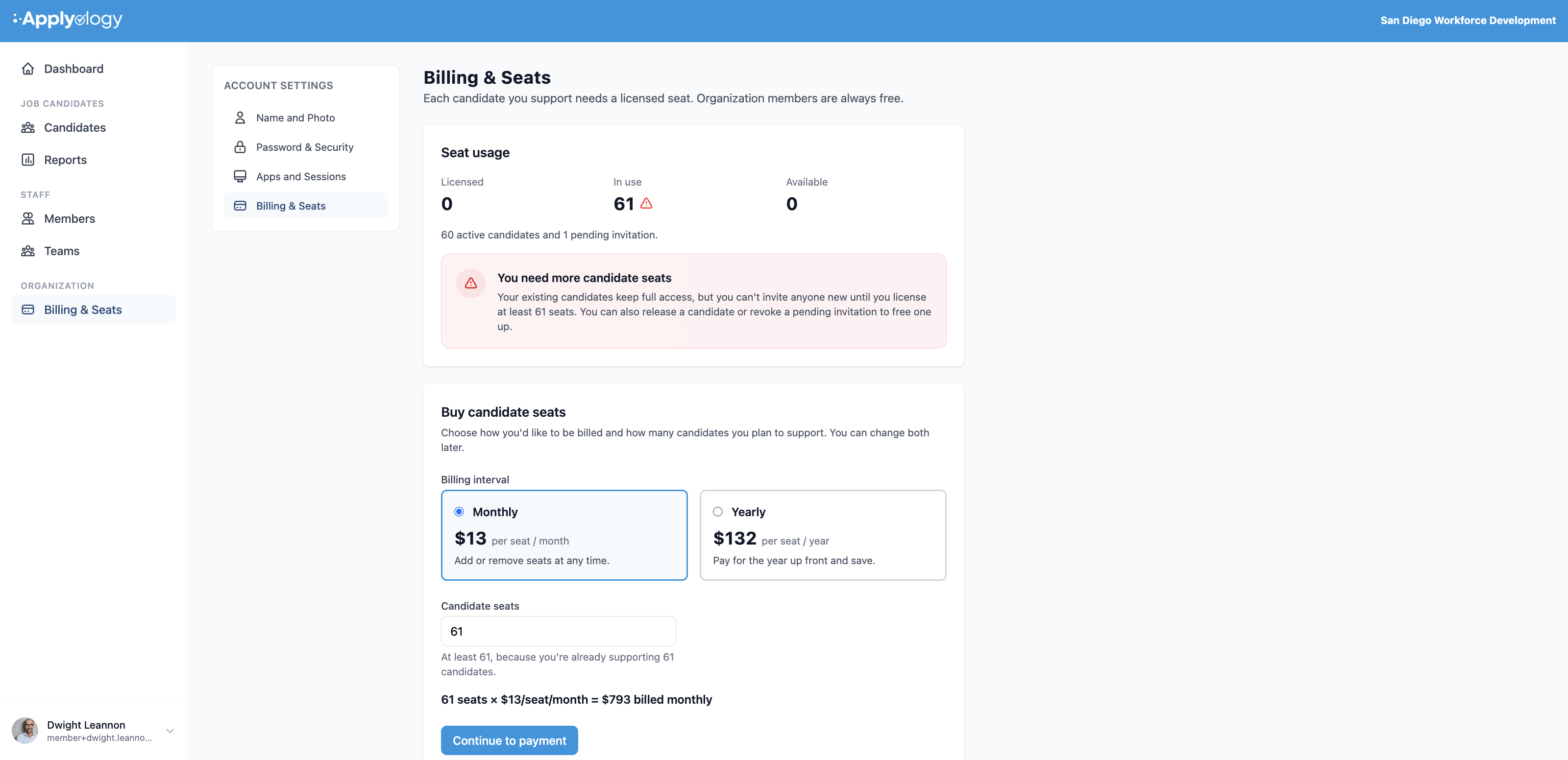
When In use exceeds Licensed, a notice explains that your existing candidates keep full access, but you can't invite anyone new until you license enough seats. You can also release a candidate or revoke a pending invitation to free a seat instead of buying more.
Buying candidate seats
If your organization hasn't purchased seats yet, the Buy candidate seats form walks you through it:
- Billing interval - choose Monthly (add or remove seats at any time) or Yearly (pay for the year up front and save).
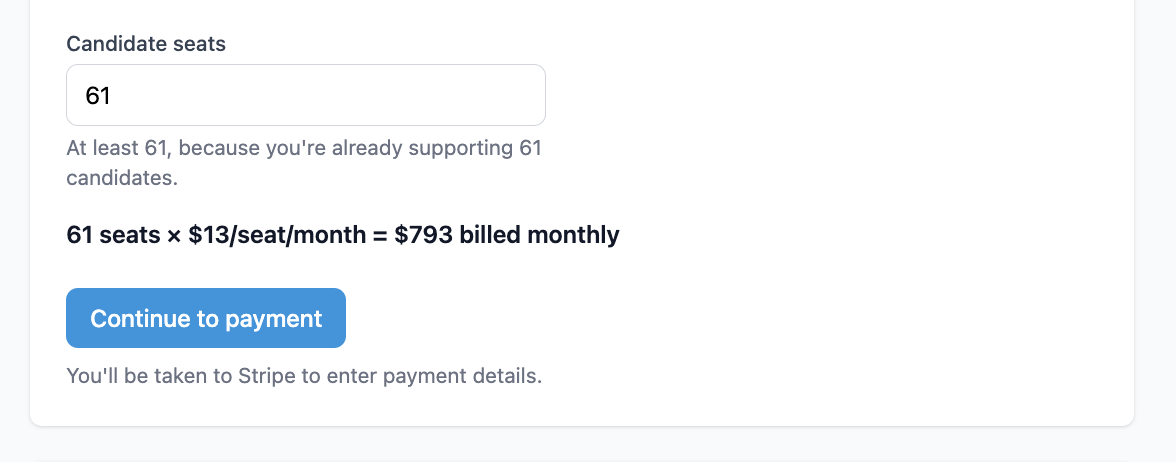
- Candidate seats - enter how many candidates you plan to support. Standard plans start at 3 seats. If you're already supporting more than 3 candidates, the minimum is your current number in use, since each candidate needs a seat.
- Review the running total (for example, 61 seats × $13/seat/month = $793 billed monthly).
- Select Continue to payment. You'll be taken to Stripe to enter payment details - Applyology never handles your card information directly.
Seat limits and bulk pricing
Standard credit card billing has a soft limit of 100 candidate seats. This is the default limit for purchases and seat changes in Billing & Seats, not a hard cap on the size of your organization.
If you need more than 100 seats, select Contact us in the seat form. Applyology can either:
- Raise your organization's seat limit so you can continue paying by credit card, or
- Arrange bulk pricing for an annual commitment of 100 or more candidates, billed yearly by invoice.
Your organization may see a different minimum or maximum in the seat form if custom limits have already been arranged.
Stripe checkout
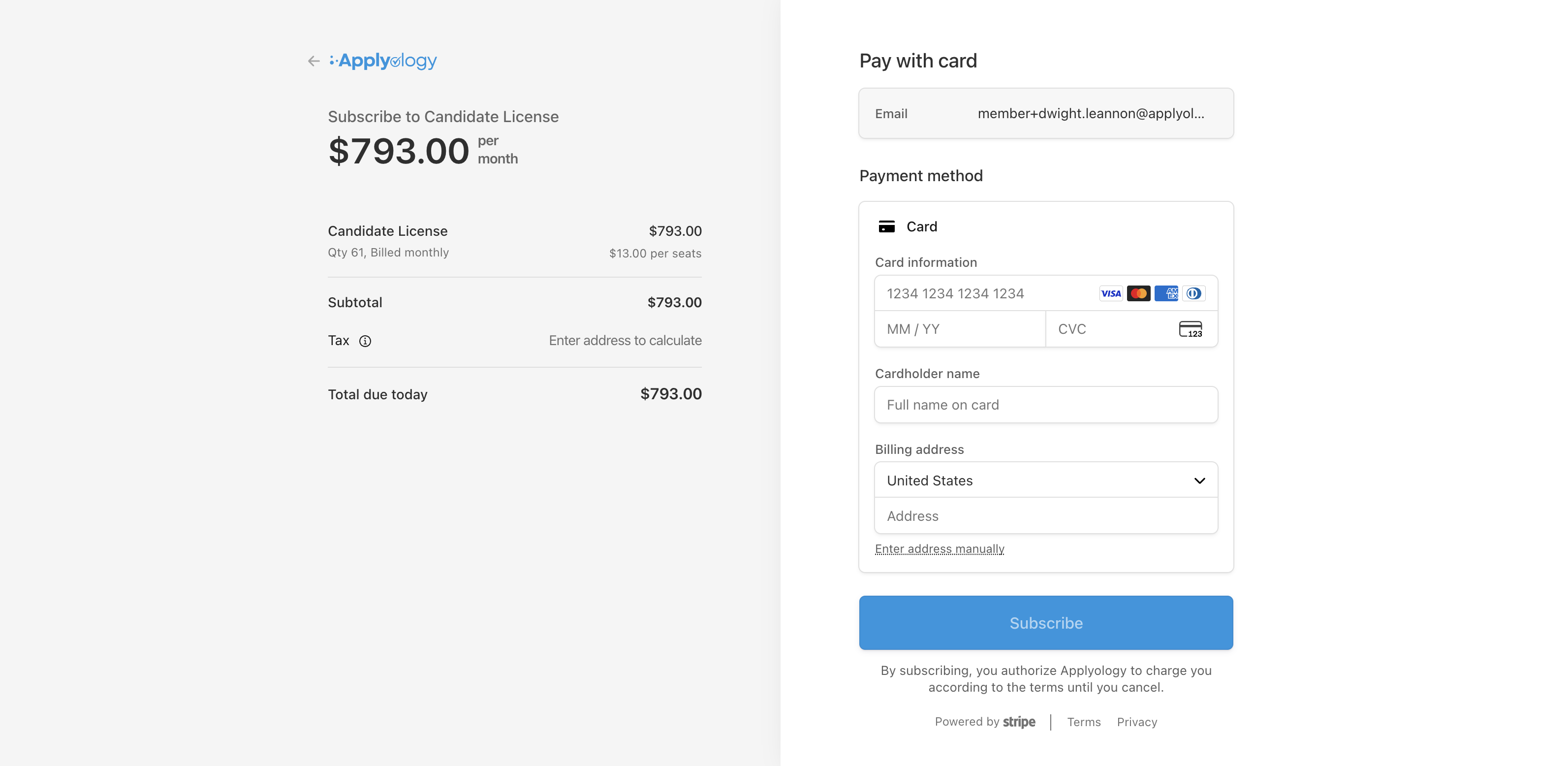
On Stripe's secure checkout page, confirm the subscription summary and enter your card and billing address, then choose Subscribe. Your seats are licensed as soon as the payment succeeds, and you're returned to Applyology.
Changing seats or billing later
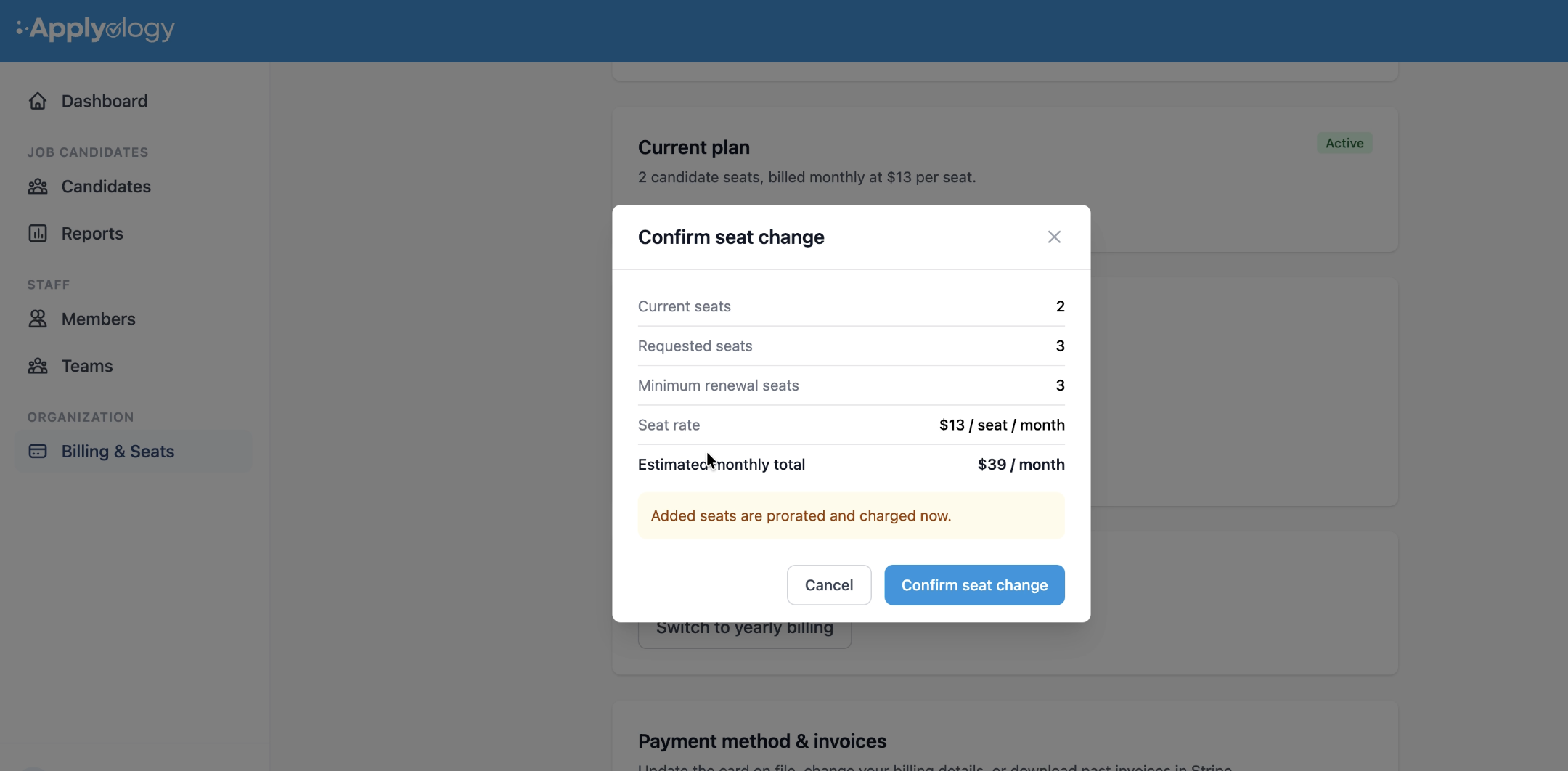
Once you have an active subscription, you don't go back through Stripe checkout to adjust seats. In the Change the number of seats card, enter the new count and submit - a Confirm seat change dialog summarizes the change before anything is charged:
- Current seats and Requested seats - what you have now versus what you're moving to.
- Minimum renewal seats - the fewest seats you can renew with, based on candidates currently using a seat.
- Seat rate and Estimated total - your per-seat price and the new recurring amount.
When you're adding seats, the dialog notes that added seats are prorated and charged now - the increase is billed immediately to the card on file, so the new seats are available right away. Reducing seats takes effect at your next renewal, so you keep what you're paying for until then. Select Confirm seat change to apply it.
You can also switch between monthly and yearly billing from the same page.
Managing payment methods and invoices
To update your card, billing details, or download past invoices, use Manage billing in Stripe from the Billing & Seats page. This opens Applyology's Stripe billing portal, where you can:
- Add or update a payment method.
- Update billing information (name and email on the account).
- View and download your invoice history.
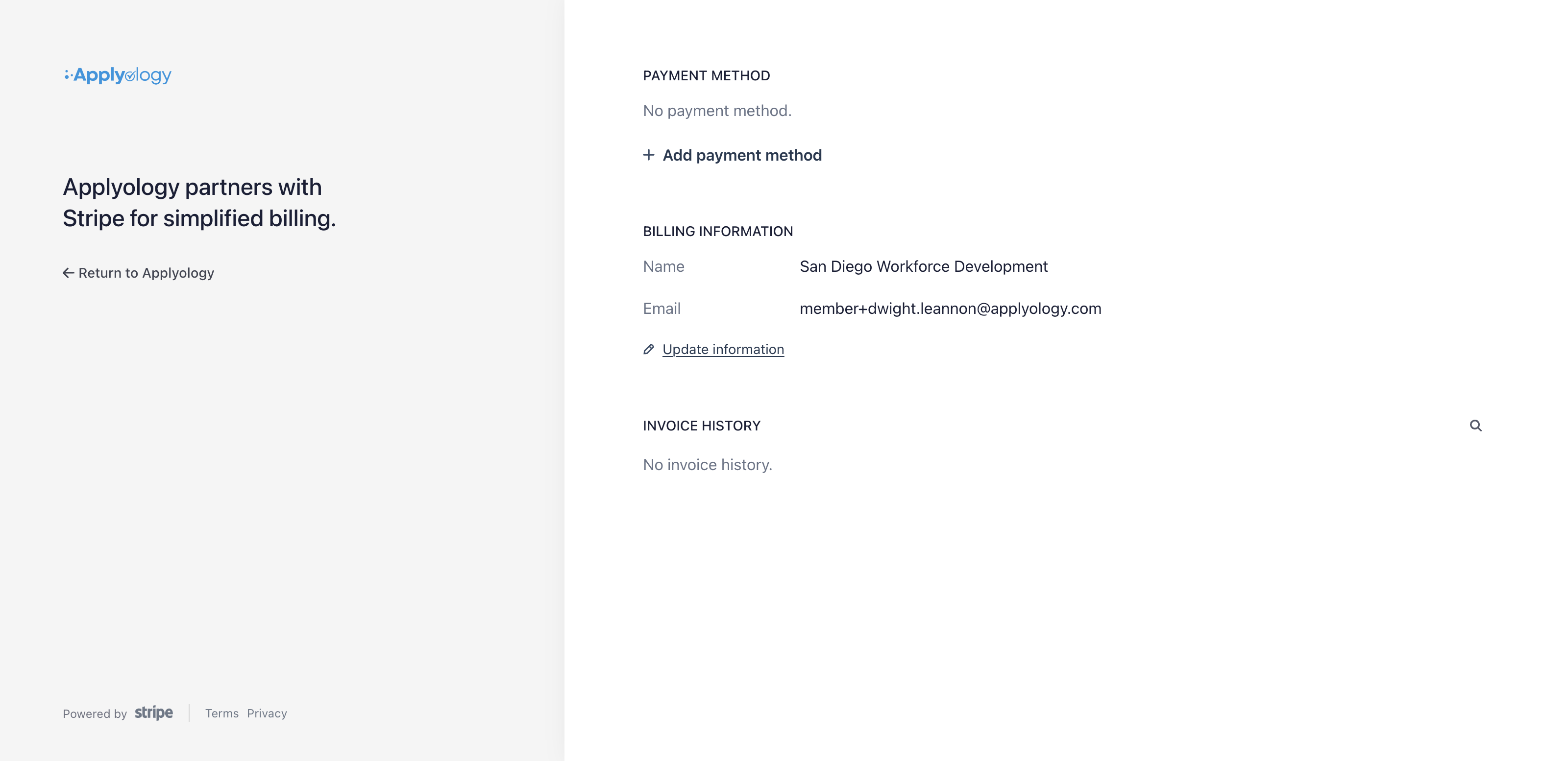
Select Return to Applyology when you're done to come back to the dashboard.
Seat alerts around the app
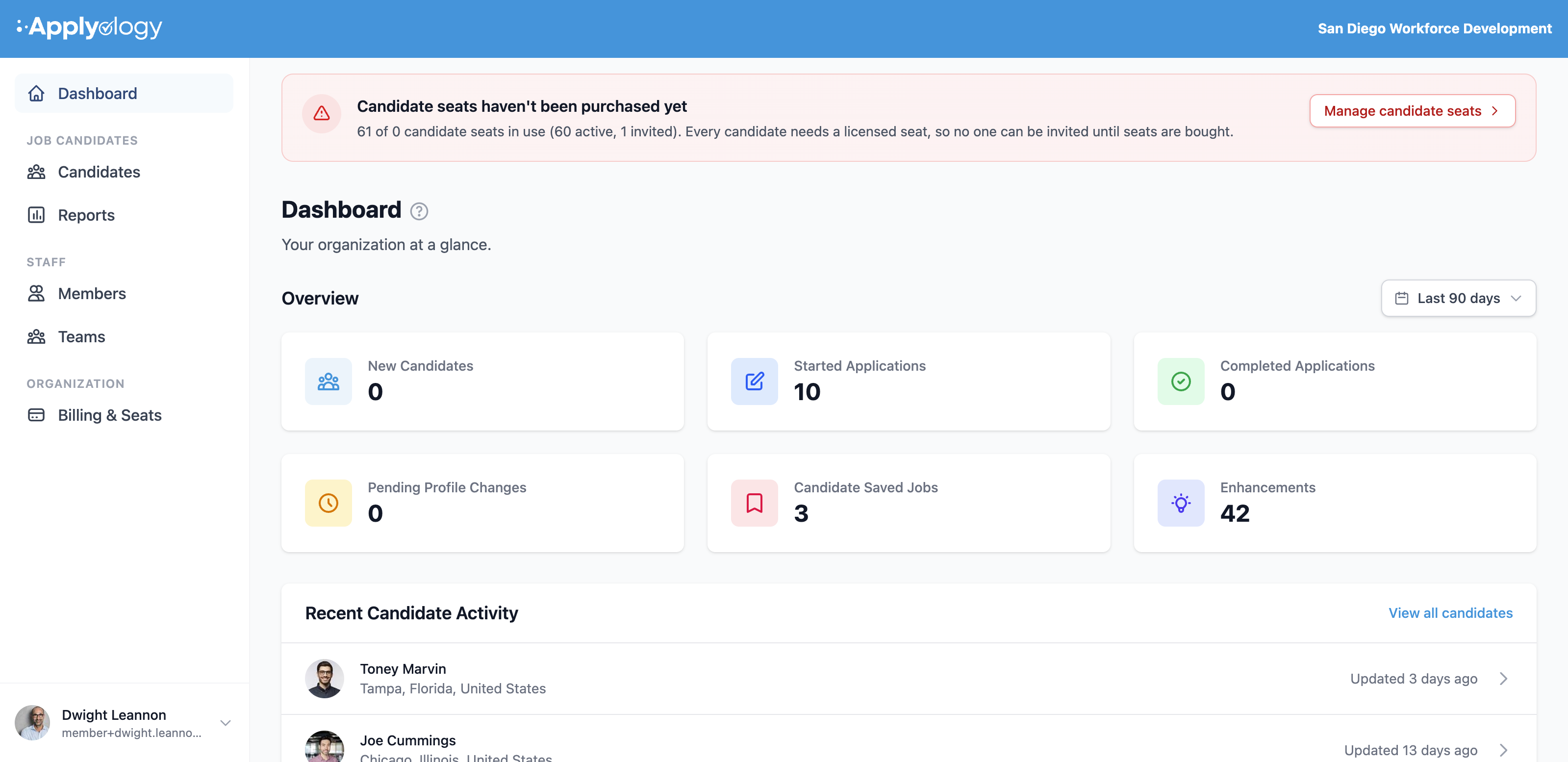
So billing issues never go unnoticed, a banner appears across the organization dashboard - including the Candidates and Invitations pages - whenever seats need attention:
- Candidate seats haven't been purchased yet - no seats are licensed, so no one can be invited.
- Over the licensed limit - more candidates than seats; new invitations are paused until you add seats or free some up.
- Every candidate seat is in use - you're at capacity; add seats to invite more candidates.
- Payment issues - a failed payment pauses new invitations until the payment method is updated.
Members who can manage billing get a Manage candidate seats button on the banner that links straight to this page; everyone else is told to ask an organization owner.