Profile Change Requests
A profile change request is how proposed edits to your profile are reviewed before anything is applied. You always have the final say - no change is made to your profile without your approval.
How change requests are created
There are two ways a change request can be created:
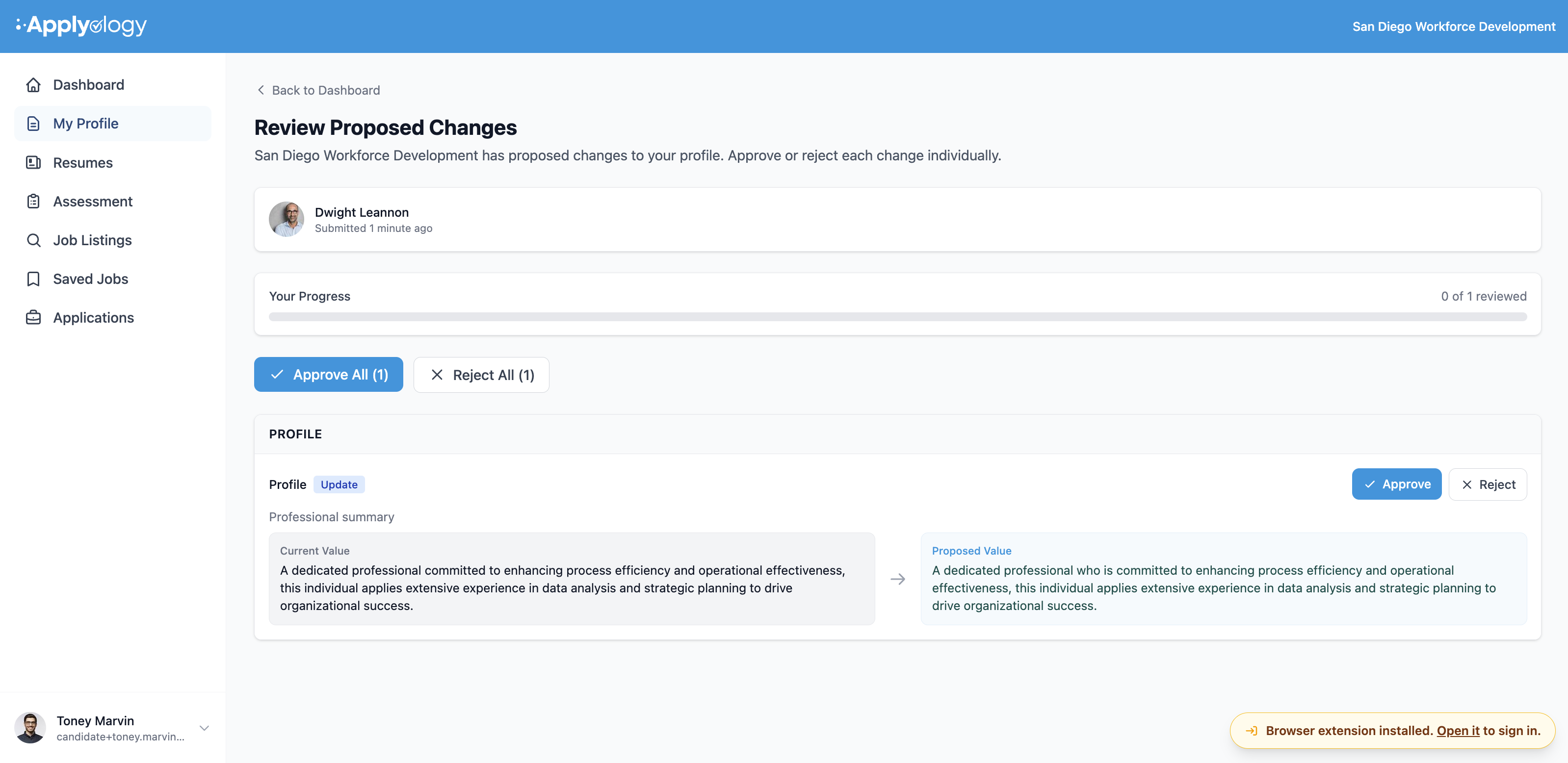
- By your organization - a team member proposes edits to your profile manually or by uploading a resume on your behalf. You'll see who submitted it and when.
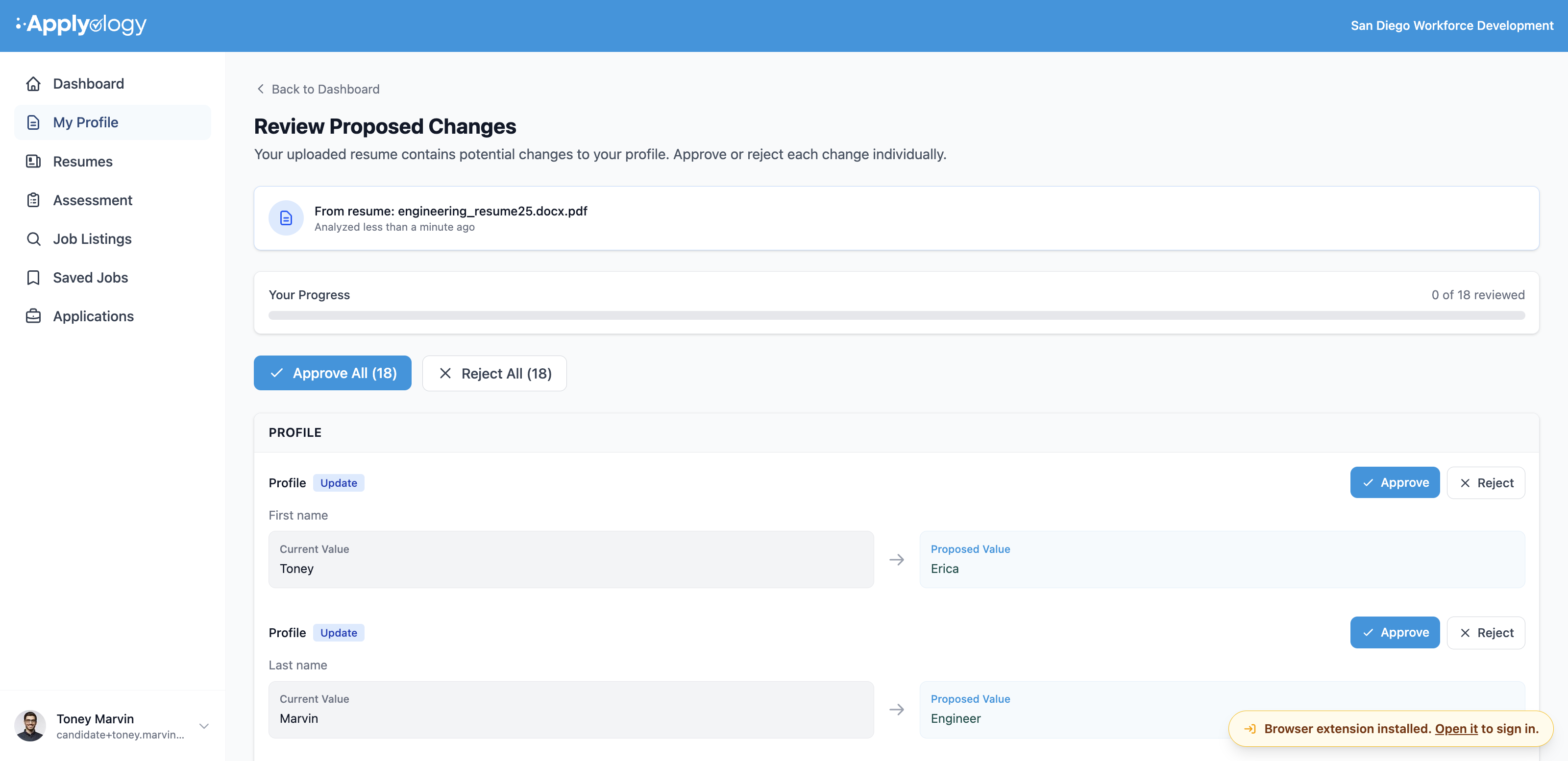
- By uploading a resume yourself - when you upload a resume from your own profile, the extracted data is presented as a change request for you to review before anything is applied.
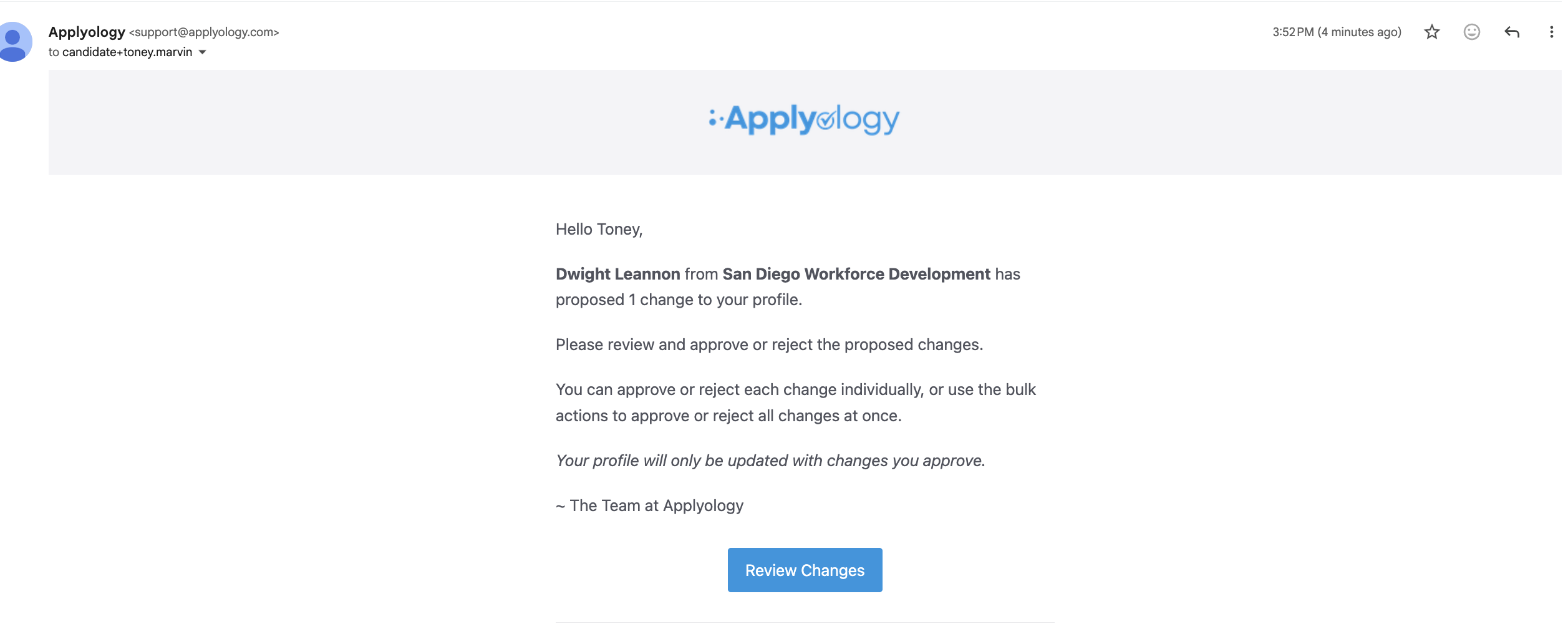
When your organization proposes changes, Applyology emails you a heads-up with a Review Changes button - "Your profile will only be updated with changes you approve."
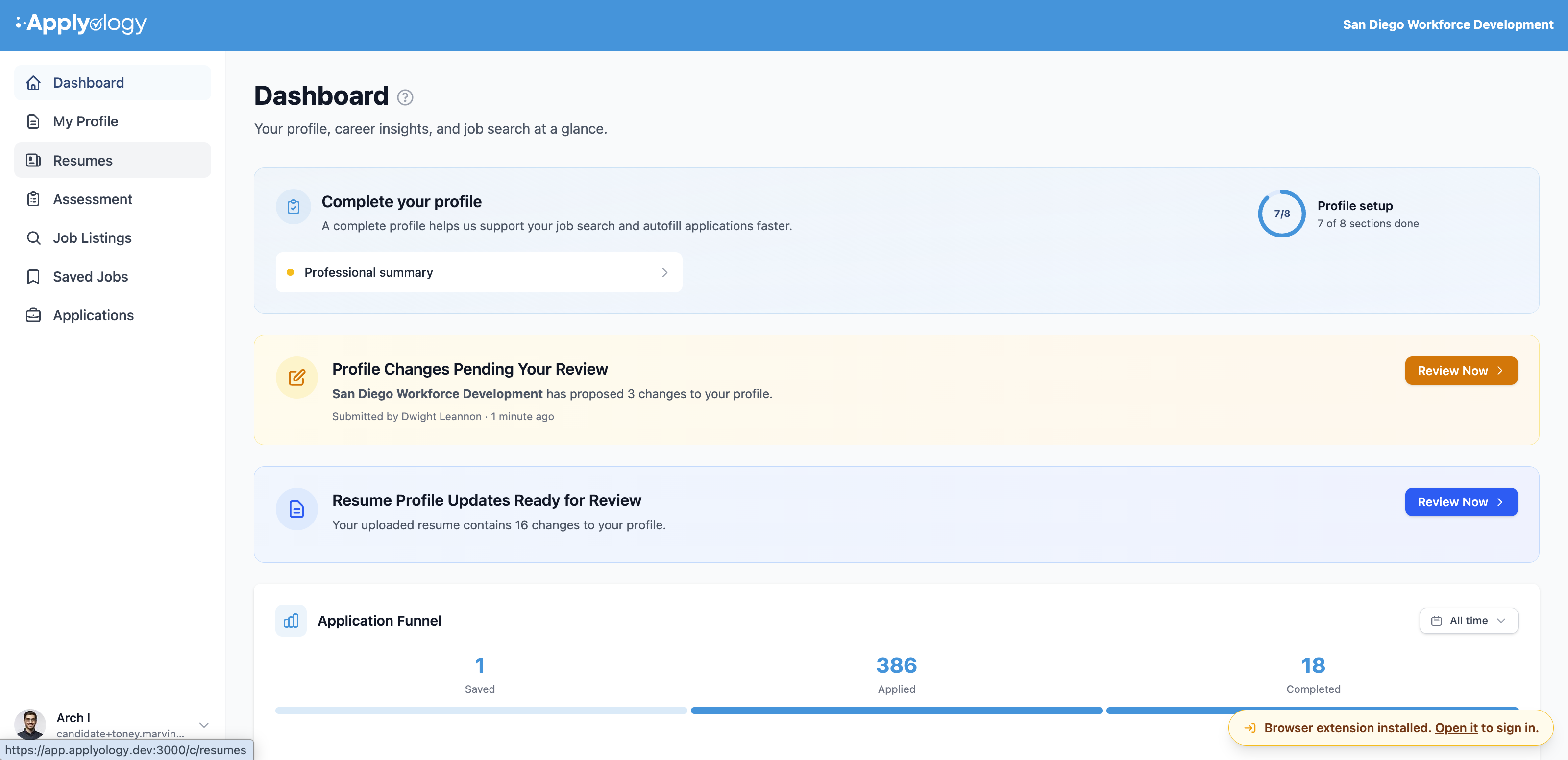
You'll also see a notification on your Dashboard (shown above): a Profile Changes Pending Your Review banner for organization proposals, and a Resume Profile Updates Ready for Review banner for changes from a resume you uploaded. Each has a Review Now link.
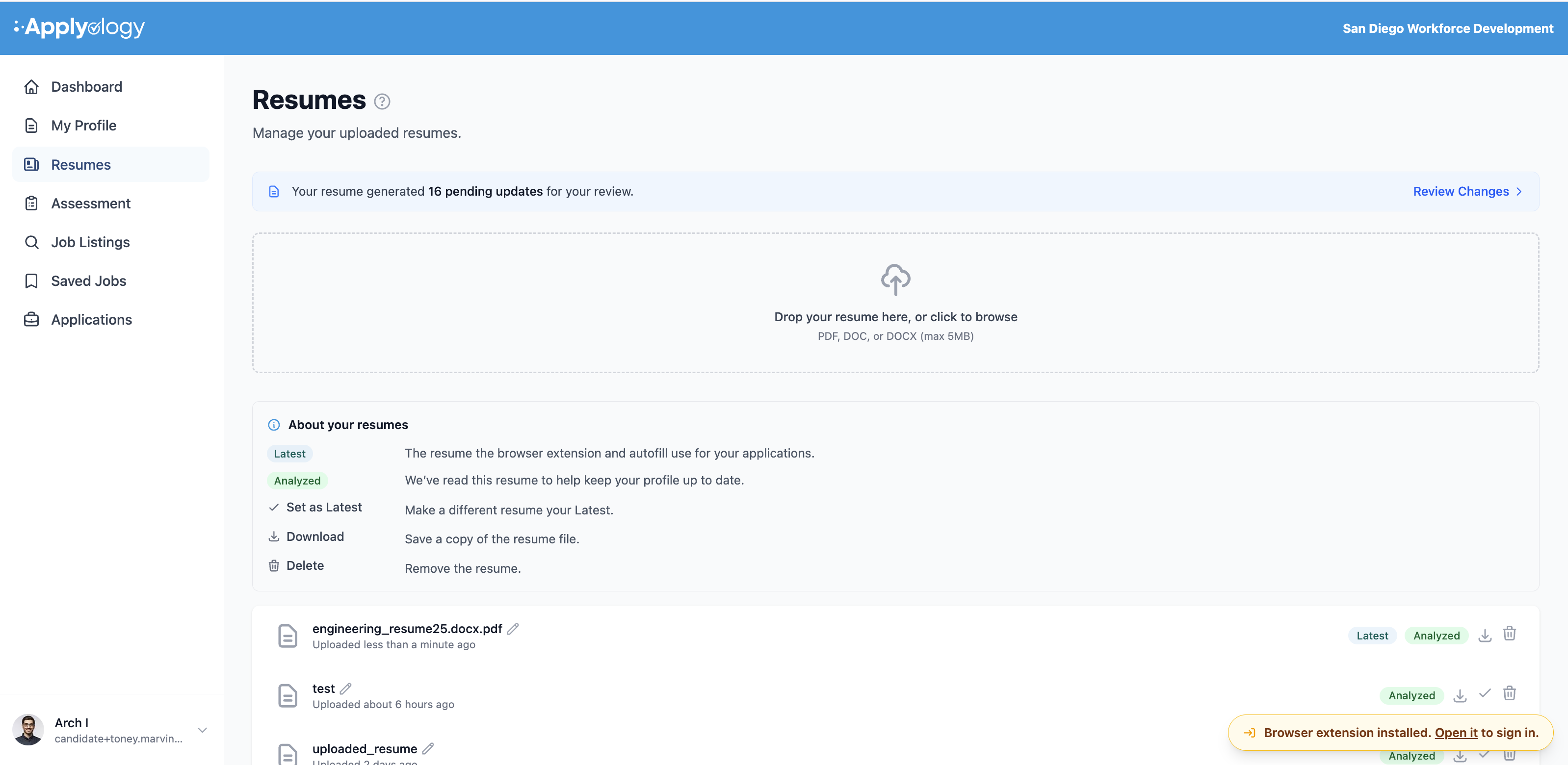
Resume-generated updates also appear as a banner on the Resumes page: "Your resume generated N pending updates for your review," with a Review Changes link.
Reviewing changes
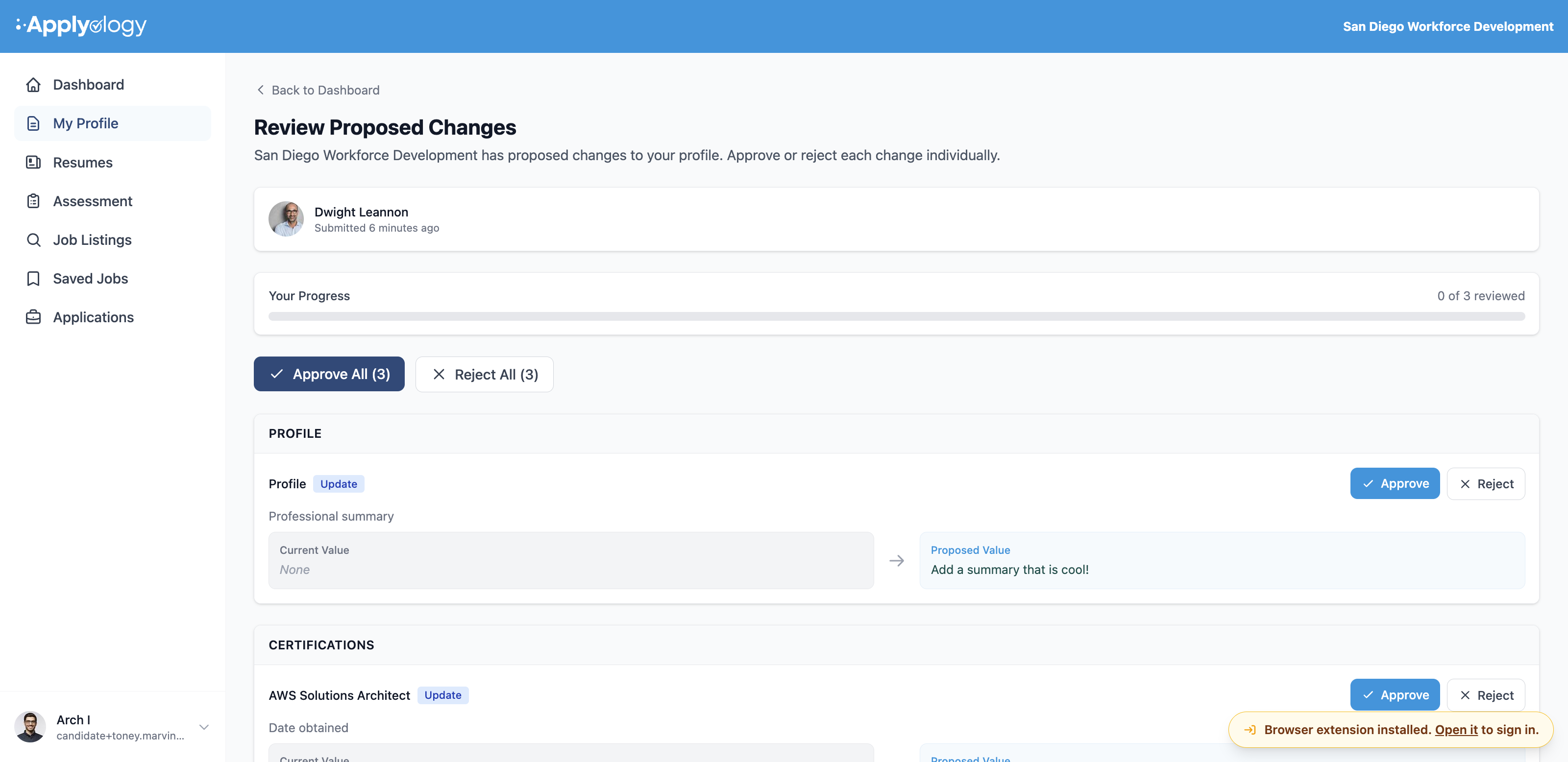
Open the request to review each proposed change. A submitter card shows where the request came from (your organization, or a resume you uploaded), and a Your Progress bar tracks how many changes you've decided on. For each change you see the Current Value next to the Proposed Value, and you can:
- Approve - the change is applied to your profile
- Reject - the change is discarded
You can also use Approve All or Reject All to decide on every pending change at once.
Changes from a resume work the same way, listed field by field (for example, First name or Last name) with the current and proposed values side by side.
Completing a review
Once you've decided on every change in the request, any approved changes are already applied to your profile. Rejected changes are discarded, and your organization's proposed values never go live unless you approve them. You can then return to your dashboard.