Resumes
The Resumes page lets you "Manage your uploaded resumes." Upload an existing resume and Applyology extracts your information automatically to help build your profile.
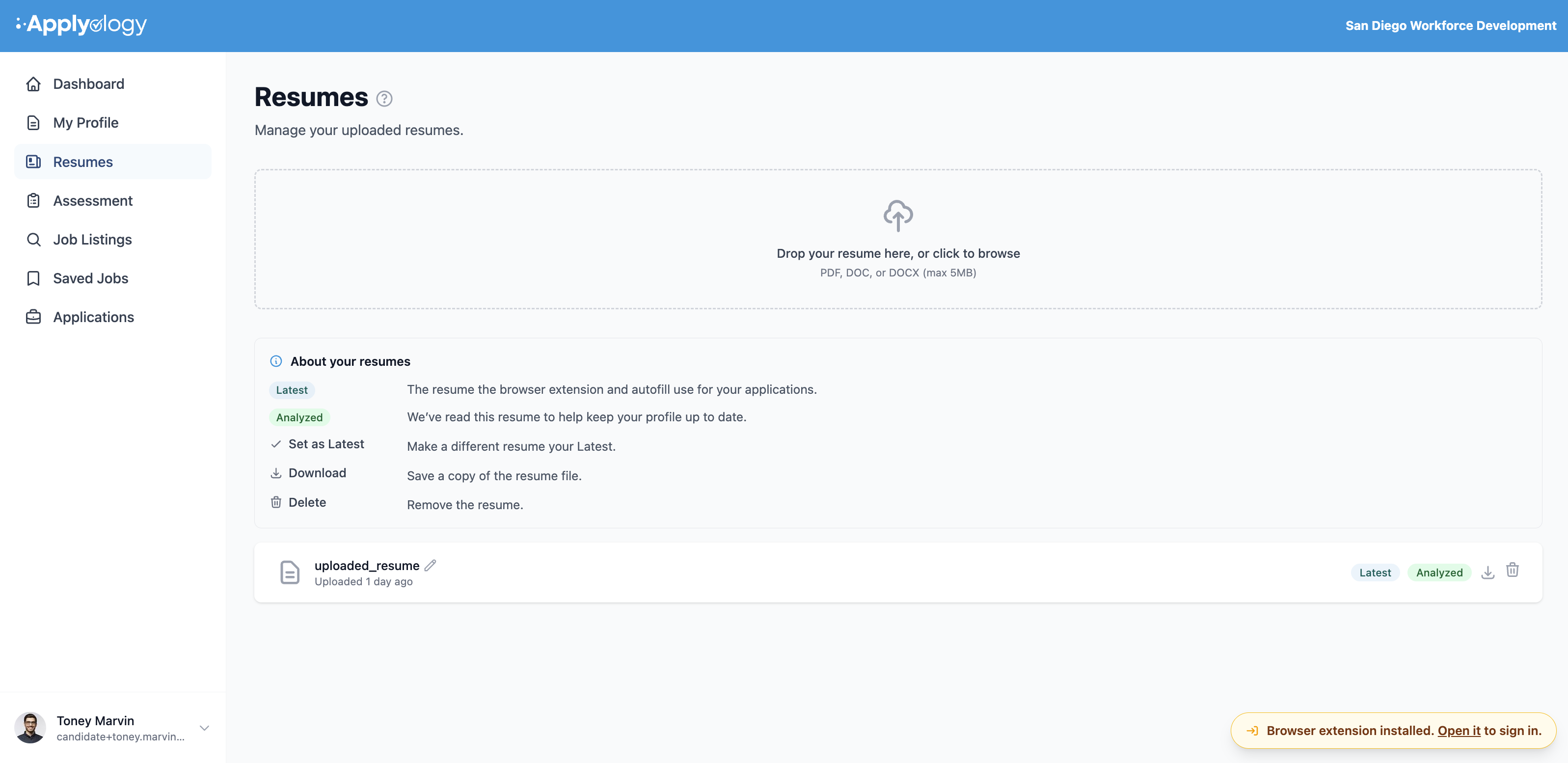
Upload a resume
Drop a file on the uploader - "Drop your resume here, or click to browse" - or click to pick one. Accepted formats are PDF, DOC, or DOCX (max 5MB). While it's read, the resume shows a Processing… state.
After upload, Applyology analyzes the resume and turns what it finds into suggested profile changes for you to review. You'll see a prompt that your resume generated pending updates, with a Review Changes link. Nothing is applied to your profile until you approve it - see Profile Change Requests.
Each resume shows a status badge: Analyzing…, Analyzed, or Analysis Failed.
Manage your resumes
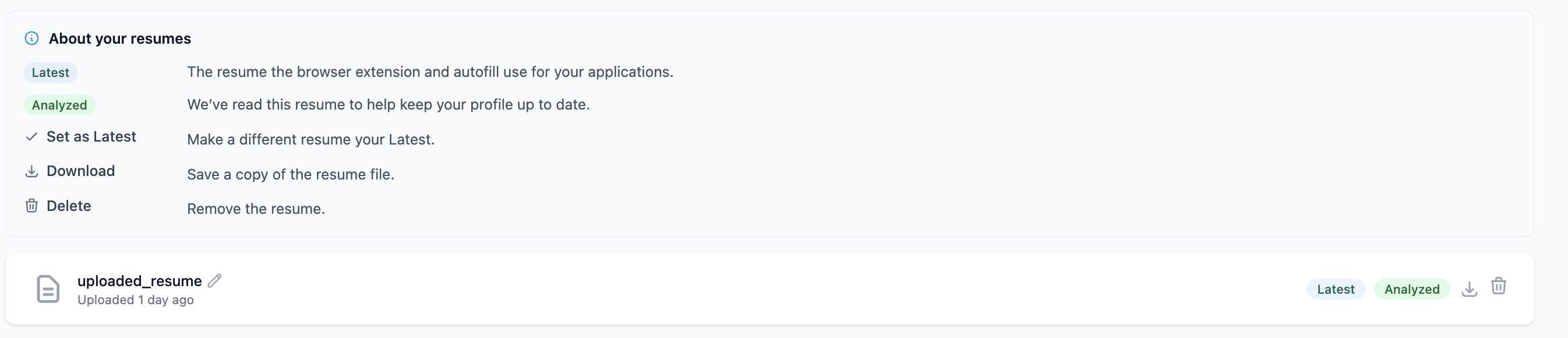
For each uploaded resume you can:
- Rename it inline (pencil icon → Save / Cancel)
- Download the original file
- Set as latest - the current one is marked with a Latest badge, and it's the resume offered for any upload fields when you apply
- Delete it (you'll be asked to confirm)
If you haven't uploaded anything yet, you'll see No resumes uploaded yet with a prompt to upload your first one.