My Profile
My Profile - "Manage your professional profile information." - is where you view and edit your master profile, the single source of truth Applyology uses to match you to jobs and autofill applications. The page opens on a grid of cards, one per section, each showing a preview and linking to that section to edit it. Setting it up for the first time? See Create Your Profile for the guided onboarding flow.
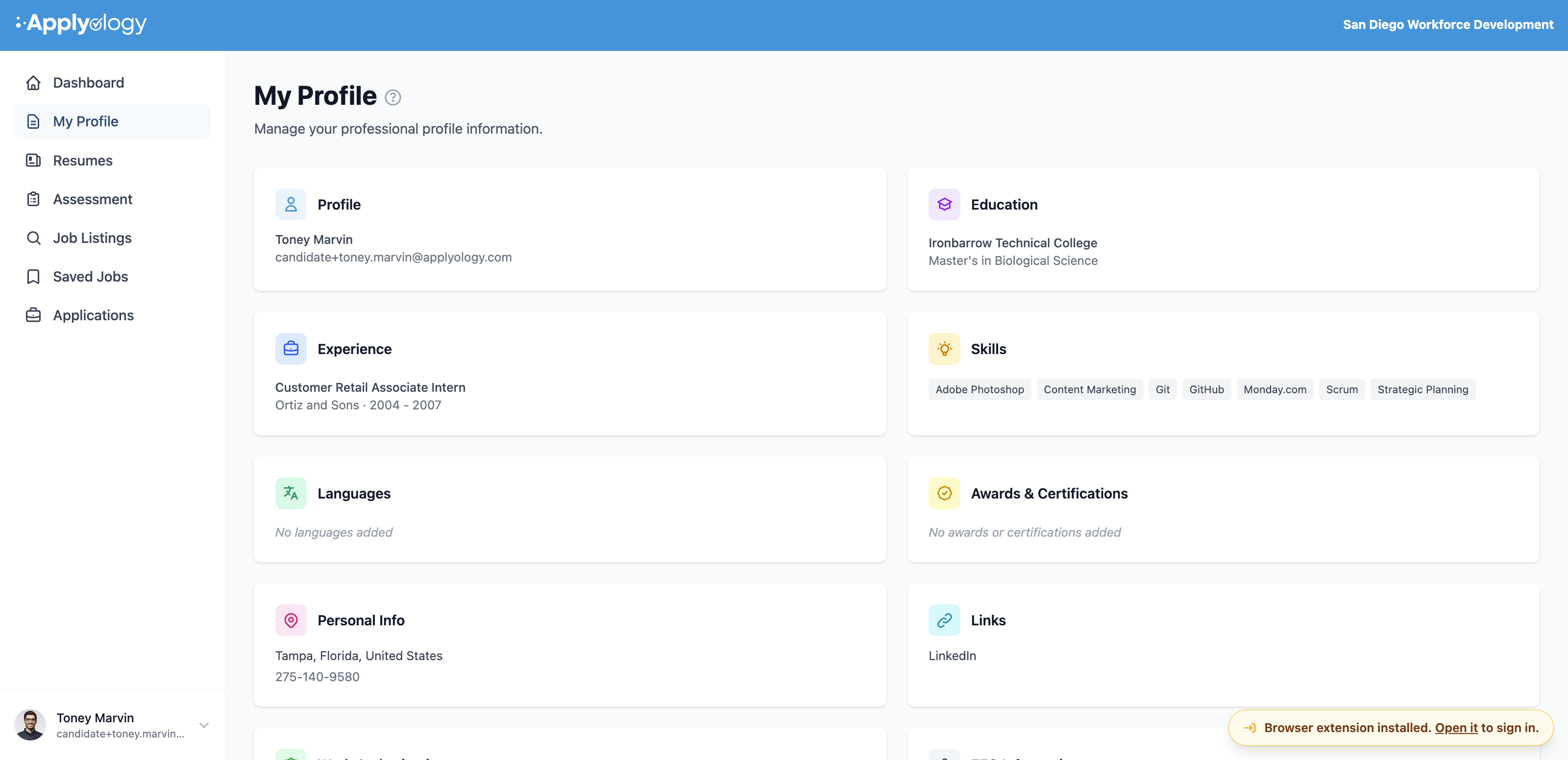
Profile sections
Your profile is split into sections, each on its own page. A Profile Sections sidebar (a scrollable tab bar on smaller screens) lets you jump between them, and each page has its own Save Changes button:
- Profile - your name and basic information
- Personal Information - address, phone number, and other personal details
- Work Experience - your work history
- Education - your education history
- Skills - your skills and preferences
- Languages - the languages you use and your reading, speaking, and writing proficiency
- Awards & Certifications - your awards and professional certifications
- Personal Links - LinkedIn, GitHub, portfolio, and other links
- Work Authorization - your work authorization status
- Equal Employment Opportunity - optional EEO information for job applications
- Professional Summary - your career goals and what you're looking for next
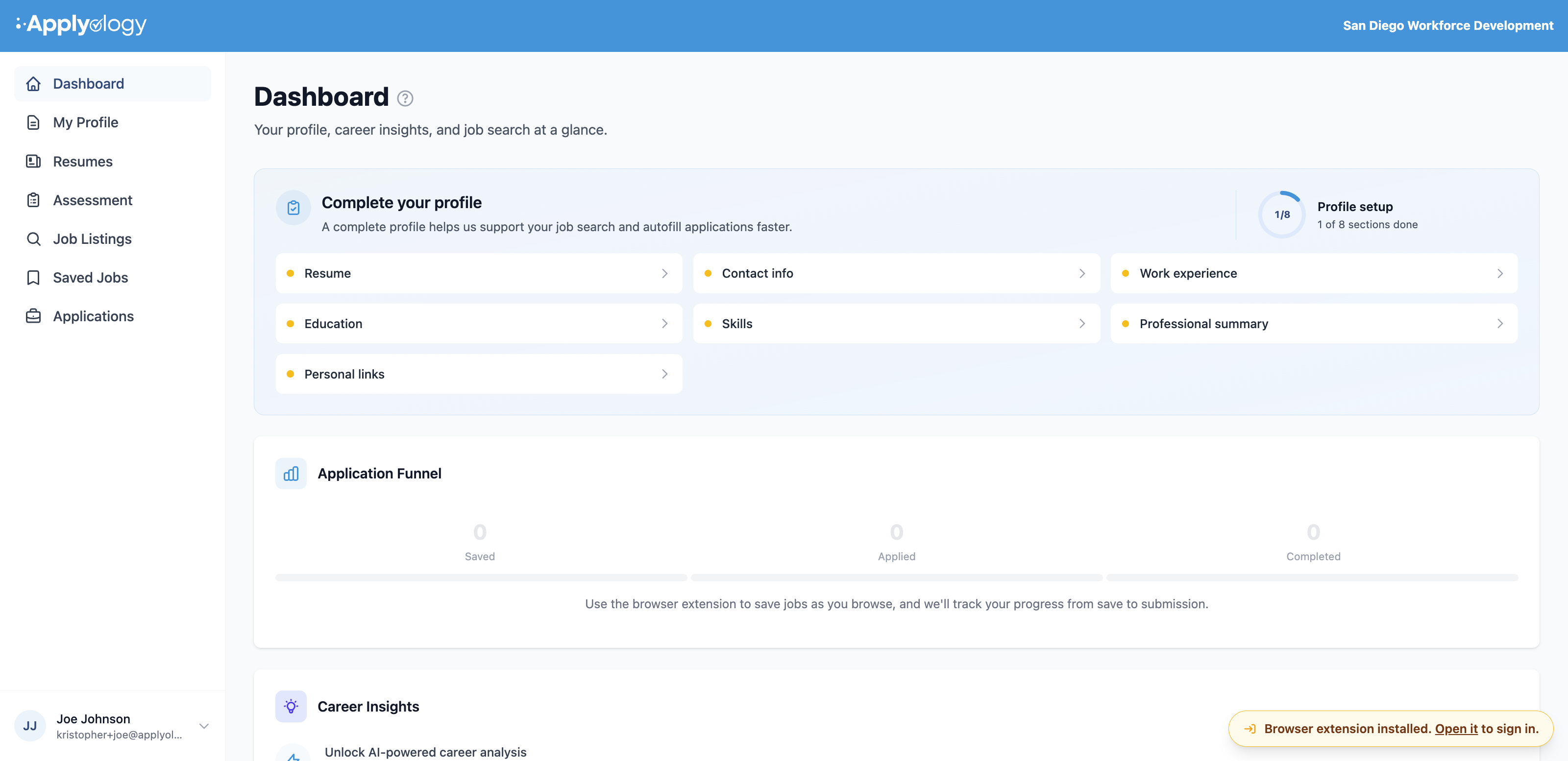
If you did not finish your profile
If you skipped sections during onboarding, you don't lose them - your Dashboard shows a Complete your profile card with your progress (for example, "1 of 8 sections done") and a quick link to each section that still needs information: Resume, Contact info, Work experience, Education, Skills, Professional summary, and Personal links. Fill these in whenever you like; the more complete your profile, the more fields Applyology can autofill on every application, so it's always worth adding more.
Add, edit, and remove entries
Sections that hold multiple entries - Work Experience, Education, Languages, and Awards & Certifications - have an Add button (for example Add Experience, Add Education, Add Language, Add Award, Add Certification) and a remove control on each entry. The remaining sections are single forms you edit and Save Changes.
Enhance your writing
Free-text fields - like your professional summary, work experience and education descriptions, skills, and awards - have an Enhance button. Click it and Applyology rewrites the text in your voice; you can keep, edit, or revert the result.
Where profile changes can come from
Besides editing directly, your profile can be updated from an uploaded resume or from your organization's proposal - both routed through your approval first. See Resumes and Profile Change Requests.