Job Listings
Job Listings is where you search for open roles and save the ones you're interested in. The roles you save land on your Saved Jobs page, and the browser extension reads them from there to help you apply.
Search Job Listings
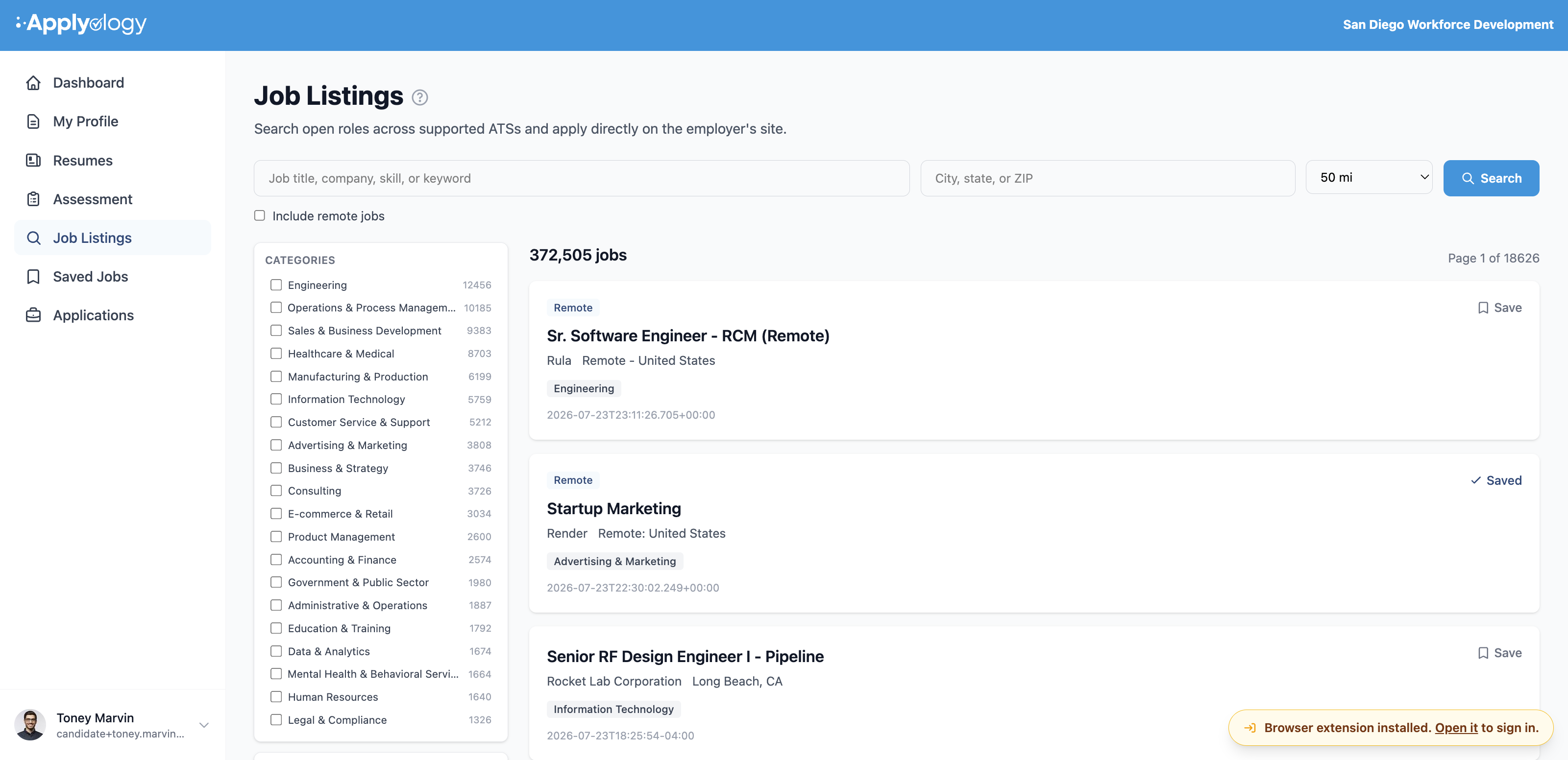
Open Job Listings from the dashboard sidebar. The page lets you "Search open roles across supported ATSs and apply directly on the employer's site."
- Keyword - search by job title, company, skill, or keyword.
- Location - enter a city, state, or ZIP, then choose a search radius. Location suggestions autocomplete as you type.
- Include remote jobs - check this to fold remote roles into the results even when you've set a location.
- Filters - narrow the list by Categories and other facets in the left sidebar. Active filters appear as chips above the results; click a chip's ✕ to remove it.
- Search runs the query; Clear resets everything.
The results header shows how many jobs matched (and, when set, what you searched for and where). Each result card shows the job title, employer, location, a Remote / Hybrid badge when applicable, up to three category tags, a short description snippet, and when it was posted.
If nothing matches, you'll see No jobs found - try a broader search or remove a filter.
Preview a job
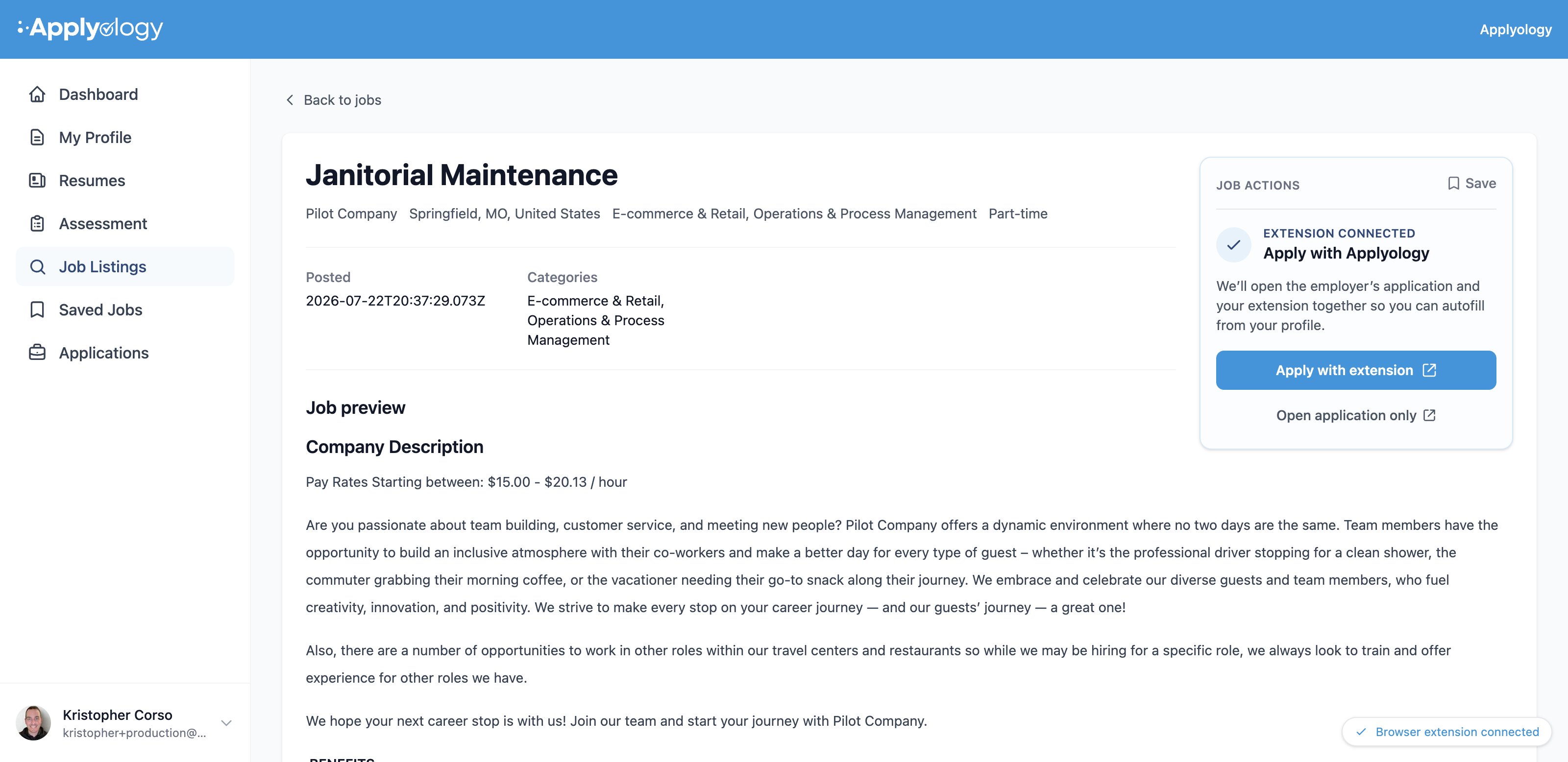
Click a job title to open its detail page. A Back to jobs link returns you to the results. The detail page shows the role's key facts (Posted, Categories, Workplace) and a Job preview with the full description, plus the Job actions card described below.
Save a job
On any listing - in the results list or on the job detail page - click Save. The button shows Saving… briefly, then becomes a Saved badge. The role is added to your Saved Jobs page.
If you've already saved a role, you'll see a note that it's already in your saved list.
Check your extension status
Once you're signed in, every page of your dashboard shows a status indicator in the bottom-right corner, so you know whether the browser extension is ready to autofill before you open an application. It reads Browser extension not installed (with an Install it link), Browser extension installed (with Open it to sign in), or Browser extension connected.

Apply with the extension
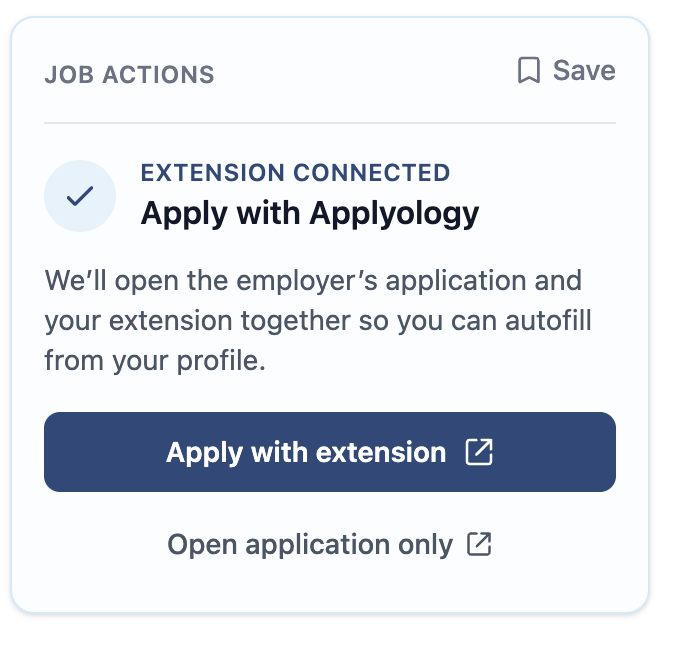
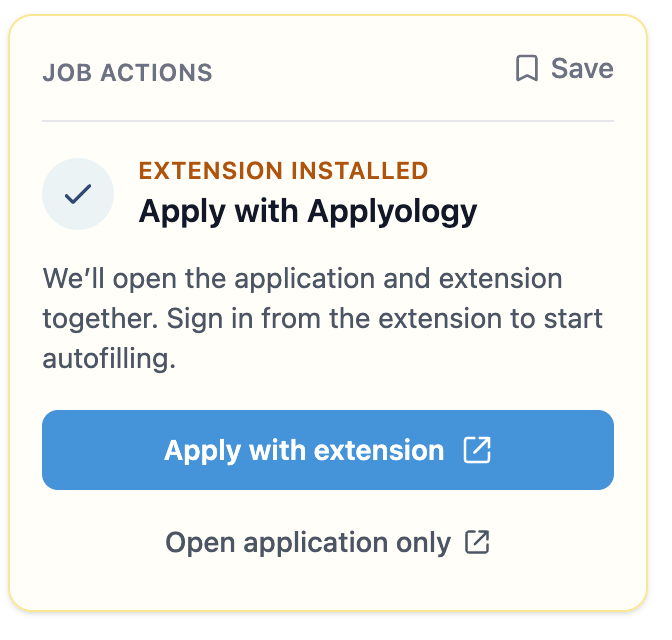
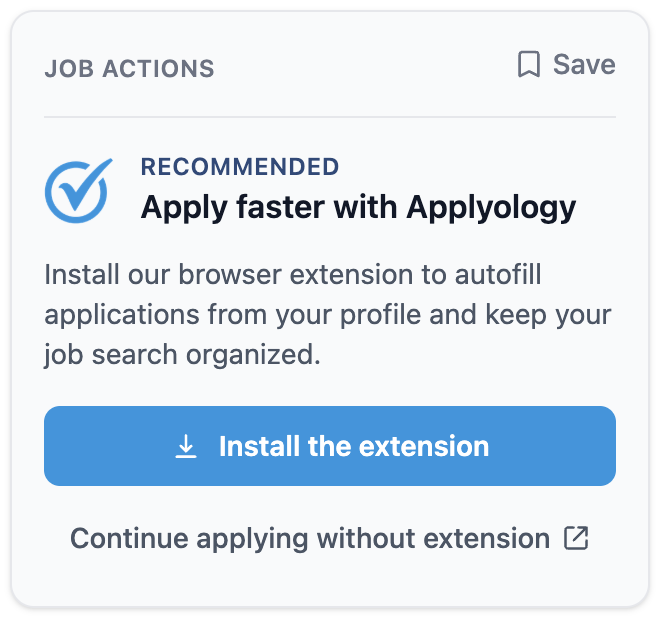
On a job's detail page, the Job actions card is your launch point for applying. It mirrors those same three states as the extension status, with the next step for that job:
- Extension not installed - the card recommends "Apply faster with Applyology" with an Install the extension button. You can still choose Continue applying without extension, which opens the employer's application page in a new tab.
- Extension installed but signed out - the card reads Apply with Applyology and prompts you to sign in from the extension to start autofilling.
- Extension connected - click Apply with extension and Applyology opens the employer's application page and your extension together, so you can autofill from your profile. Open application only opens the page without the extension.
When you click Apply with extension, switch to the extension panel on the newly opened tab and hit Start application to capture the form and autofill it. See Apply to Jobs for the full applying flow.
The Job actions card in each of its three states: