Supported ATS platforms
The extension supports five applicant tracking systems (ATSs): Greenhouse, Lever, Ashby, SmartRecruiters, and Workday. Together these five represent hundreds of thousands of the jobs in Applyology Job Listings - every role you find and save there runs on one of them, so the extension can take it from there: capture, autofill, and submit.
Each platform builds its application form a little differently. This page walks through what to expect on each one, so you know exactly what to click and when. For the step-by-step applying flow that's the same everywhere, see Apply to Jobs.
Single-page vs multi-page
The biggest difference between platforms is whether the application is all on one page or spread across several steps.
- Single-page - Greenhouse, Lever, and Ashby. The whole form is on one page. You click Start Application, then Autofill, review, and submit.
- Multi-page - SmartRecruiters and Workday. You move through several steps on the employer's site. Each time you advance to a new step, the extension asks you to capture that page before it can fill it.
On a multi-page application, after you click the site's Next (or Save and Continue) button, the panel shows a prompt that you're on a new page with a capture button. Click it to pull in that step's questions and autofill them. Captured steps appear as tabs at the top of the panel so you can move between them.
As you go, the extension works out which fields are required and which are optional, fills what it can from your profile, and tracks your progress - so you always know what's left before you submit.
On every platform, the extension fills the form but never submits it for you. You always review the page and click the employer's Submit button yourself - and you handle any logins, CAPTCHAs, or verification steps.
Greenhouse
Greenhouse is a single-page application, but you'll run into it in at least three different layouts depending on the employer. The extension handles all three the same way - reveal the form, click Start Application, then Autofill, and your resume uploads automatically.
1. A standard Greenhouse page. The posting and the form are on the same page. Click Apply on the posting to jump to the form if it isn't already showing.
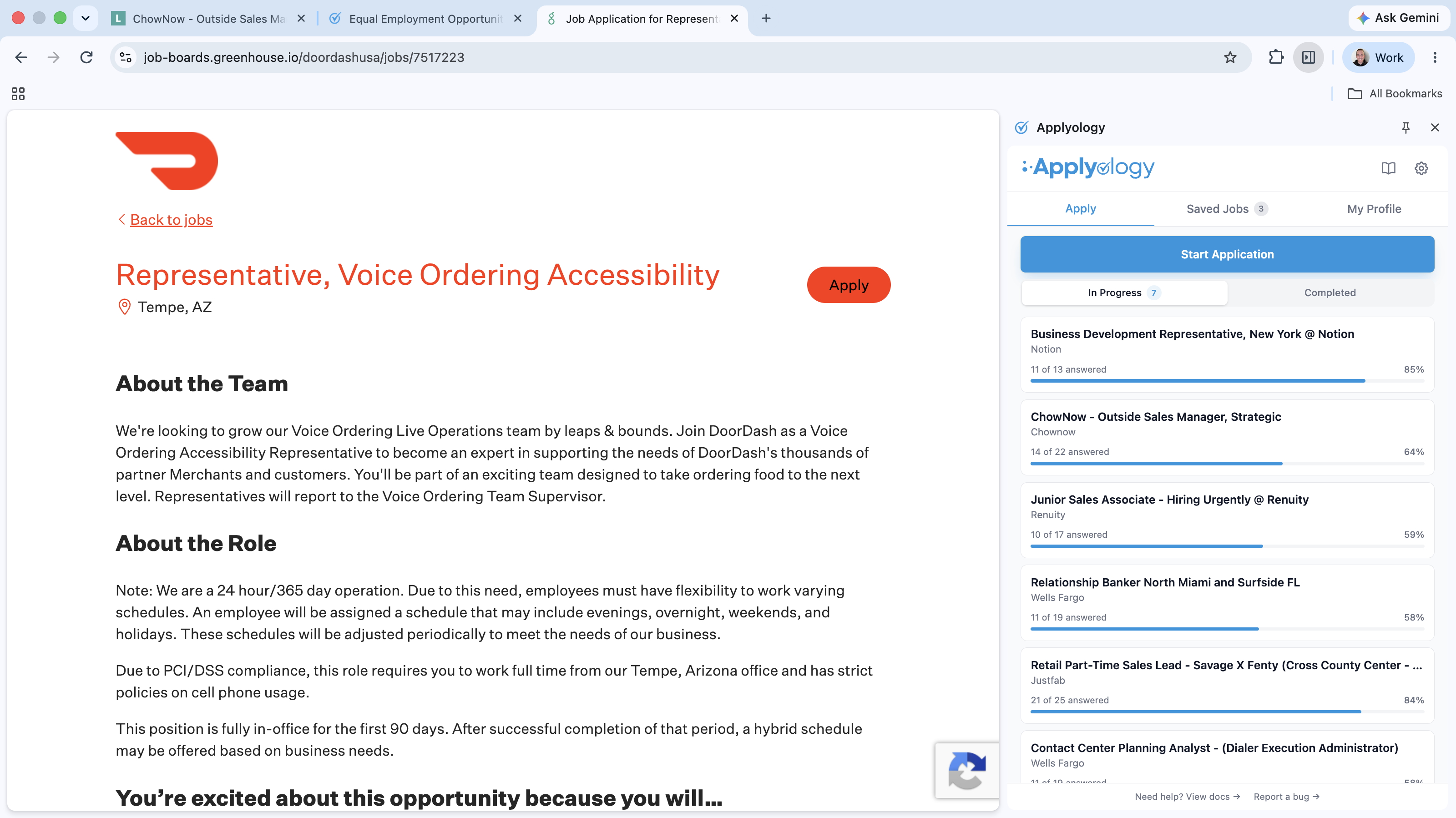
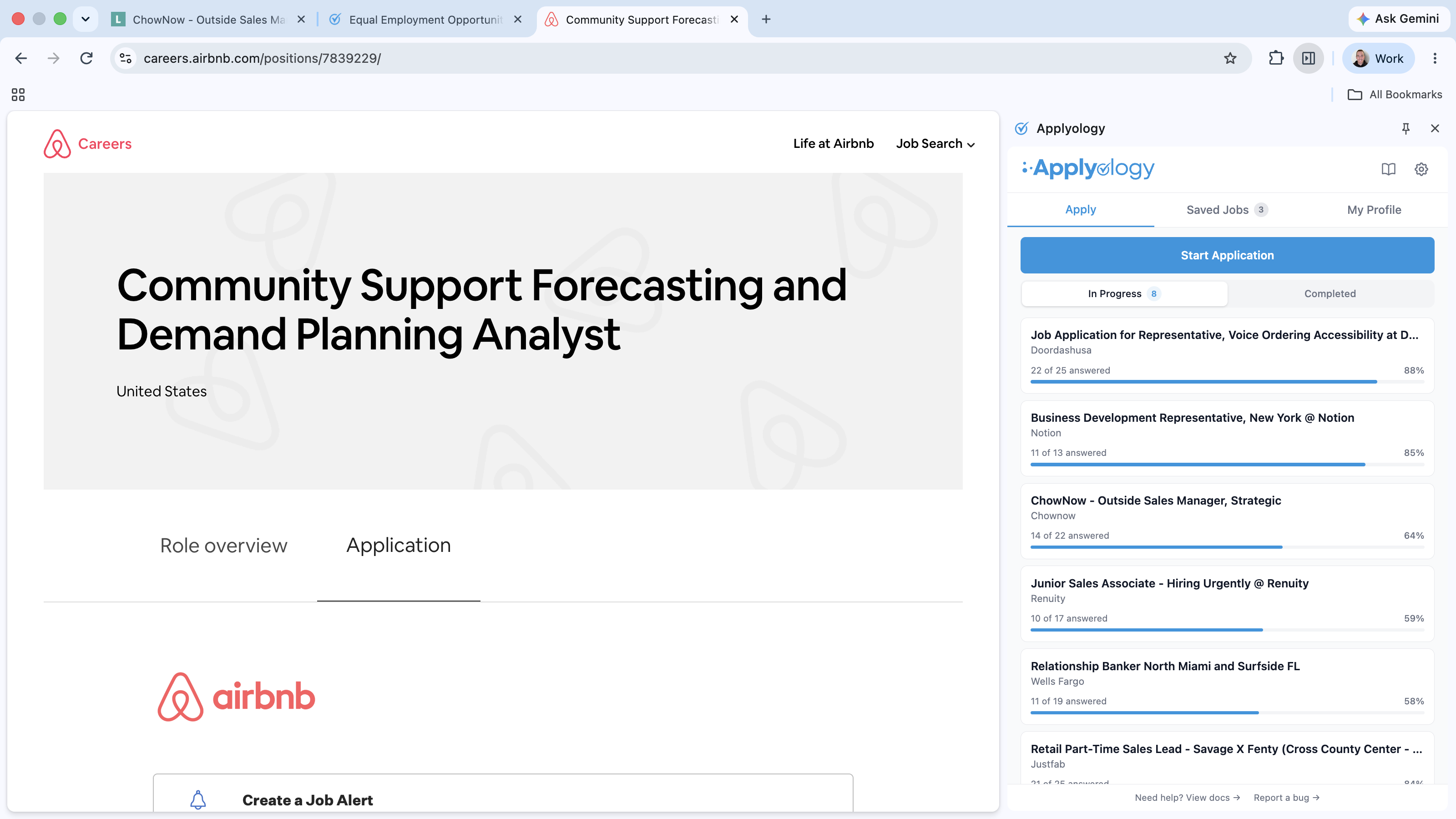
2. A company career site with an Application tab. Some employers host the posting on their own site and put the Greenhouse form behind an Application tab - the Overview / Role overview tab has no form. Click Application to reveal the form before starting.
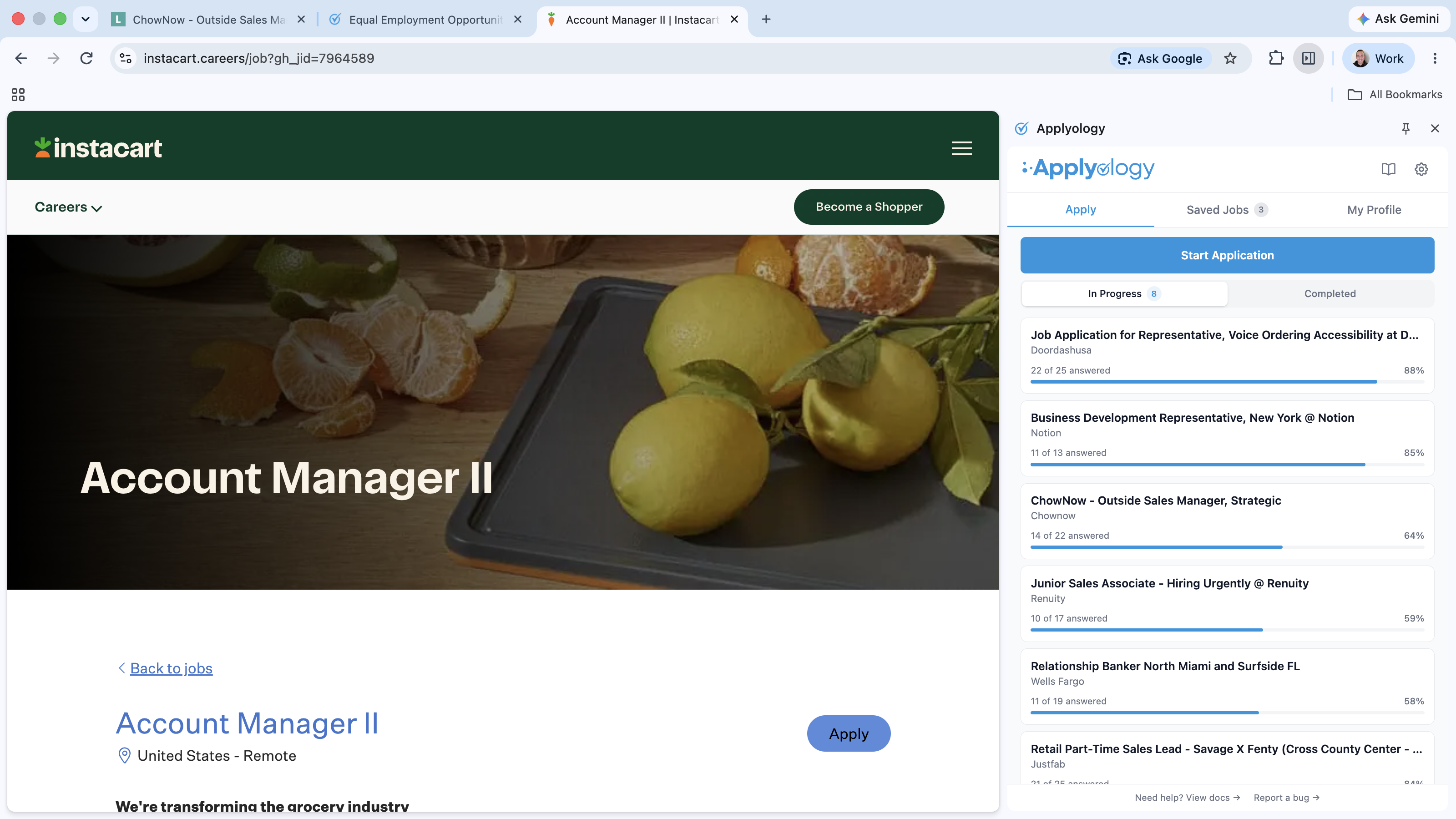
3. A company career site with the form embedded directly. Other employers embed the Greenhouse form right on their careers page. Click the company's Apply button if the form isn't already showing.
How to apply
Reveal the form (see the three layouts above), then click Start Application and Autofill - the extension fills from your profile and your resume uploads automatically. Anything it couldn't fill is flagged in the panel so you can complete it before you submit.
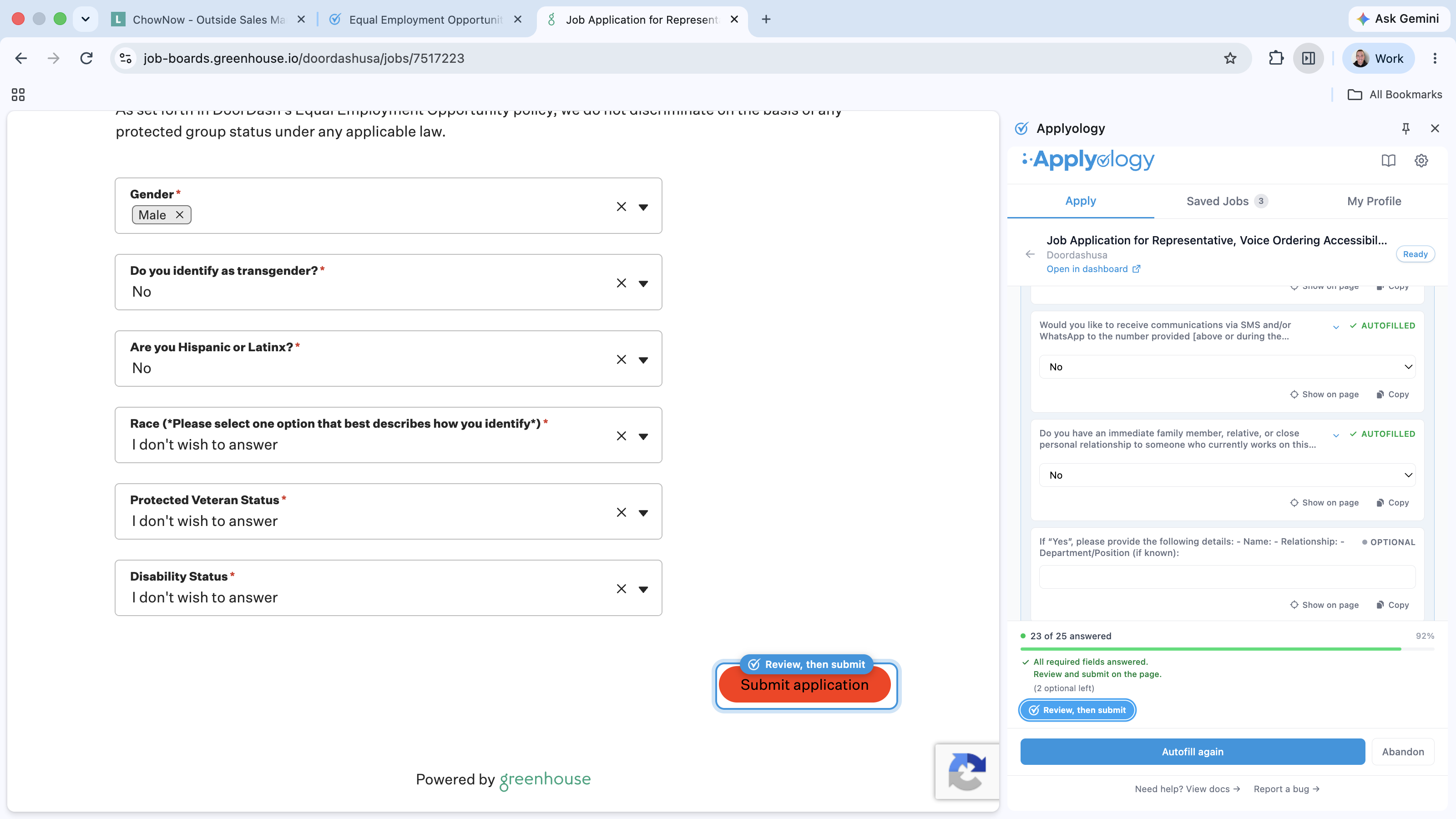
However you reached the form, the finish is the same: when every required field is answered, a Review, then submit ring appears around Greenhouse's Submit application button. Review the page and submit it yourself.
Lever
Lever opens the application on its own page - it's usually a single page.
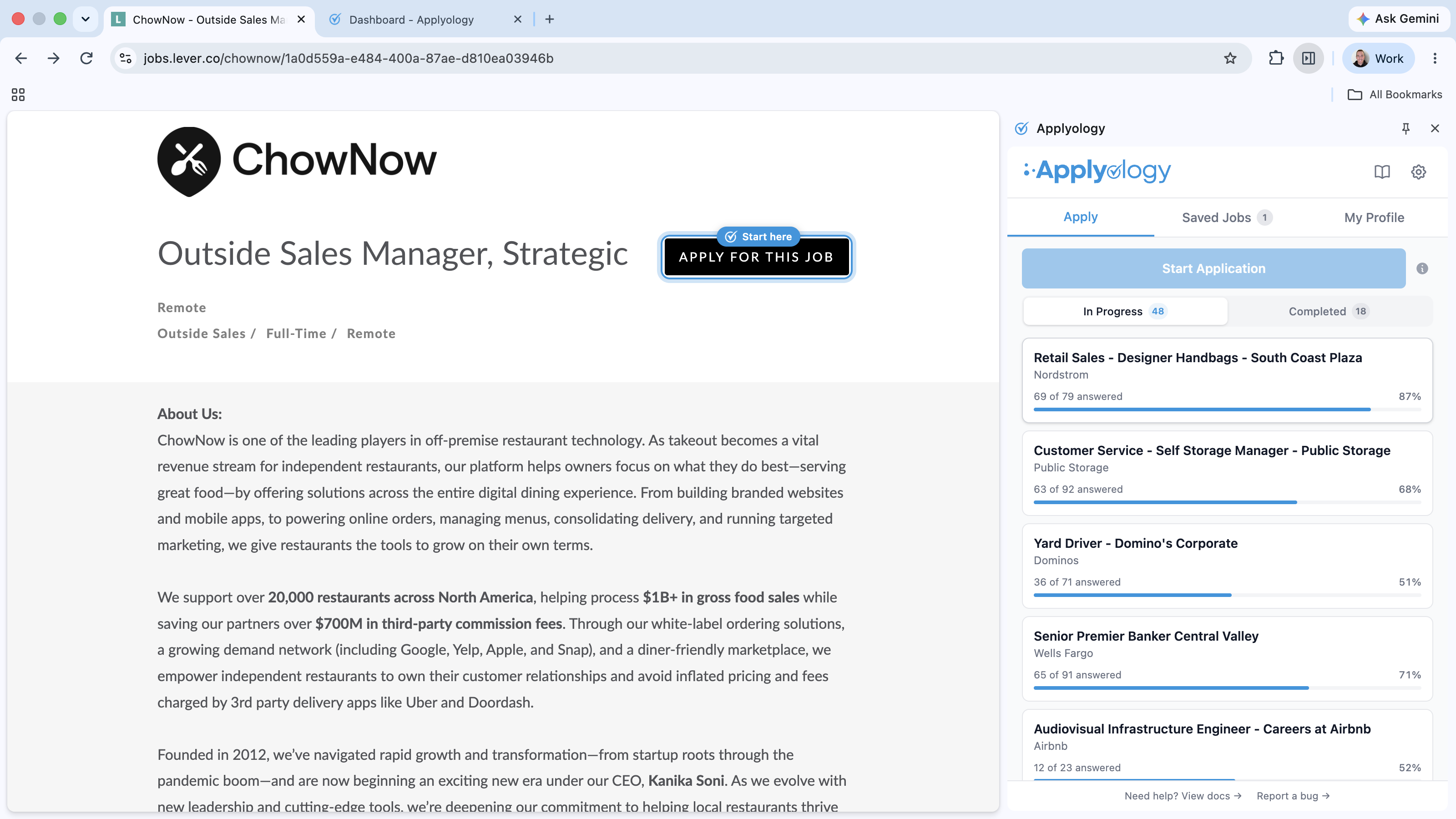
To help you along, the extension rings the button you need next on the employer's page. On the posting, a blue Start here ring points at Apply for this job, while the extension's Start Application button lights up in the panel.
How to apply
When the application form is present, click Start Application, then Autofill - the extension fills from your profile and your resume uploads automatically. Anything it couldn't fill is flagged in the panel so you can complete it before you submit.
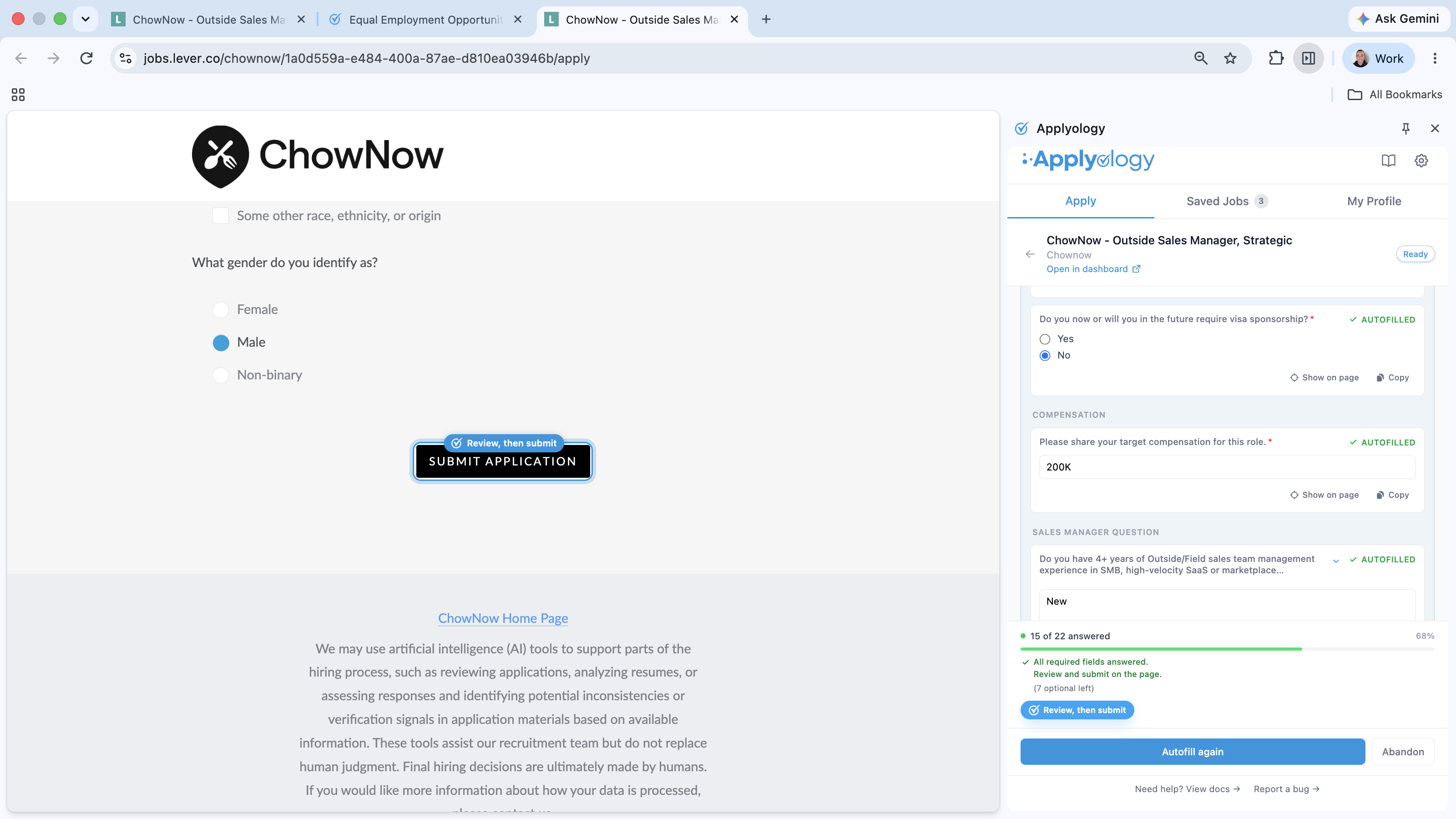
When every required field is answered, the panel turns green - "All required fields answered. Review and submit on the page." - and a Review, then submit ring appears around the employer's Submit application button so you know exactly where to click. You submit it yourself.
Ashby
Ashby shows the application form under the posting's Application tab - it's a single-page application.
How to apply
- Open the Application tab to reveal the form. The Overview tab has no fields, so Start Application in the extension stays disabled until you switch to Application.
- Once the form is showing, click Start Application, then Autofill - the extension fills from your profile and your resume uploads automatically. Anything it couldn't fill is flagged in the panel so you can complete it before you submit.
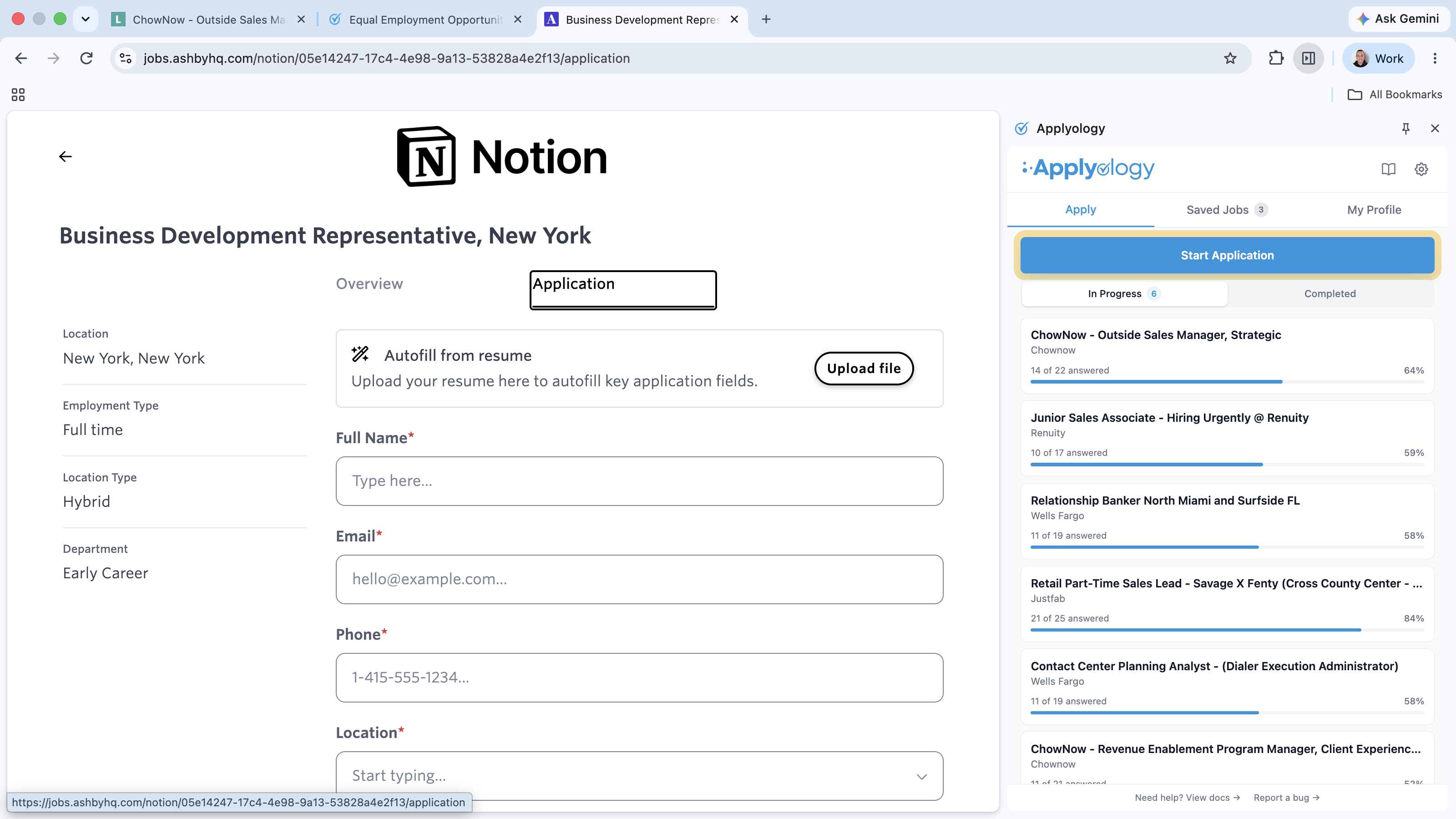
Ashby shows its own Autofill from resume box with an Upload file button at the top of the form. You don't need it - the extension fills your details from your profile and uploads your resume for you. Using Ashby's uploader can overwrite what the extension filled.
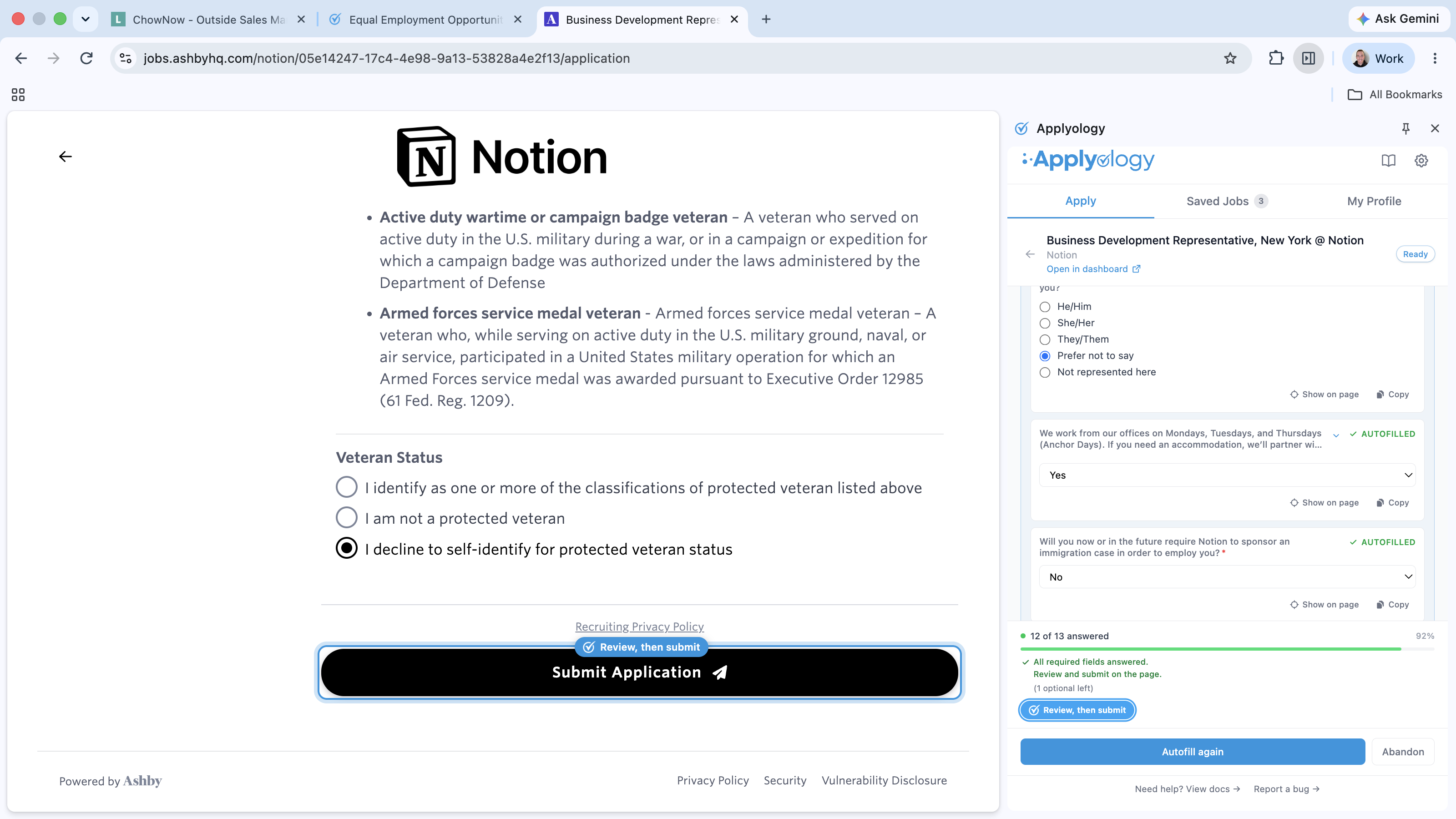
When every required field is answered, the panel turns green and a Review, then submit ring appears around Ashby's Submit Application button. Review the page and submit it yourself.
SmartRecruiters
SmartRecruiters opens a "one-click" application. Some postings are a single page; others add a second Next page of screening questions, so you may or may not need to capture a second page.
Getting started
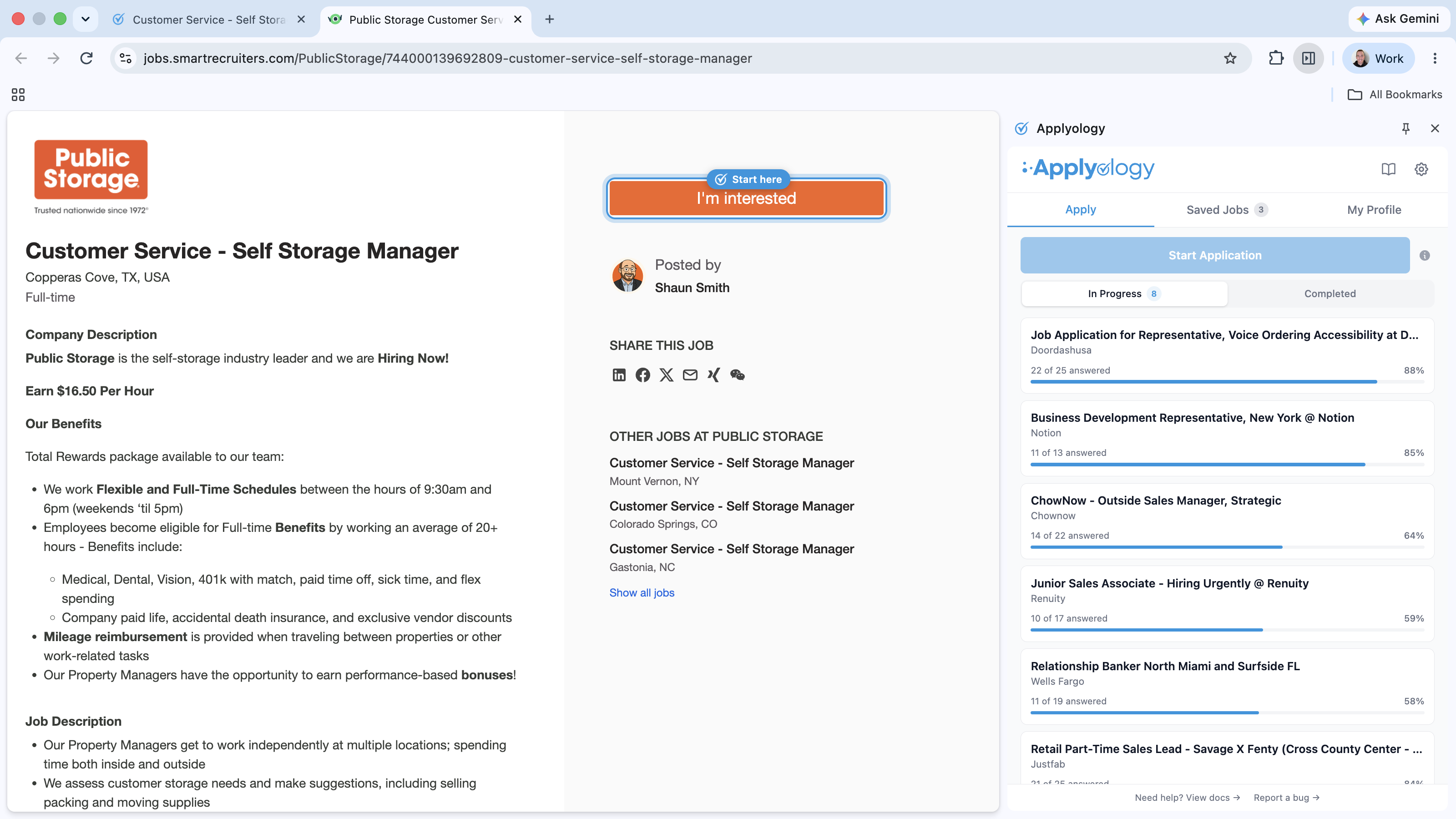
On the job posting, a Start here ring points at I'm interested. Click it to open the application, then click Start Application in the extension.
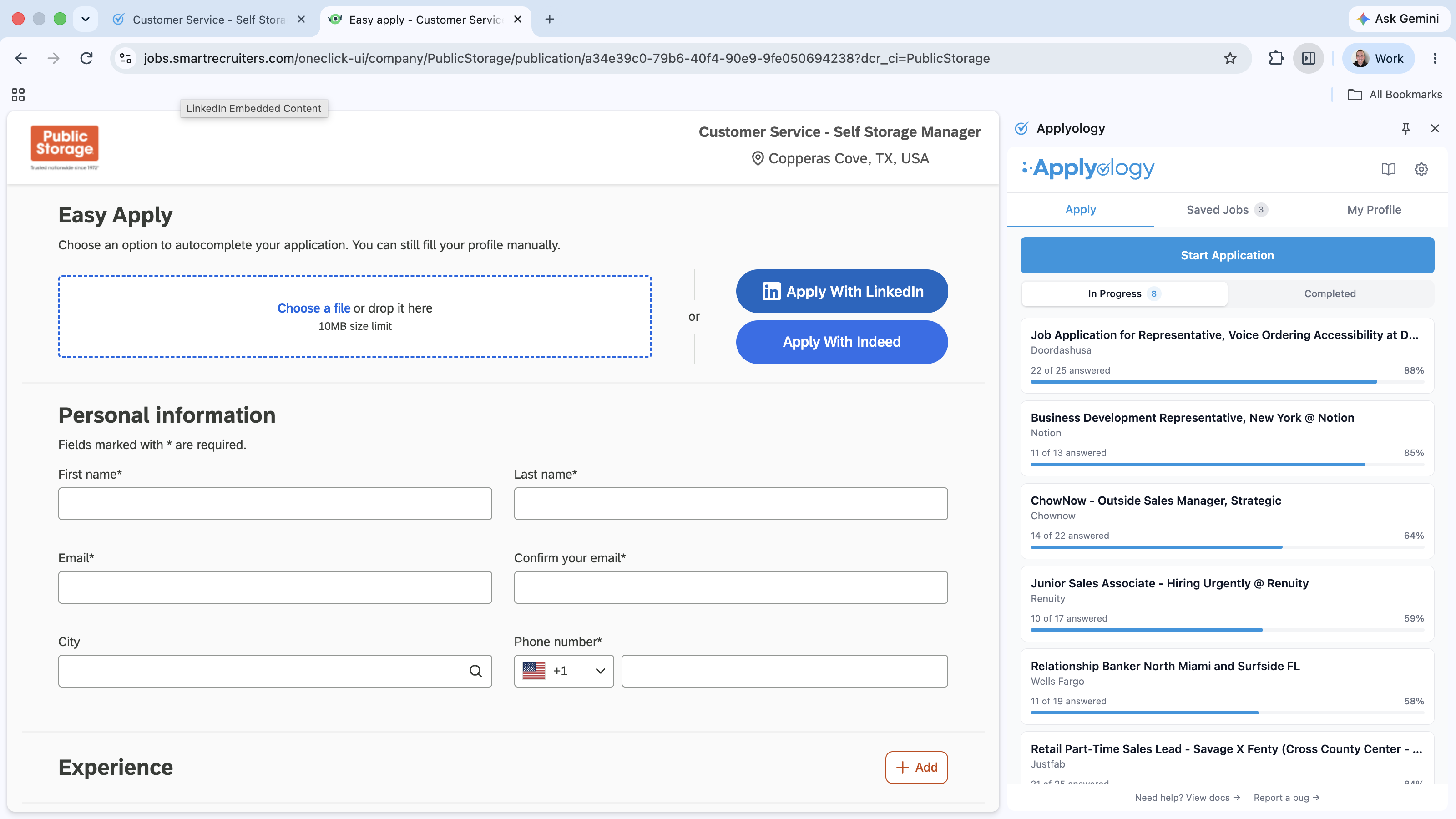
The application opens on an Easy Apply screen that offers to autocomplete from an uploaded resume, Apply With LinkedIn, or Apply With Indeed. Don't use those - SmartRecruiters re-parses them and overwrites everything the extension filled. Just click Start Application in the extension and let it enter your details directly.
Fill and continue
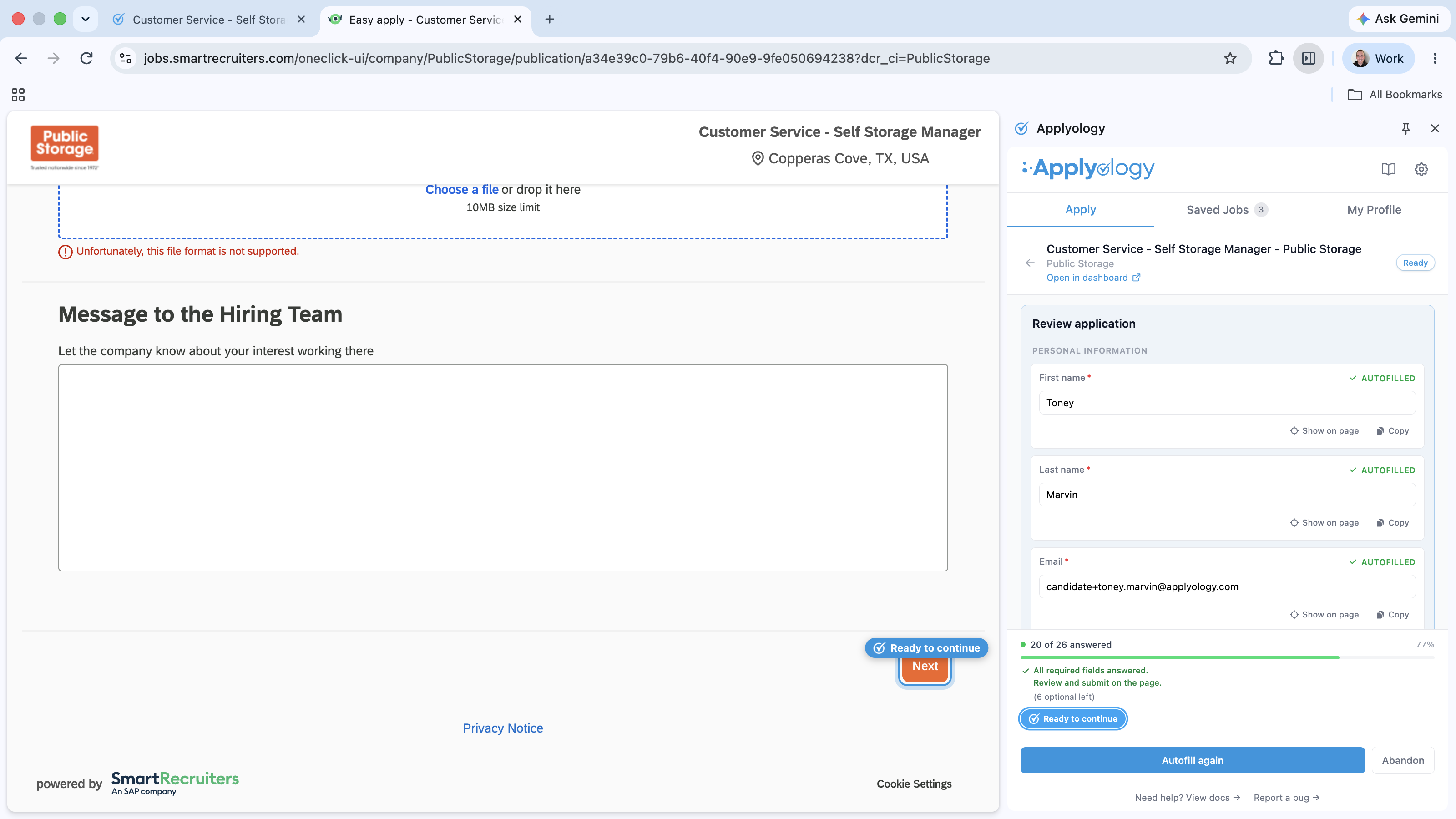
- Click Autofill to fill the first page from your profile.
- Each Experience and Education entry has its own Save button on the site - click Save on any that didn't save on their own.
- When the first page is done, the panel shows Ready to continue. If the application has more pages, click Next on the site to move on.
Capture the next page (if there is one)
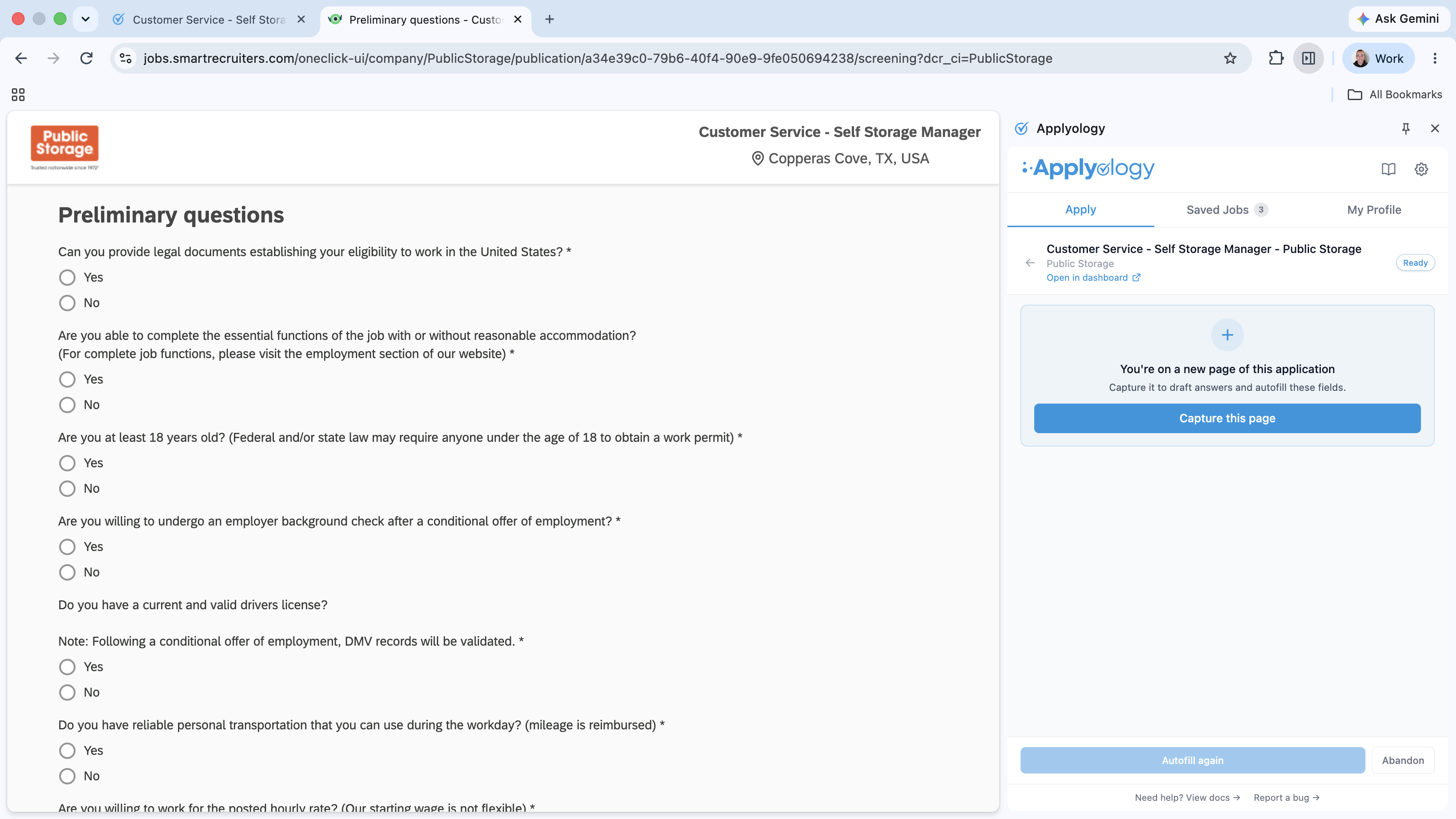
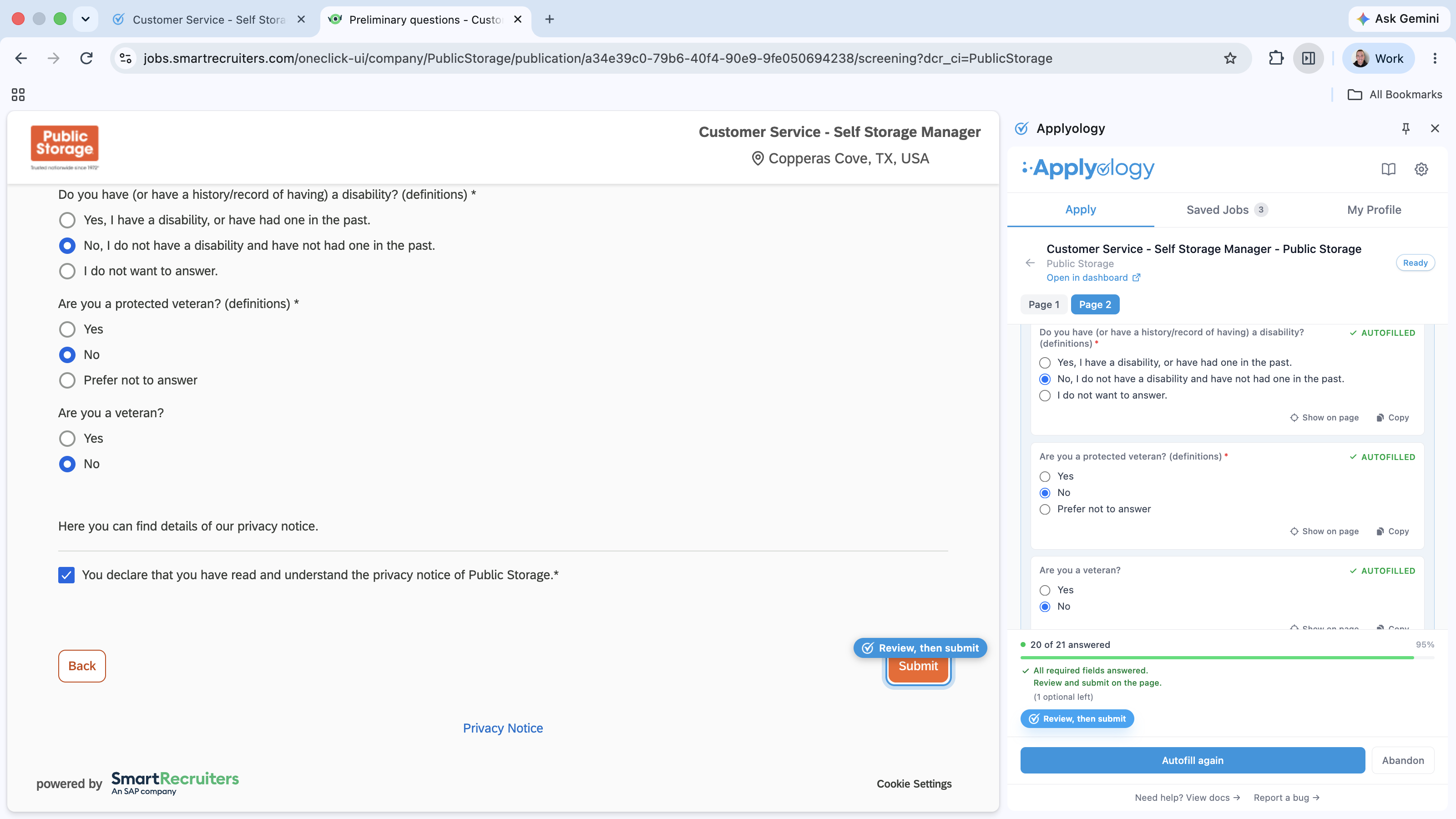
If the application has a second page (like screening or preliminary questions), the panel prompts "You're on a new page of this application." Click Capture this page to pull in that page's questions and autofill them. Captured pages appear as Page 1 / Page 2 tabs at the top of the panel.
- Some screening questions reveal a follow-up after you answer them. Fill the follow-up, then click Autofill again.
- Required consent boxes are ticked for you.
Submit
When every required field is answered, a Review, then submit ring appears around the site's Submit button. Review the page and submit it yourself.
Workday
Workday is the most involved of the five. It's multi-page, it requires you to sign in, and every employer runs their own separate Workday - so start each application on the site yourself, then let the extension fill it.
Sign in first (once per employer)
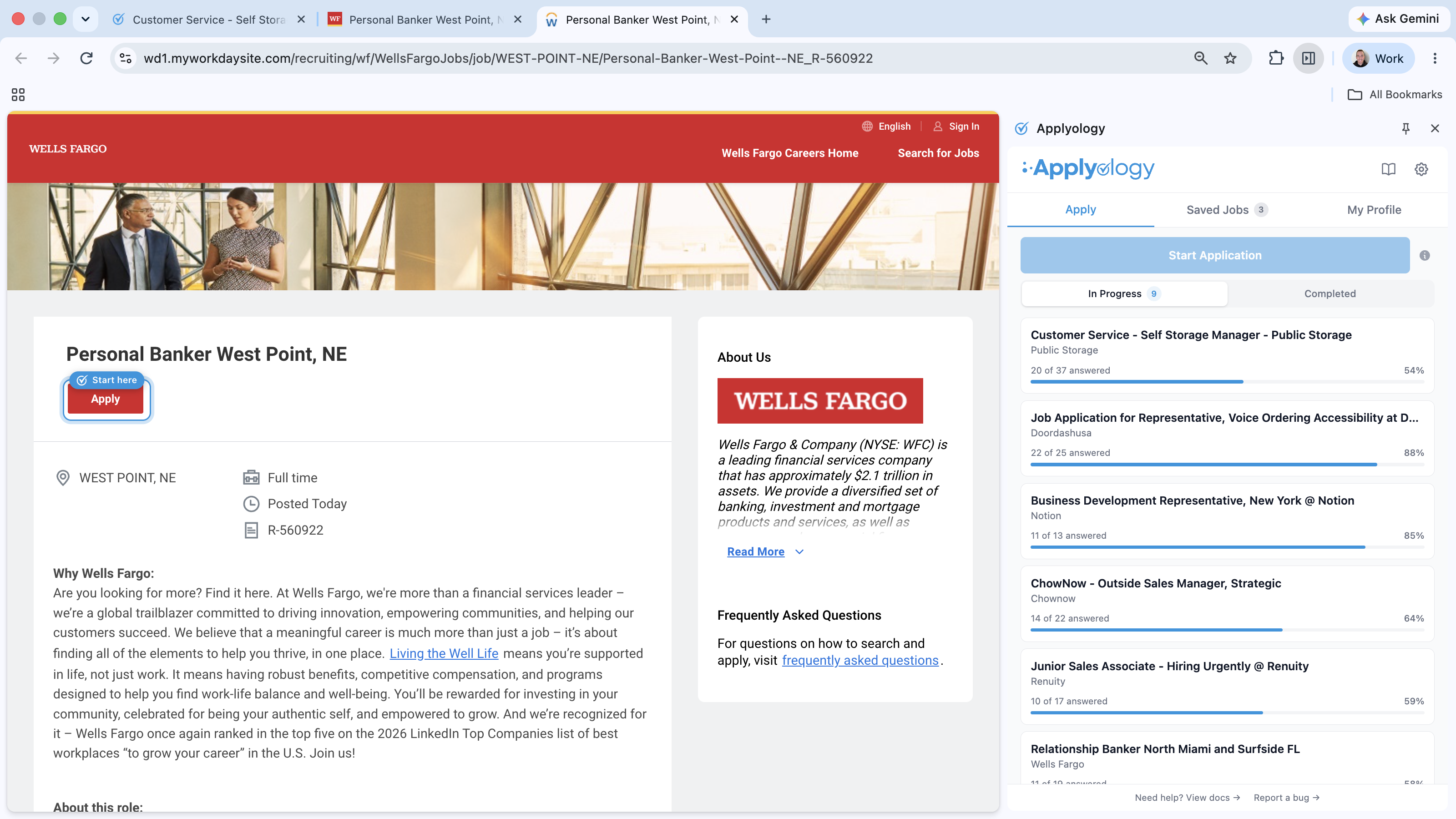
Workday makes you create an account or sign in before you can apply, and each employer's Workday is its own account - signing in at one company doesn't sign you in at another. On the posting, a Start here ring points at Apply.
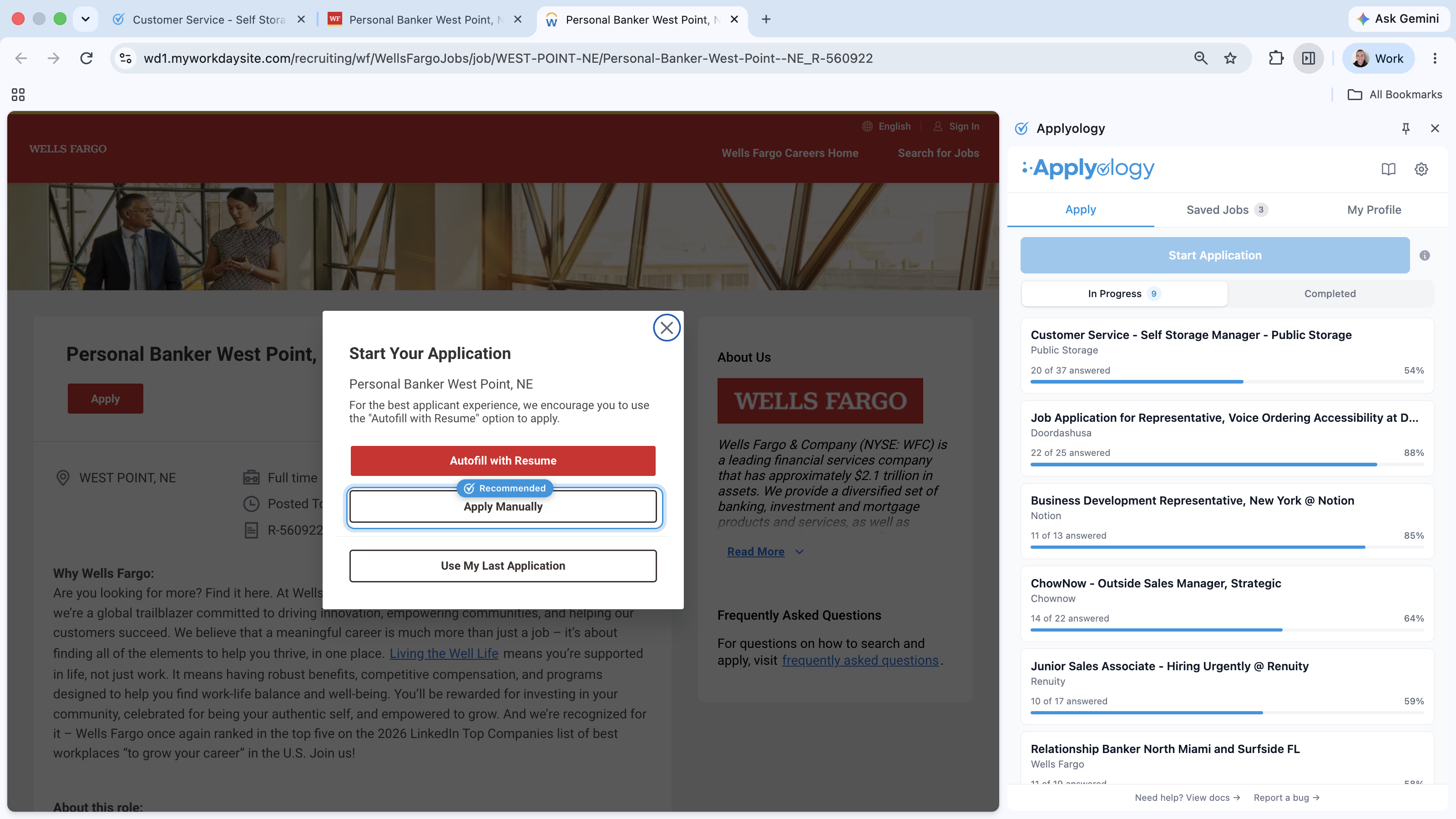
When Workday asks how you'd like to start, choose Apply Manually - it's the cleanest path for the extension to fill from your profile. (The extension rings this option as Recommended.)
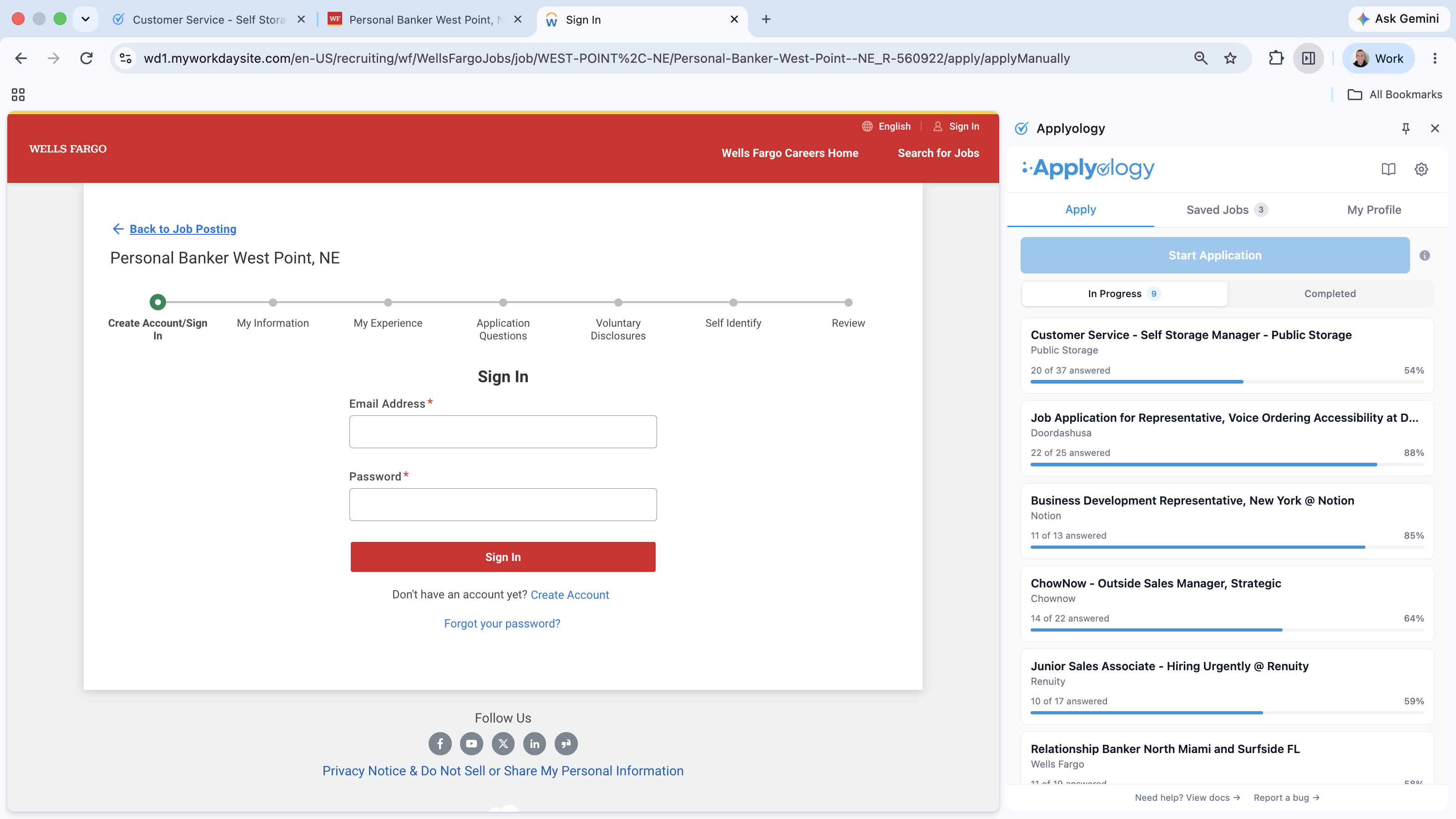
Then sign in or create your account. If you come back later, Workday saves your progress on its end - just sign back in and the extension restores the answers you'd already captured.
Start the application
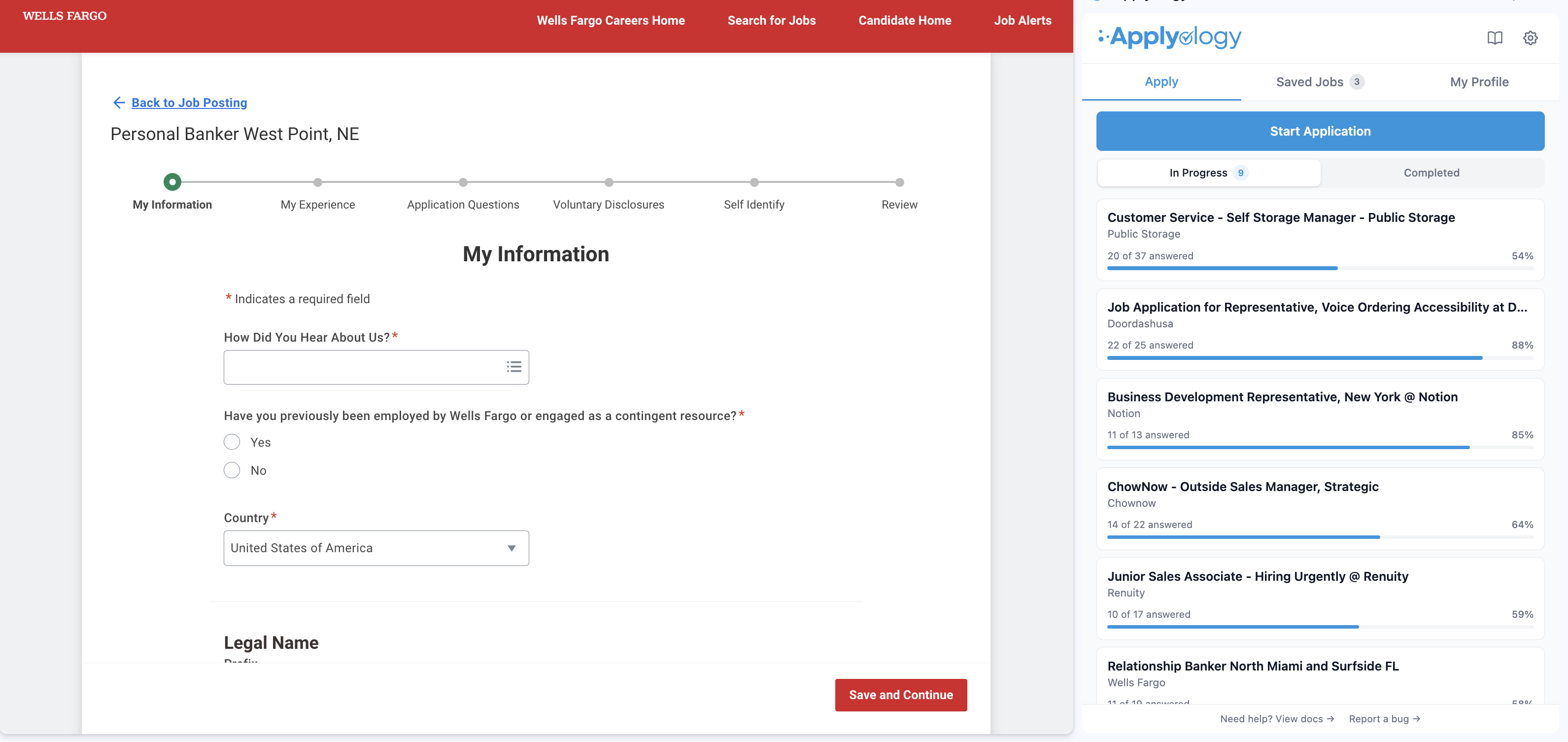
Once you're signed in and on the first form step (My Information), the extension's Start Application button lights up. Click it, then Autofill.
Move through the pages
Workday spreads the application across several steps, shown in the progress bar at the top of the page - for example My Information, My Experience, Application Questions, Voluntary Disclosures, Self Identify, and finally Review. The panel names each step to match.

Each time you move to a new step, the panel names that step and asks you to capture it - "You're on 'My Experience.' Capture it to draft answers and autofill these fields." - with a button that names the step, like Capture My Experience. Click it to draft and autofill that step's fields, then review. The same happens on Application Questions, Voluntary Disclosures, and Self Identify - each gets its own Capture <step name> button.
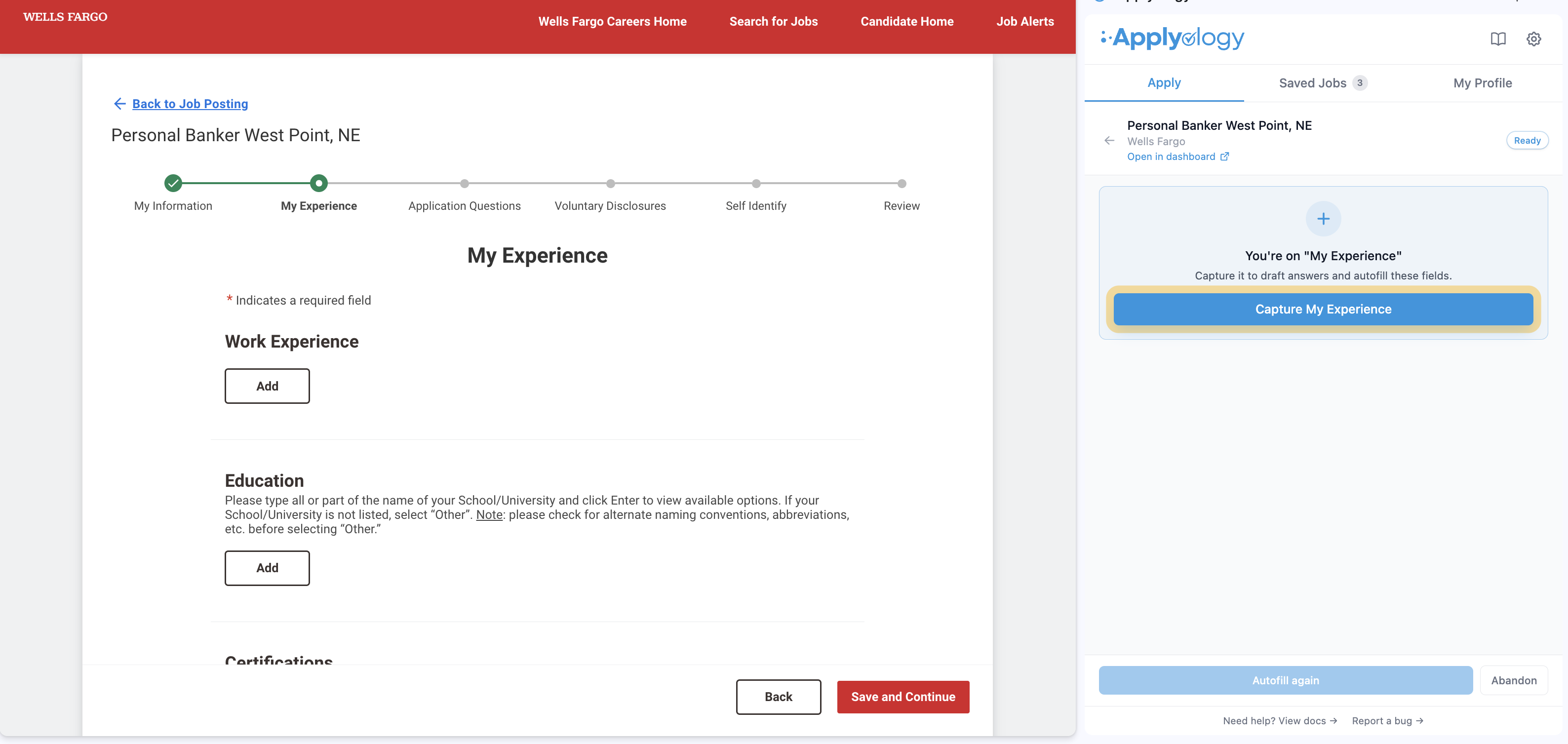
- Work history and education use Add sections. The extension expands them to match your profile so each role and school gets its own entry.
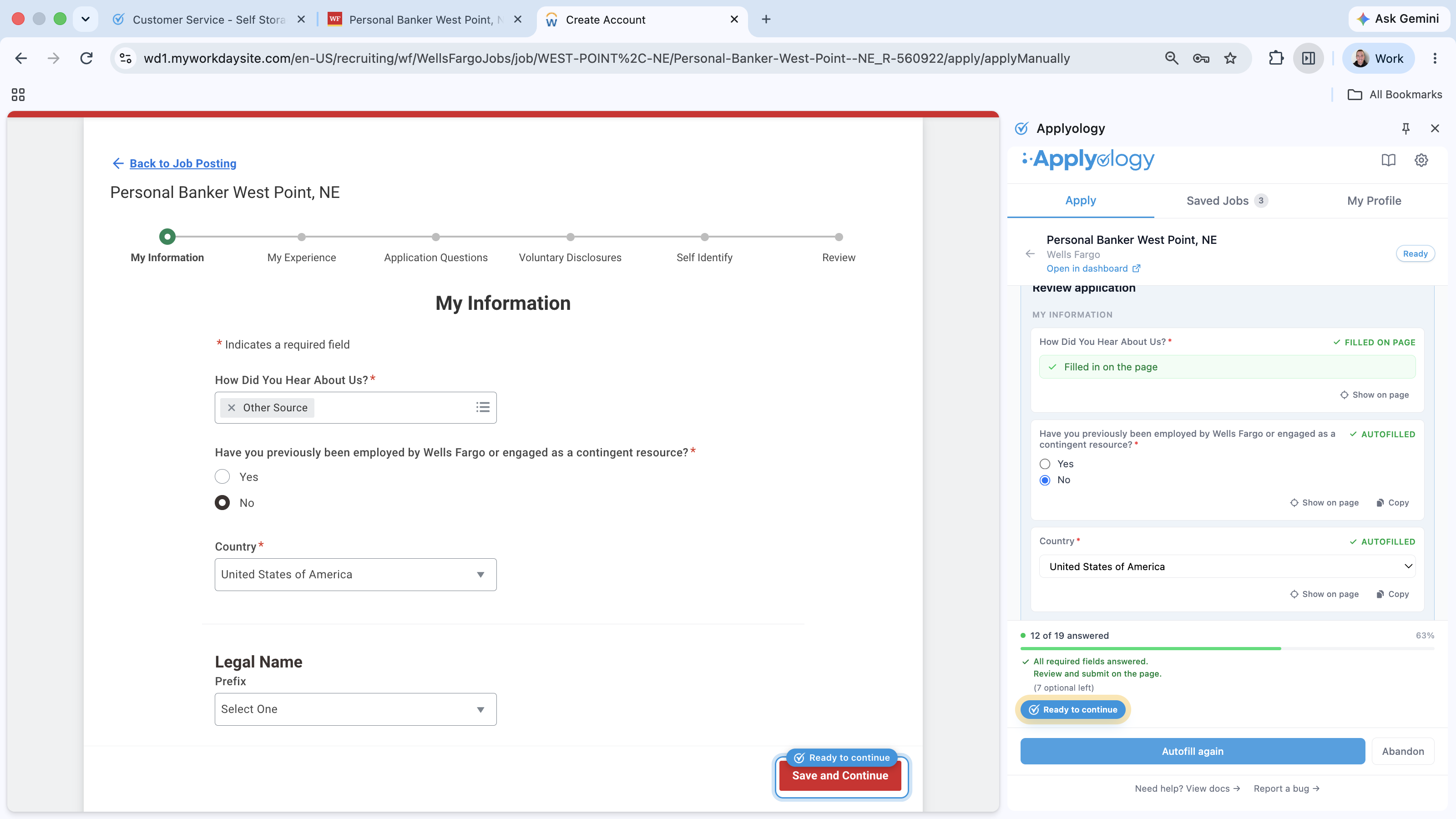
- Some Workday dropdowns (like How Did You Hear About Us?) load their options only when you open them, so the extension marks them Filled on the page - pick those directly on the form.
- When a step is done, the panel shows Ready to continue. Click Save and Continue on the site to move to the next step.
Review and submit
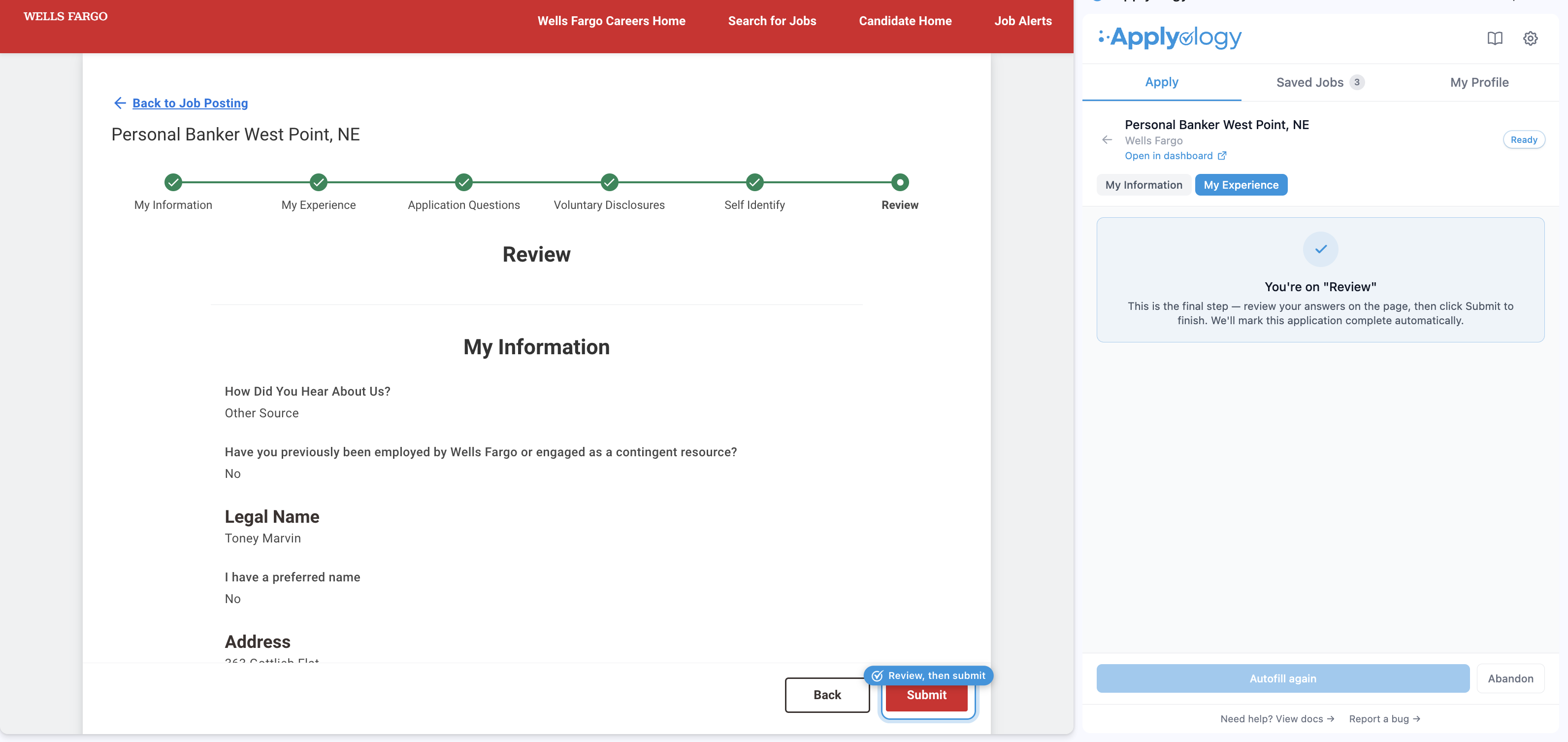
The last step is always Review. The panel confirms "This is the final step - review your answers on the page, then click Submit to finish." Review everything, then click Workday's Submit yourself - the extension detects it and marks the application complete automatically.
Other ways to start
Apply Manually is the cleanest, but the other starting paths work too:
- Autofill with Resume - Workday pre-fills the form from your resume first. On each page, click Autofill and the extension overrides that pre-fill with your profile, so an updated phone number, job, or school wins over the older resume. One thing to watch: your Skills can pile up, because Workday keeps the ones it suggested from your resume alongside the ones the extension adds. Remove any "(Suggested)" skills you don't want before submitting.
- Use My Last Application - loads answers from a past application. This is best if you completed that one with Applyology, since the data is already your profile. The extension leaves those answers in place and only fills what's blank.
When a site isn't supported
If you open a posting on a site that isn't one of the five above, the extension can't capture or autofill it, and Start Application stays disabled. To be sure a role works with the extension, save it from the Job Listings page - every listing there comes from a supported ATS. We're expanding ATS support over time.
Greenhouse, Lever, Ashby, SmartRecruiters, and Workday are trademarks of their respective owners. Applyology is not affiliated with, endorsed by, or sponsored by any of them, or by the employers shown. Product names, logos, and screenshots appear for identification and illustration only.