Browser Extension Settings
The extension has a settings panel for adjusting how it behaves, signing out, and clearing local data.
Open settings
Click the Applyology icon in your browser toolbar to open the extension, then click the gear icon in the top-right corner.
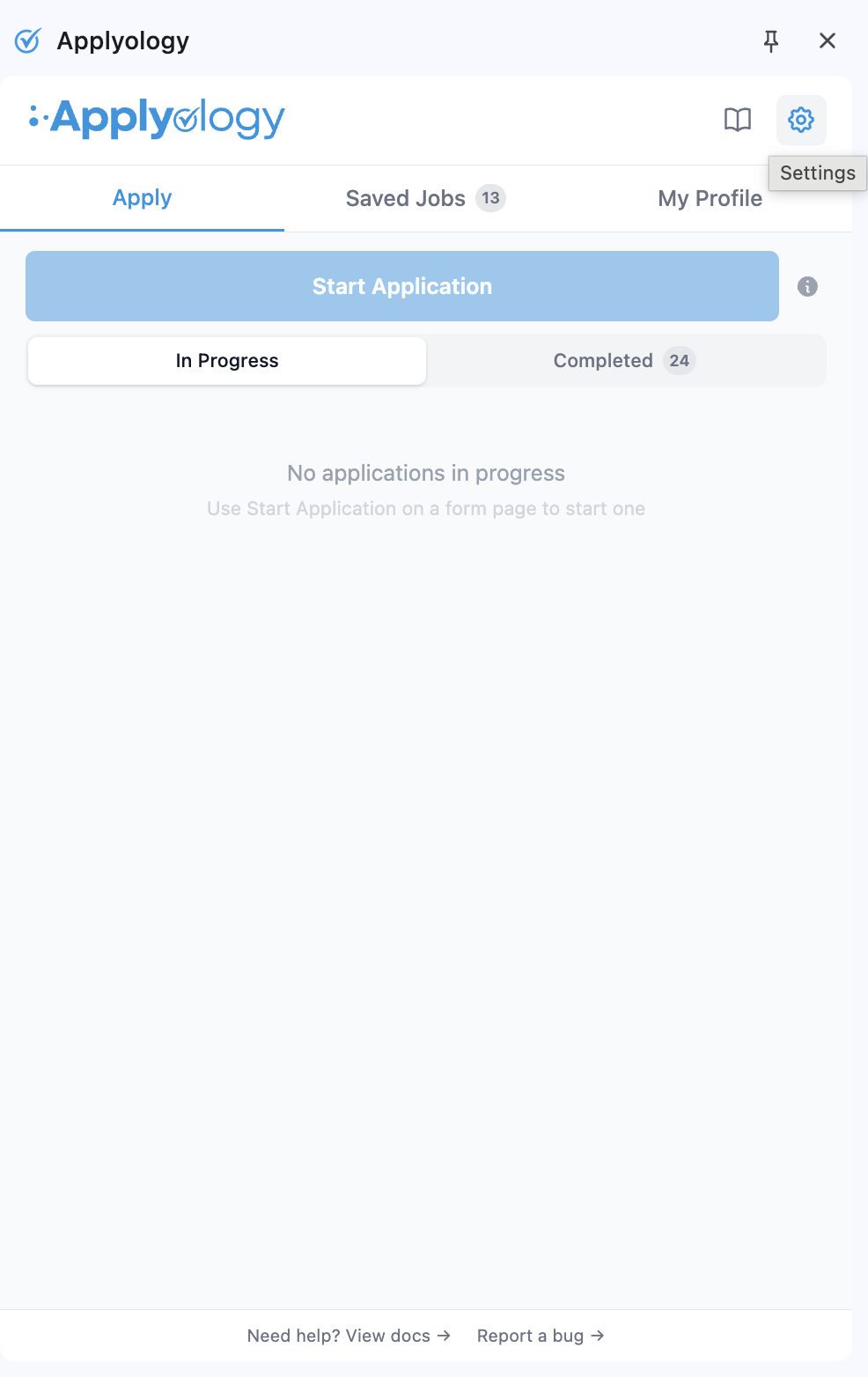
Settings
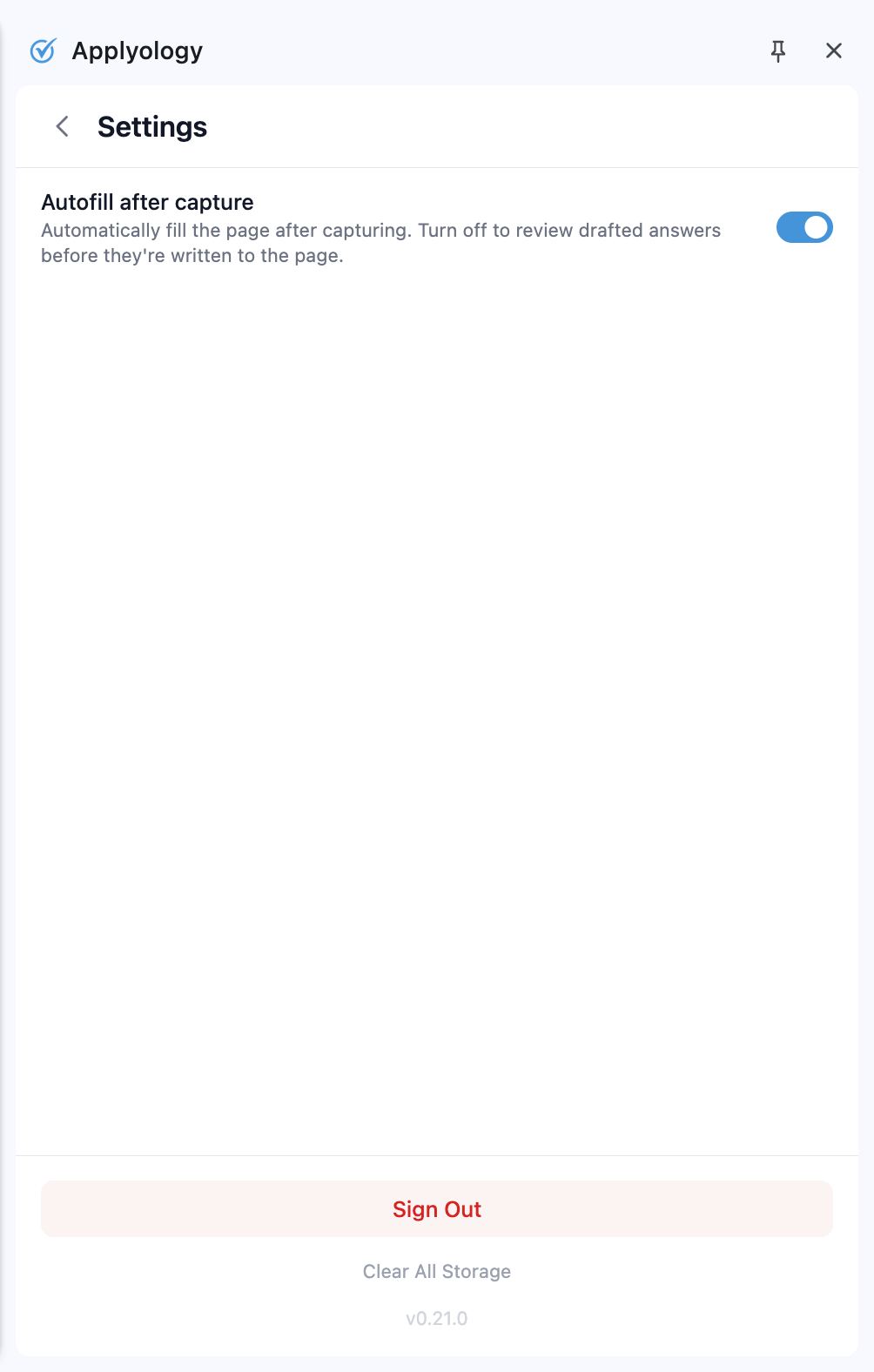
- Autofill after capture - when enabled, the extension automatically fills the page after capturing form fields. Turn this off if you'd rather review drafted answers before they're written to the page.
Sign out
Click Sign Out at the bottom of the settings screen to disconnect your account from the extension. You can sign back in any time by clicking the Applyology icon and authorizing again.
Clear all storage
Clear All Storage wipes all local extension data - including your sign-in, cached profile, and any in-progress capture state. Use this if you're troubleshooting, switching accounts, or want to fully reset the extension.
Clearing storage signs you out and removes any unsaved capture state. Anything already saved to your Applyology account (saved jobs, completed applications) is unaffected.