Install the Browser Extension
The Applyology browser extension is how you apply to jobs. It detects application forms on employer websites and fills them in using your profile data.
Install
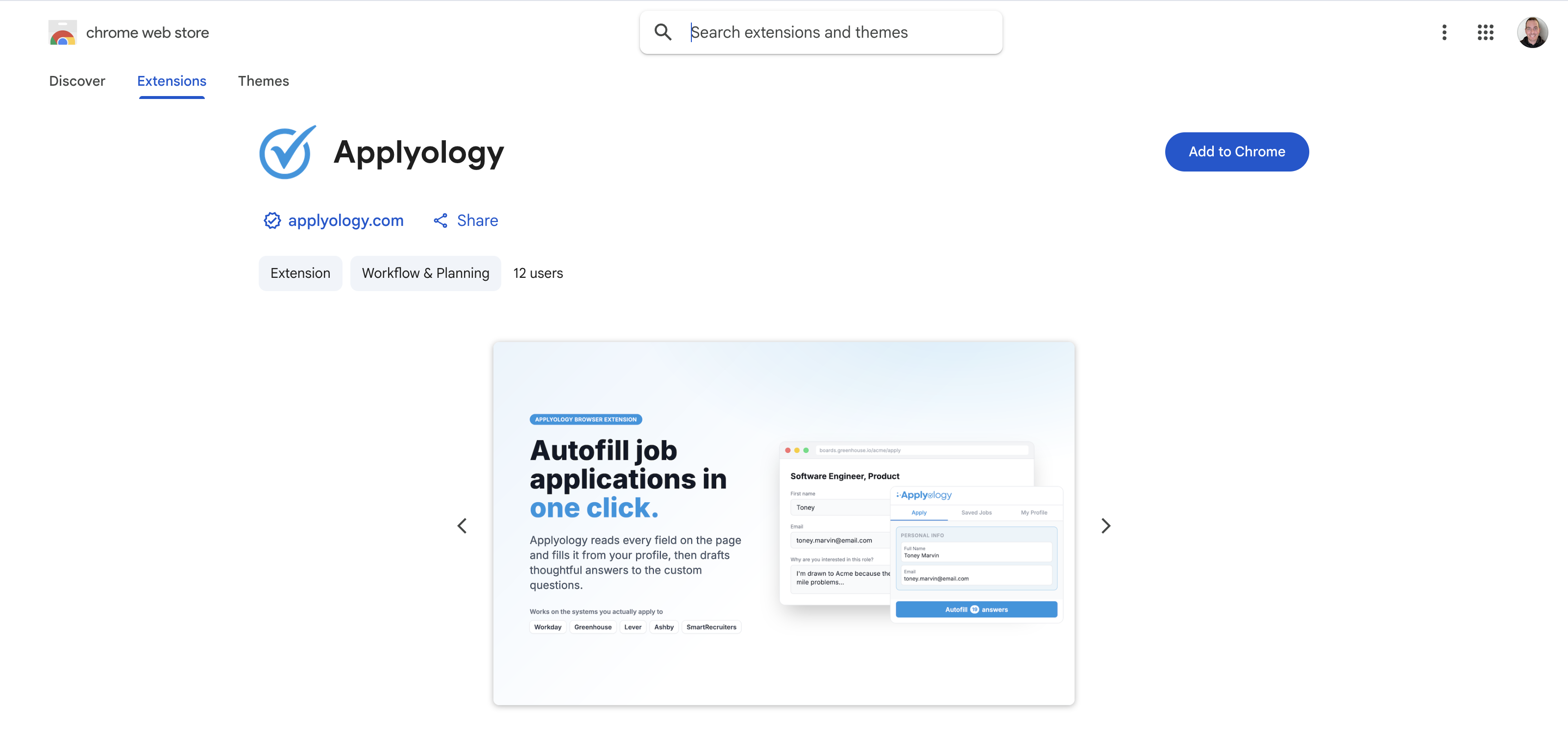
Clicking Install Extension (during onboarding or from your dashboard) opens the Applyology listing in the Chrome Web Store. On Google Chrome, click Add to Chrome to install. On Microsoft Edge, the same listing lets you add it with Get extension.
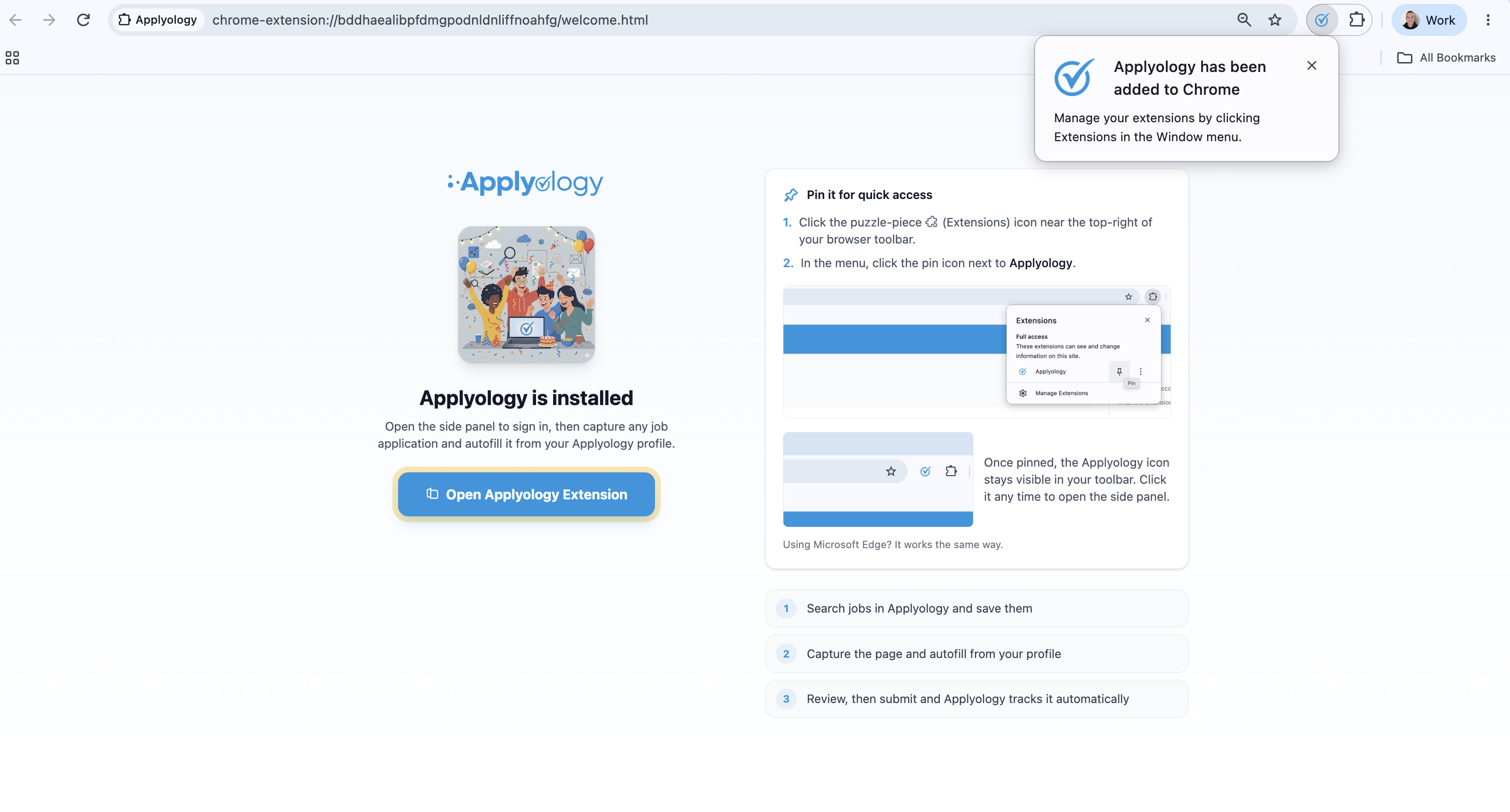
Once it installs, Chrome confirms with an "Applyology has been added to Chrome" message and opens a welcome page. Pin the extension for quick access: click the puzzle-piece (Extensions) icon in your toolbar, then the pin icon next to Applyology. Once pinned, the Applyology icon stays visible so you can open the side panel any time. (Microsoft Edge works the same way.)
Connect your account
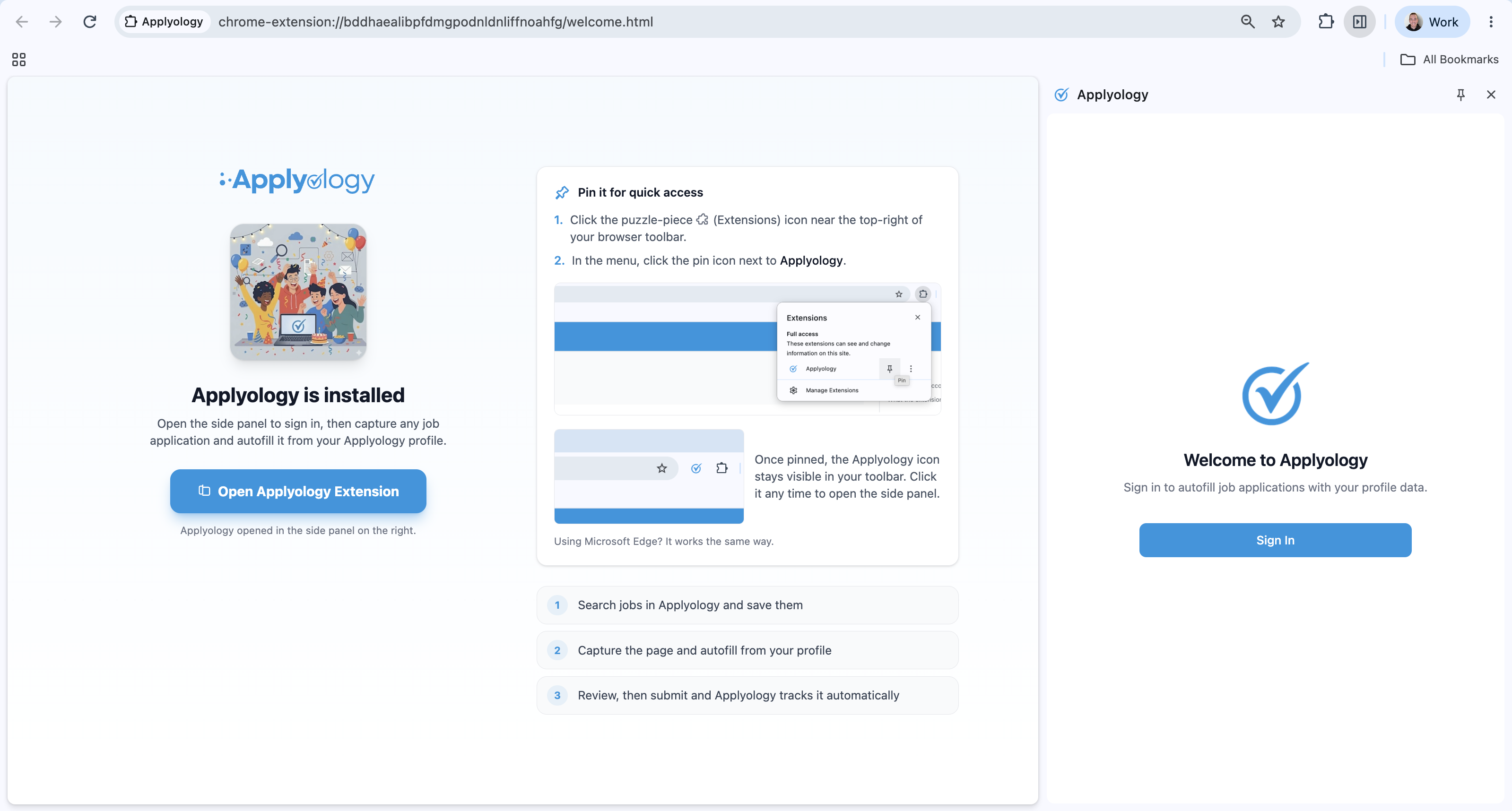
From the welcome page, click Open Applyology Extension (or the pinned toolbar icon) to open the side panel, then click Sign In.
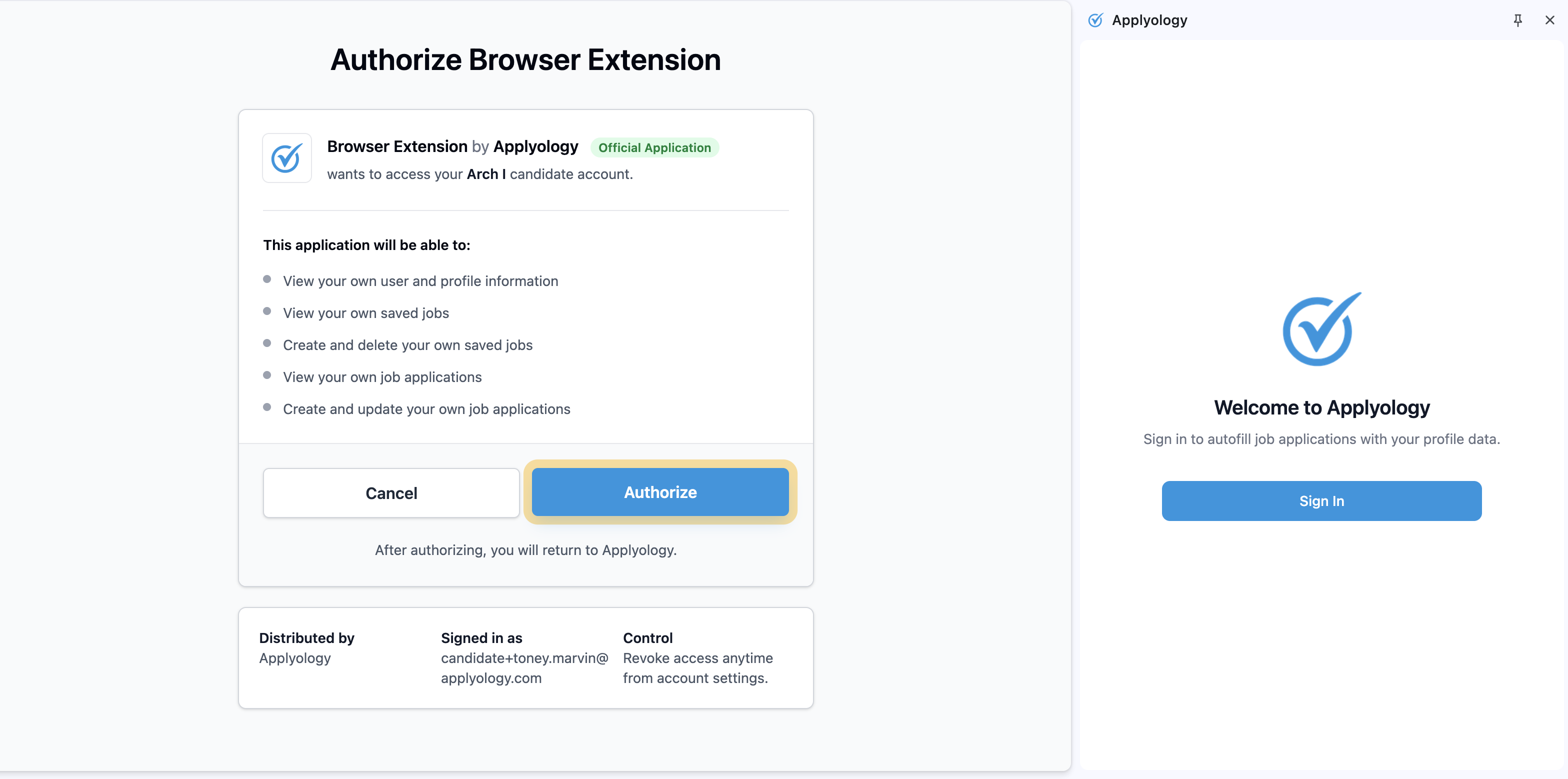
You'll be asked to authorize the extension to access your account. Review what it can do, then click Authorize.
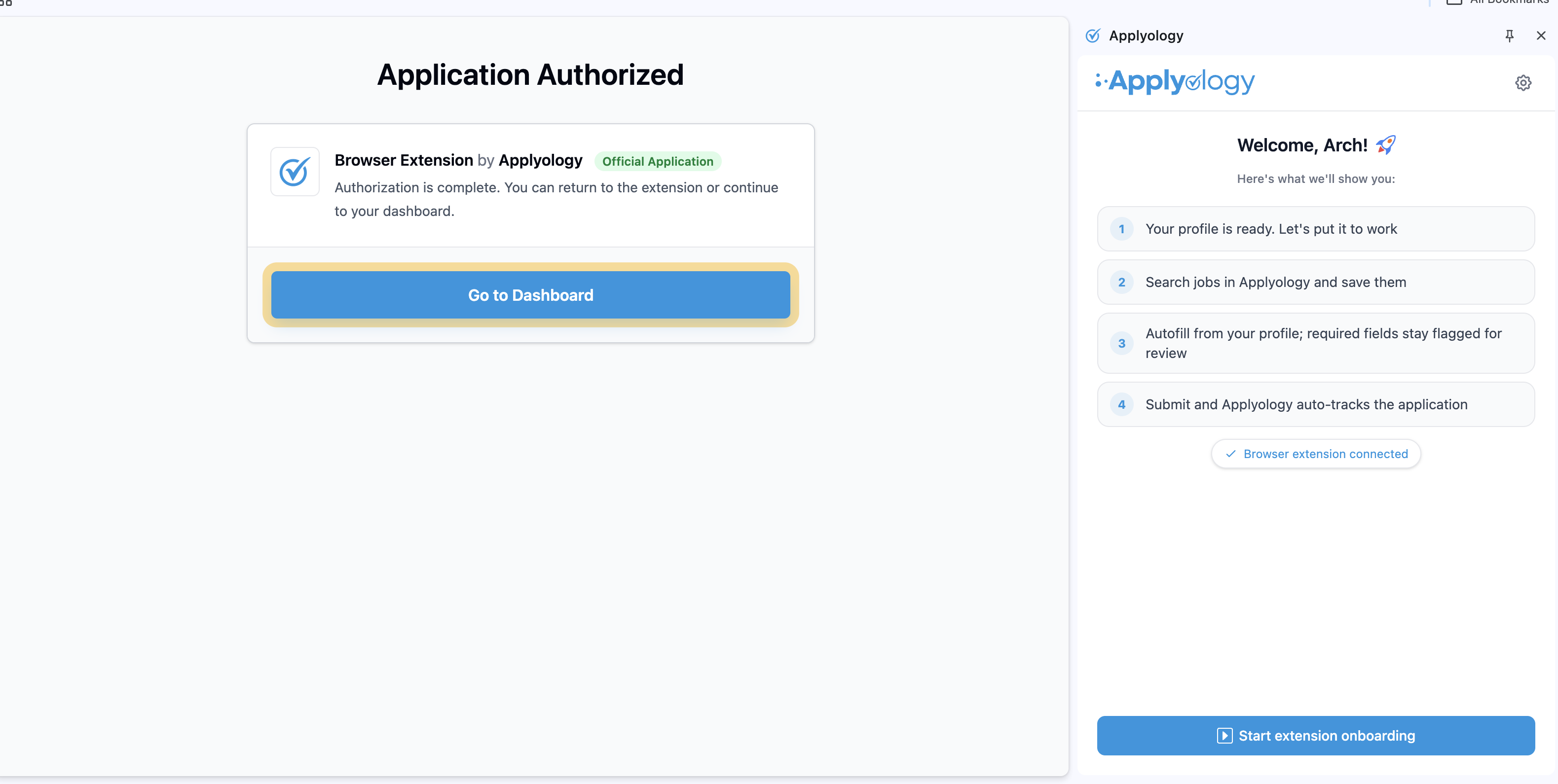
You'll see Application Authorized, and the side panel is ready to start its guided tour. You only need to do this once - the extension stays connected across browser sessions.
Extension onboarding
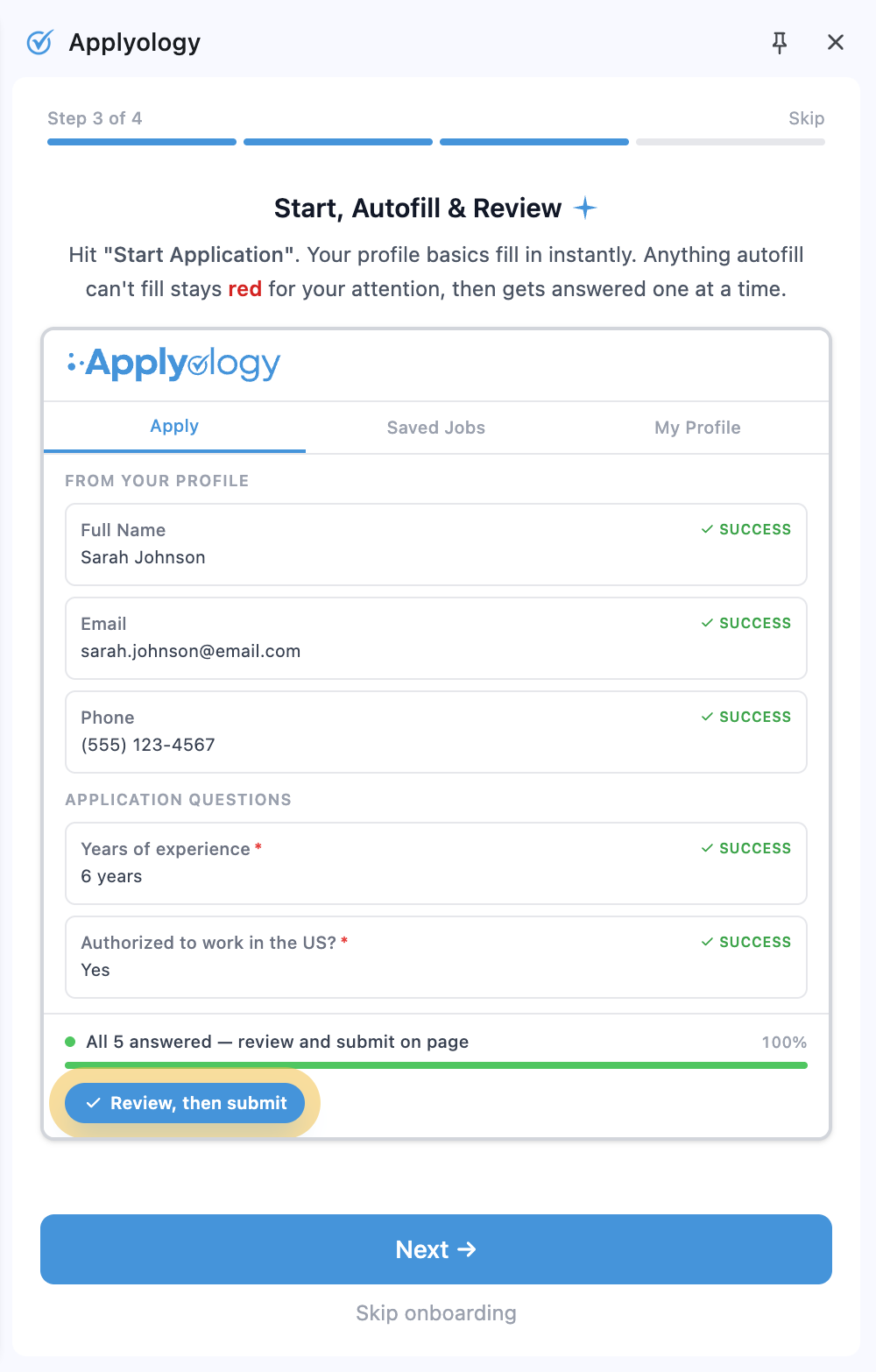
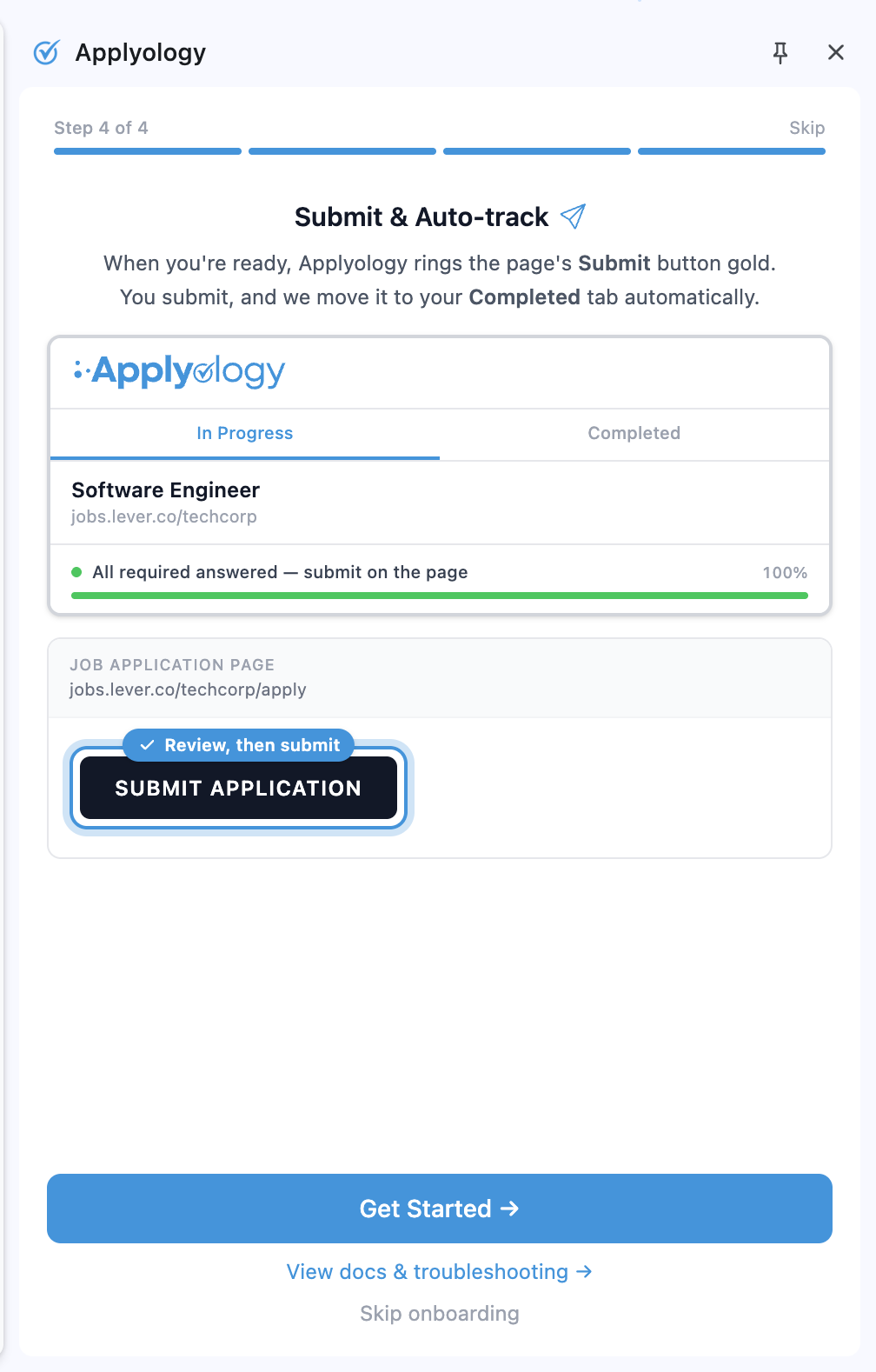
The first time the extension connects, it offers a short four-step guided tour. Click Start extension onboarding to walk through it (or Skip at any time - it doesn't gate anything). The steps show you how the extension works, end to end: your synced profile, your saved jobs, start-autofill-and-review, and submit-and-auto-track.
Overview - the four steps at a glance.
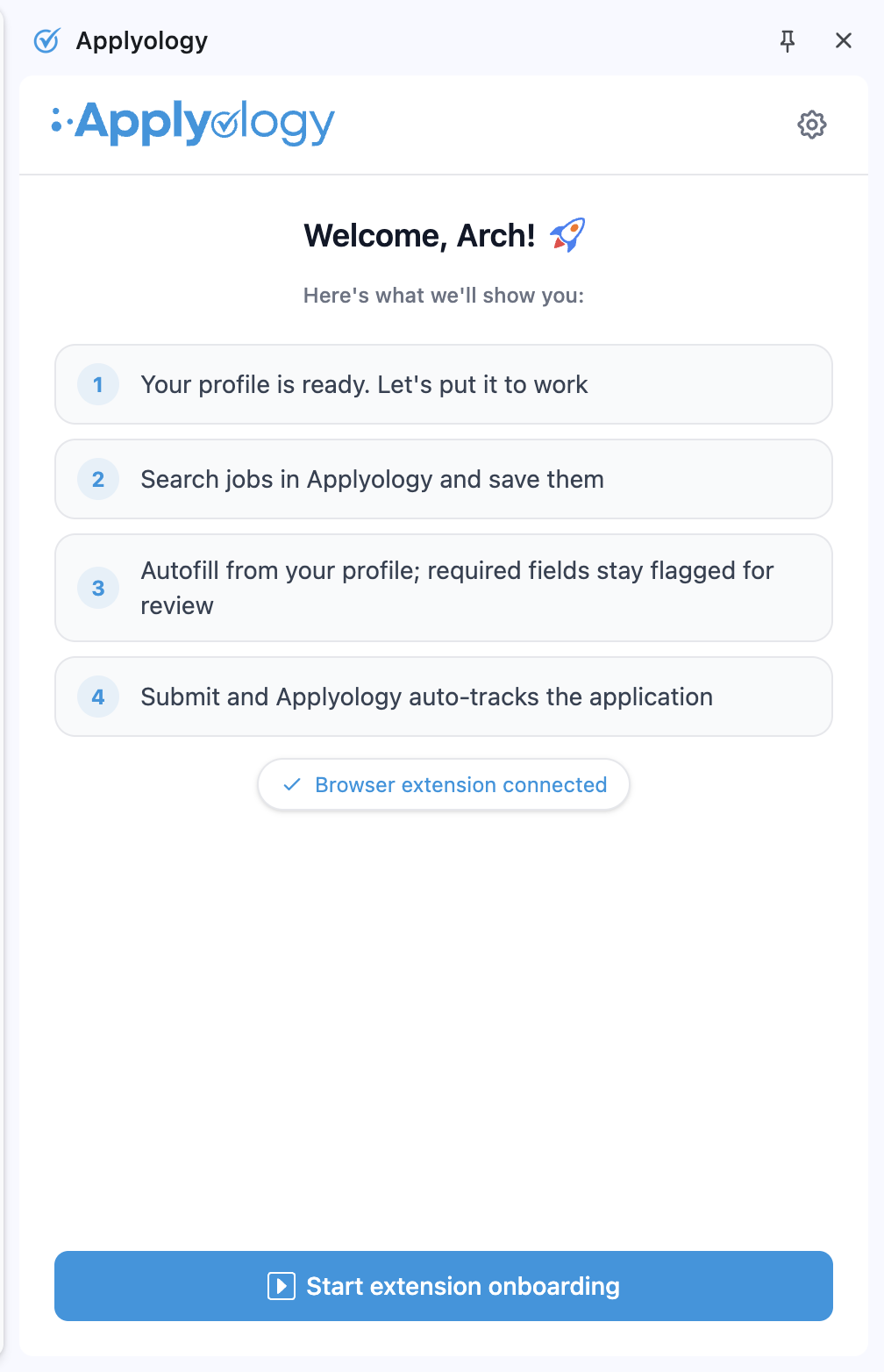
1. Your Profile is Ready
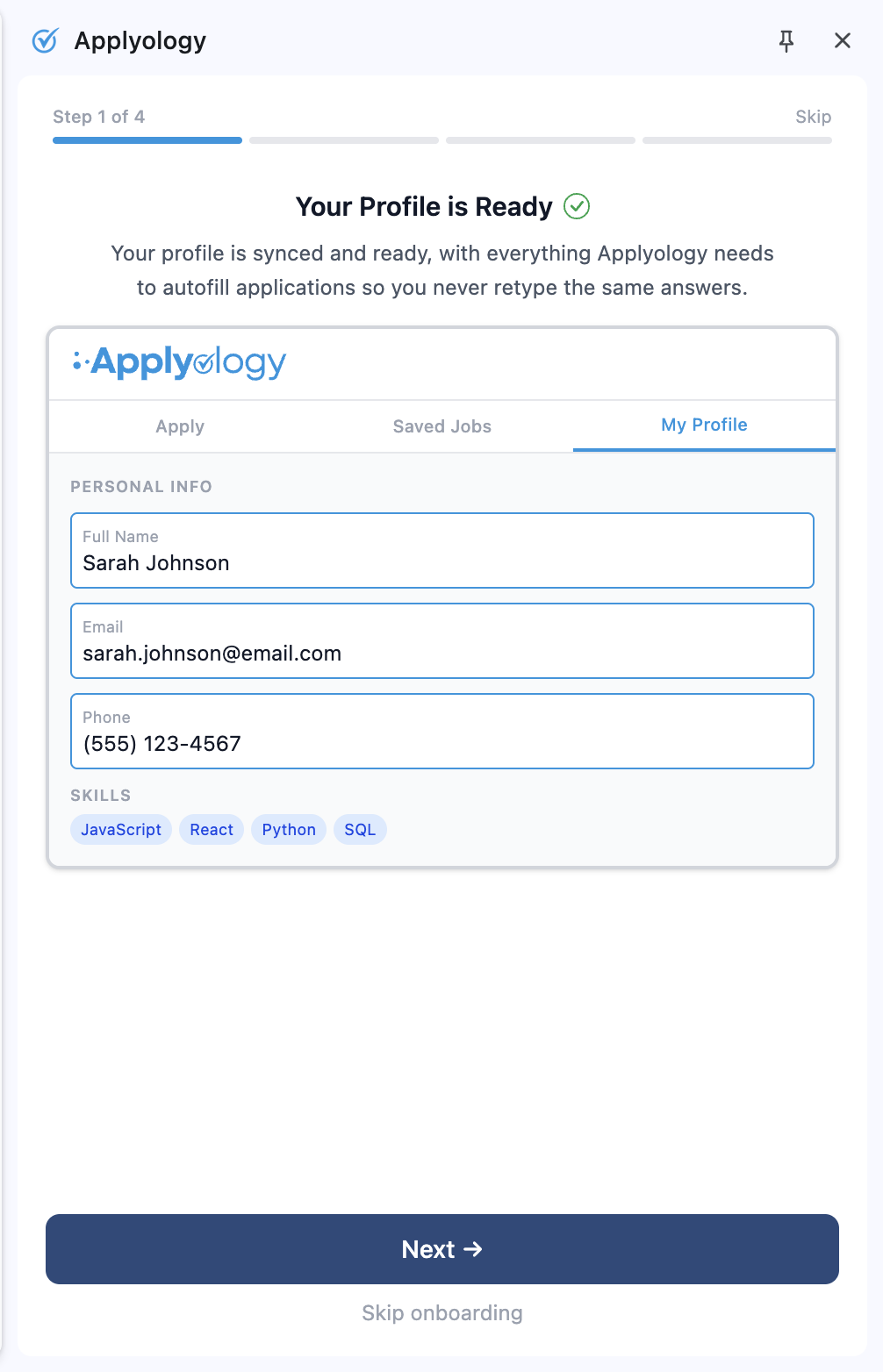
2. Your Saved Jobs
3. Start, Autofill & Review
4. Submit & Auto-track
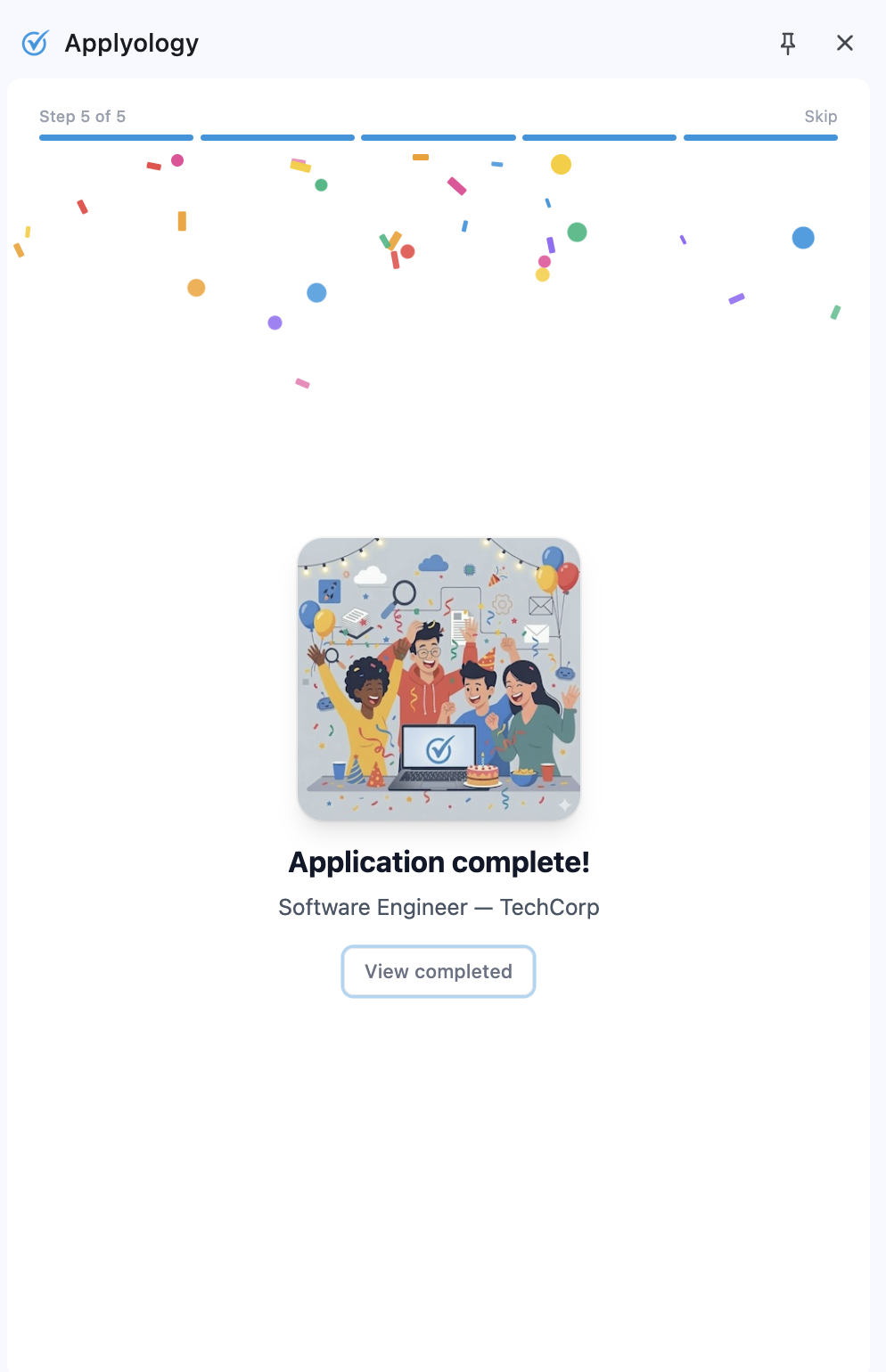
Application complete
What the extension does
- Detects job postings - recognizes when you're viewing a job listing and lets you save it
- Detects application forms - identifies form fields on employer application pages
- Autofills your information - maps your profile data to the right fields
- Tracks your progress - keeps a record of saved jobs, in-progress applications, and completed submissions