Apply to Jobs
With your profile set up and the extension installed, you're ready to start applying.
Before you start, make sure you're connected to the extension - your dashboard tells you at a glance.
Find a job to apply to
There are two ways to get to an application form:
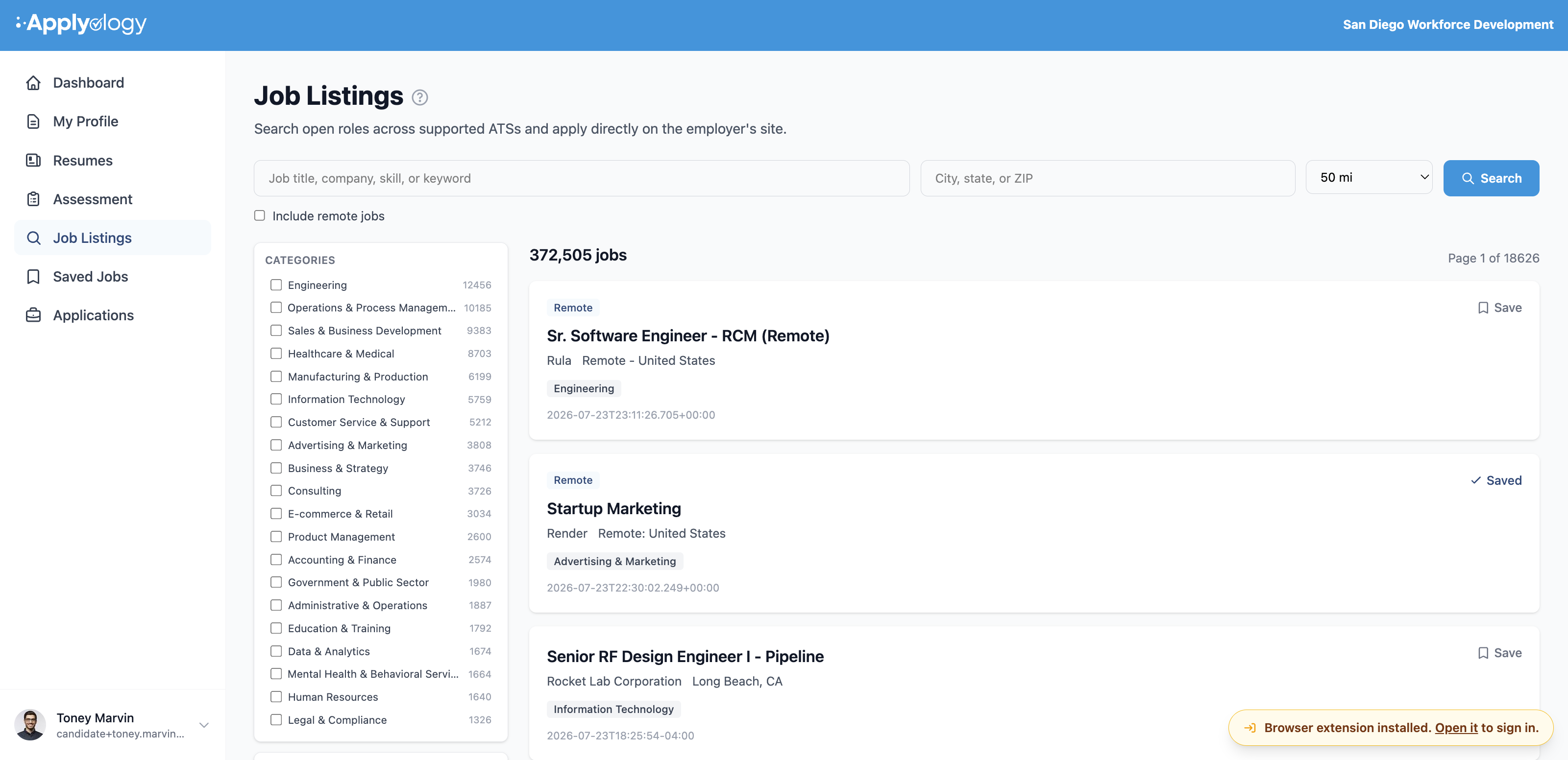
- From your saved jobs. Search and save roles on the Job Listings page of your dashboard, then open the extension's Saved Jobs tab and tap one. The extension opens the posting and switches you to the Apply tab so the action bar is ready. See Job Listings and Saved Jobs.
- Directly on a posting. Browse to any supported job posting yourself.
Search for jobs on the Job Listings page in your dashboard - browse open roles, filter by category, and save the ones you want to apply to.
Start an application
Open the job's application form on the page. To help, Applyology highlights the employer's apply button with a Start here ring so you know exactly where to click first.
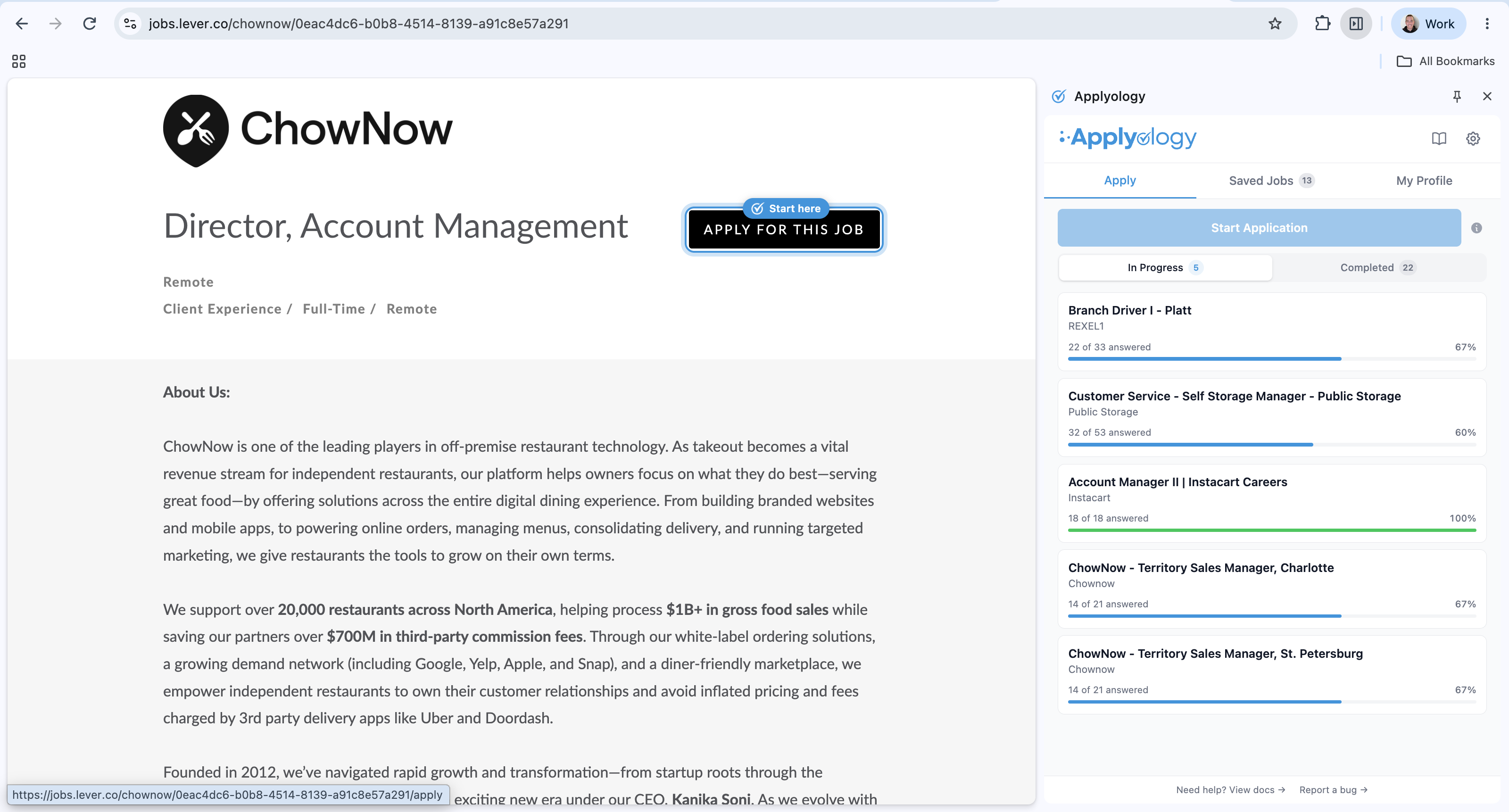
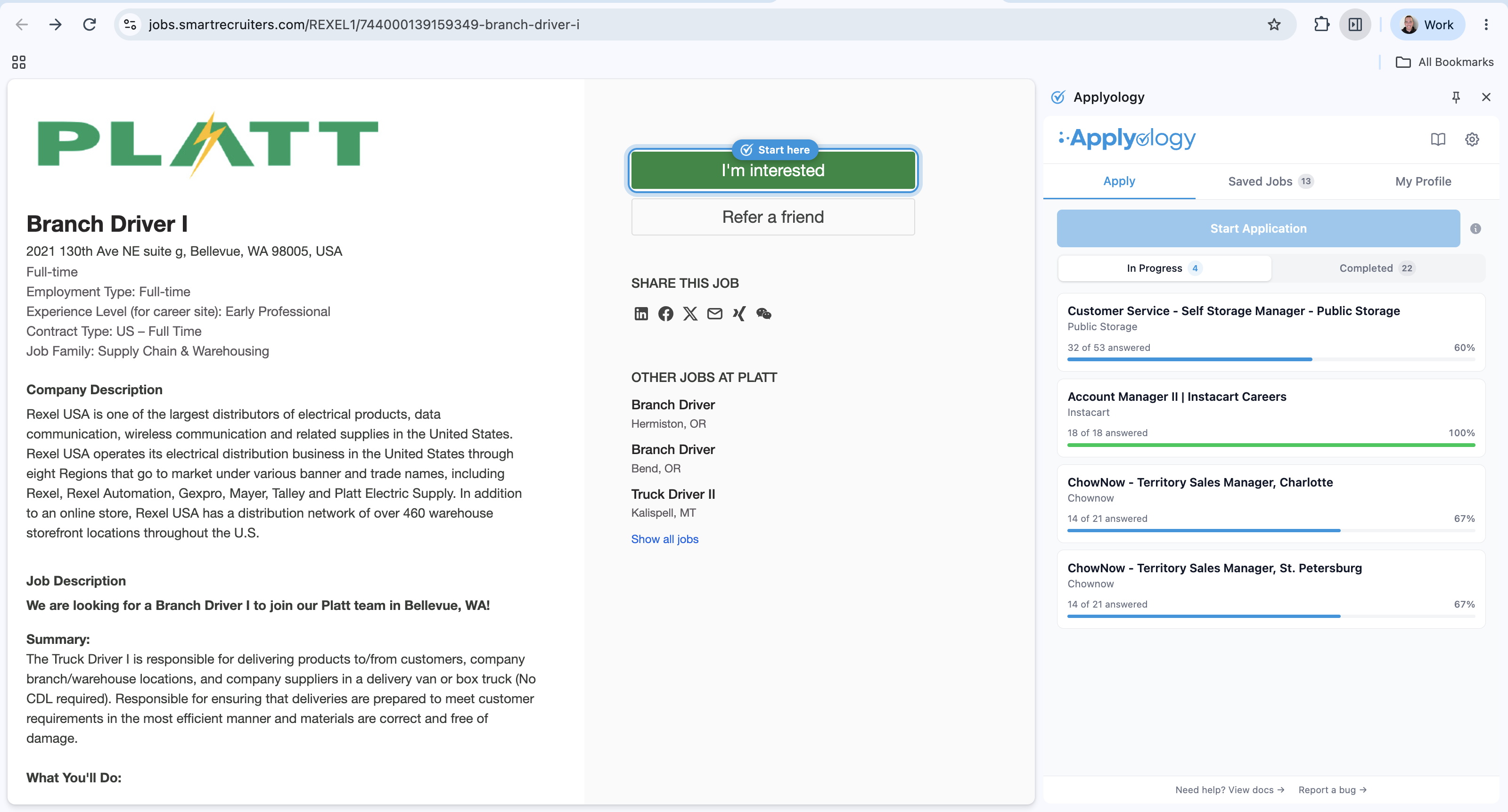
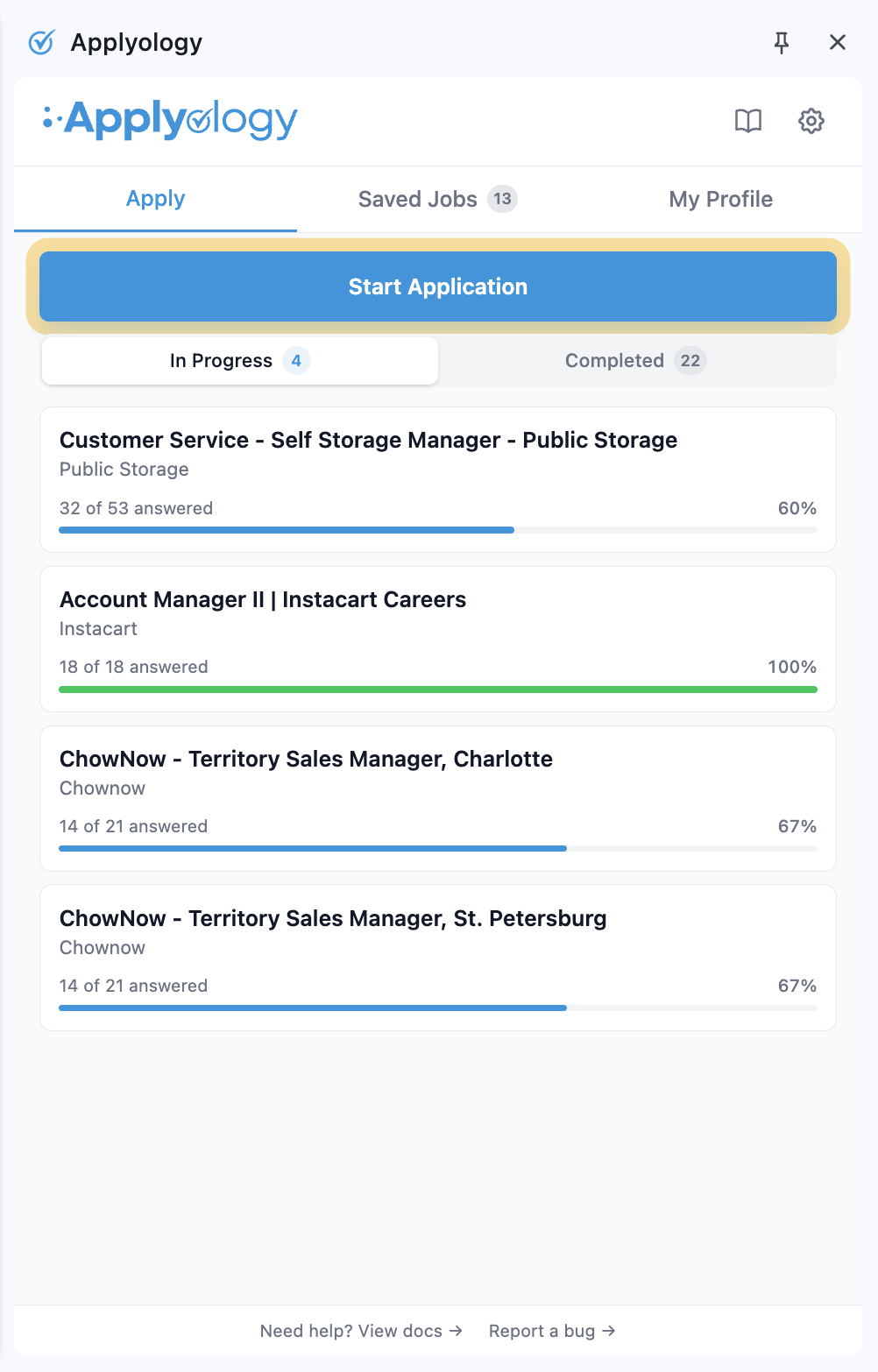
Once you're on the actual form, the extension's Start Application button lights up. Until then it stays disabled with a hint - "Open a job's application form on this page to start application."
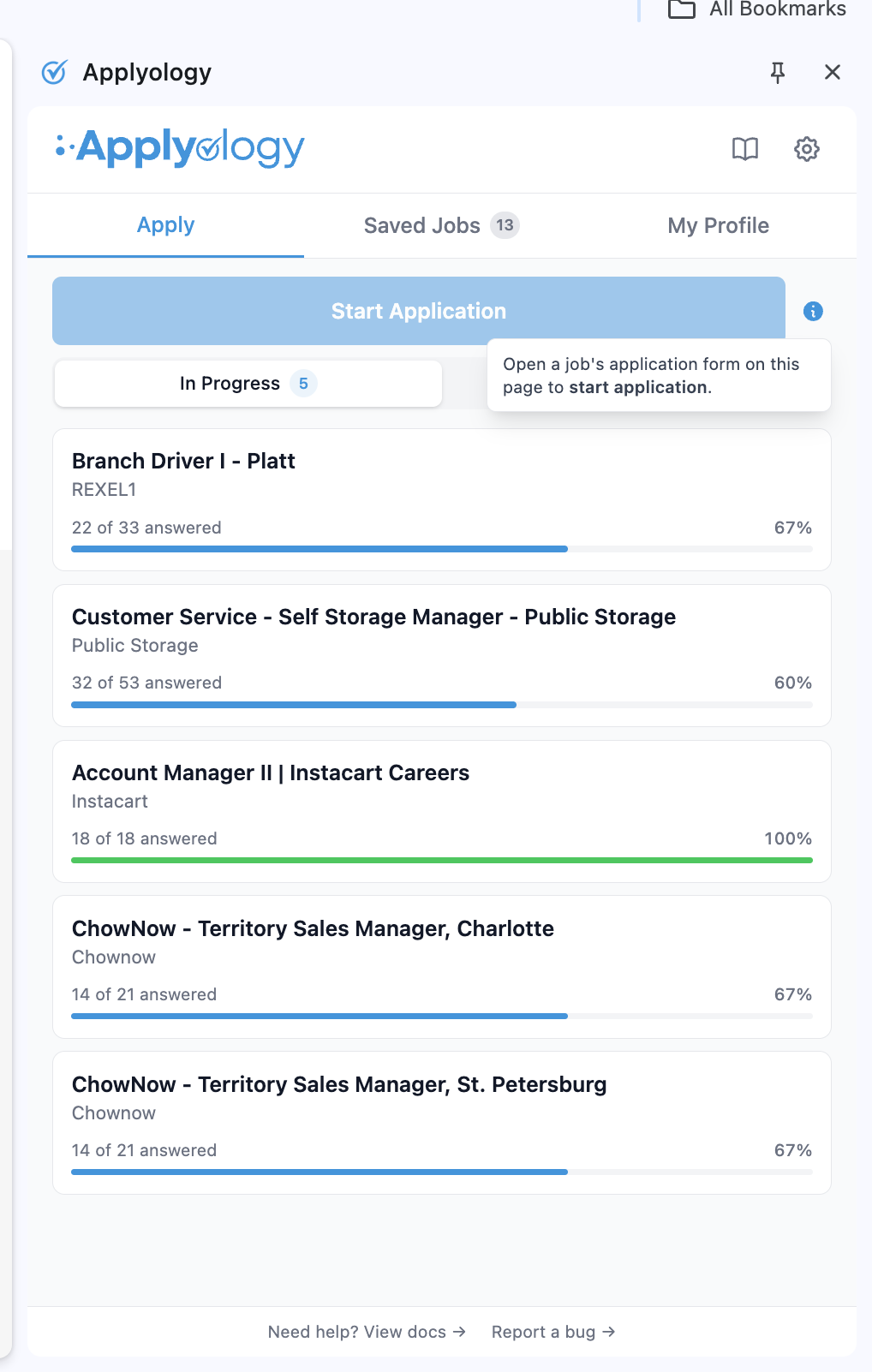
Click Start Application to begin.
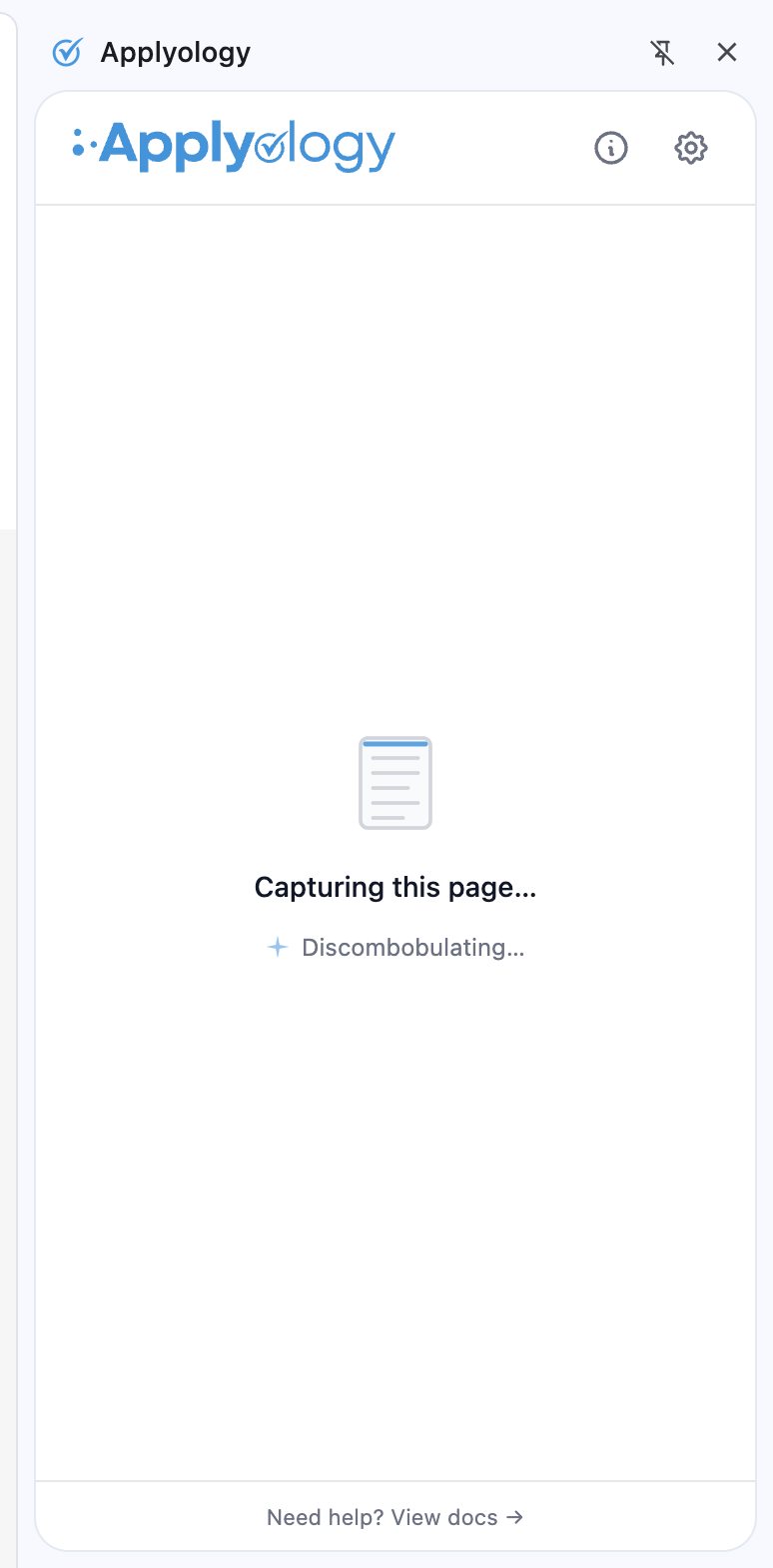
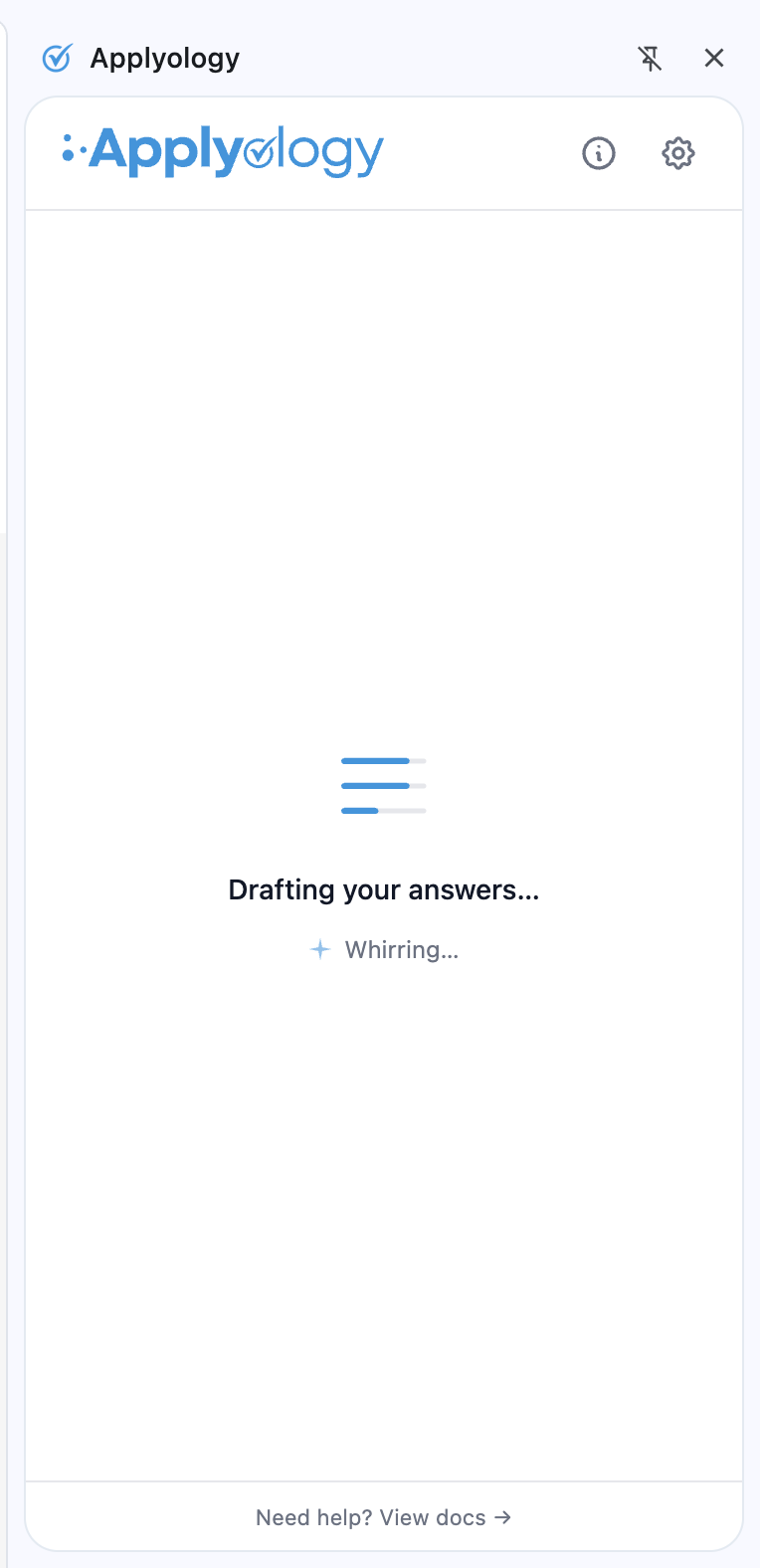
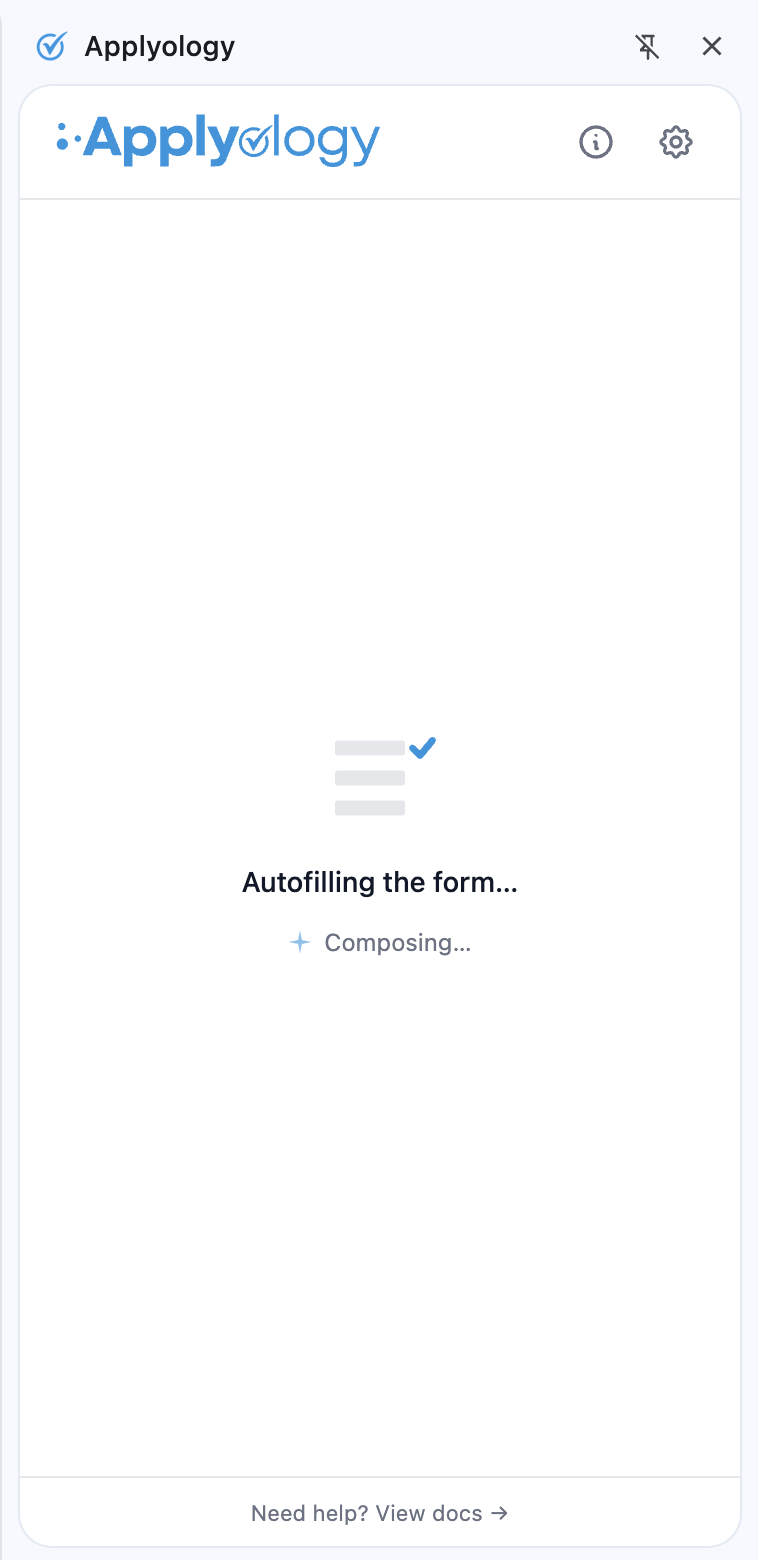
Applyology then works through three quick phases: it captures the page to read the fields, drafts answers from your profile, and autofills the form in your browser.
Review and edit your answers
When drafting and autofill finish, the panel shows a Review application view with one card per field. You stay in control of every answer.
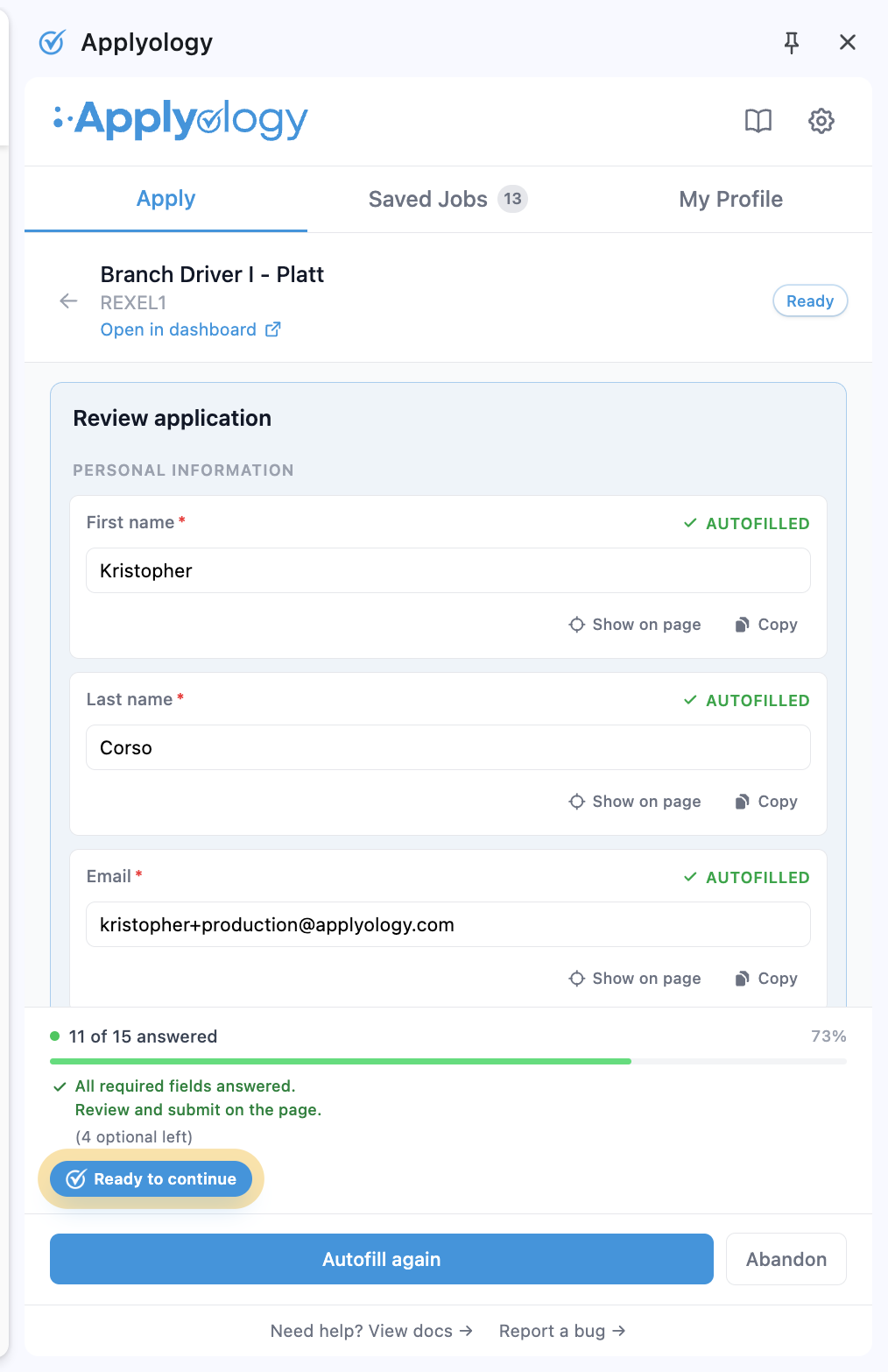
- Fields filled from your profile get a green ✓ Autofilled badge.
- Required fields that couldn't be filled get a red Required badge and a red border until you complete them; Optional fields are marked too.
- Each card has Show on page (highlight the matching field on the form) and Copy (grab the value to paste manually).
- Free-text answers have an Enhance button that rewrites them in your voice.
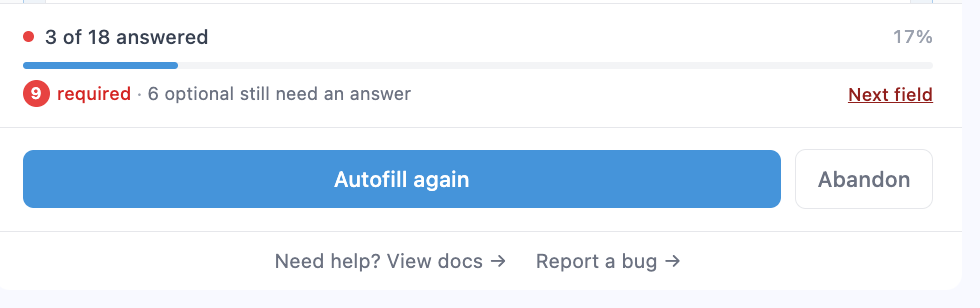
- A progress bar at the bottom tracks how many fields are answered.
Fill in what's missing
Type any missing answer directly into its card in the panel. For questions the employer asks, "Your answer is saved to your profile for future applications," so next time it's ready to autofill.
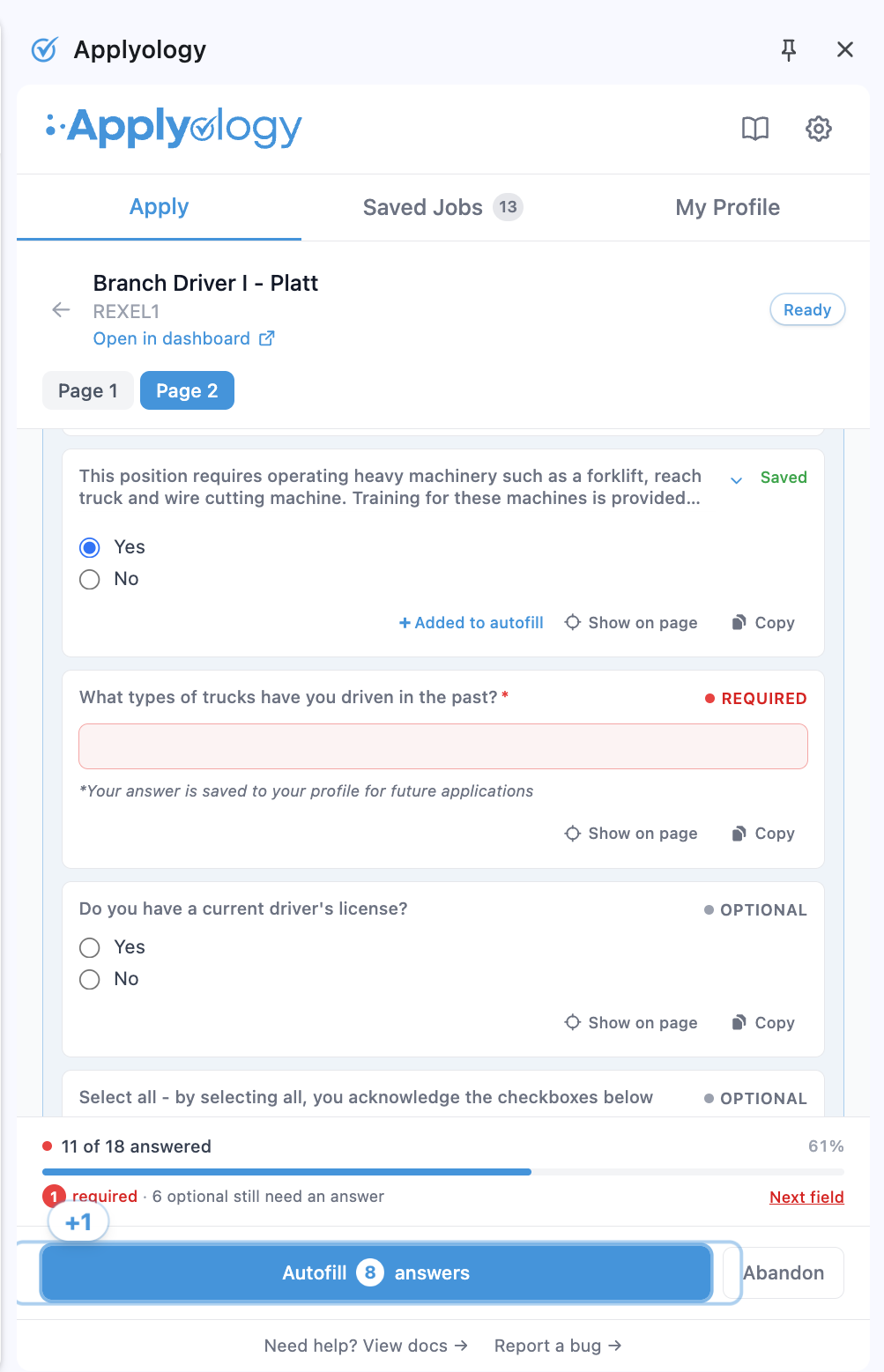
Use the Next field link in the progress bar to jump straight to the next field that still needs an answer.
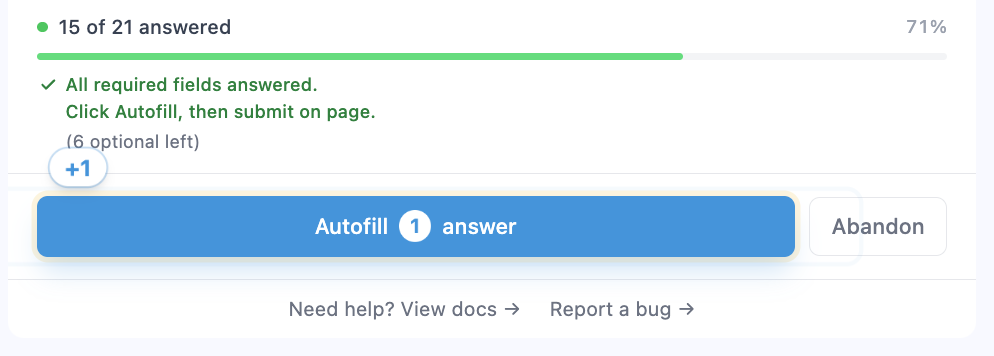
As you add answers, the Autofill button counts them - you'll see a +1 when you add one. Click Autofill … answers to push your latest edits to the page.
Multi-page applications
Some applications span several steps. The panel shows Page 1, Page 2, and so on for the steps you've captured, and you can switch between them. When you move to a new page on the form that hasn't been captured yet, the panel prompts you to grab it:
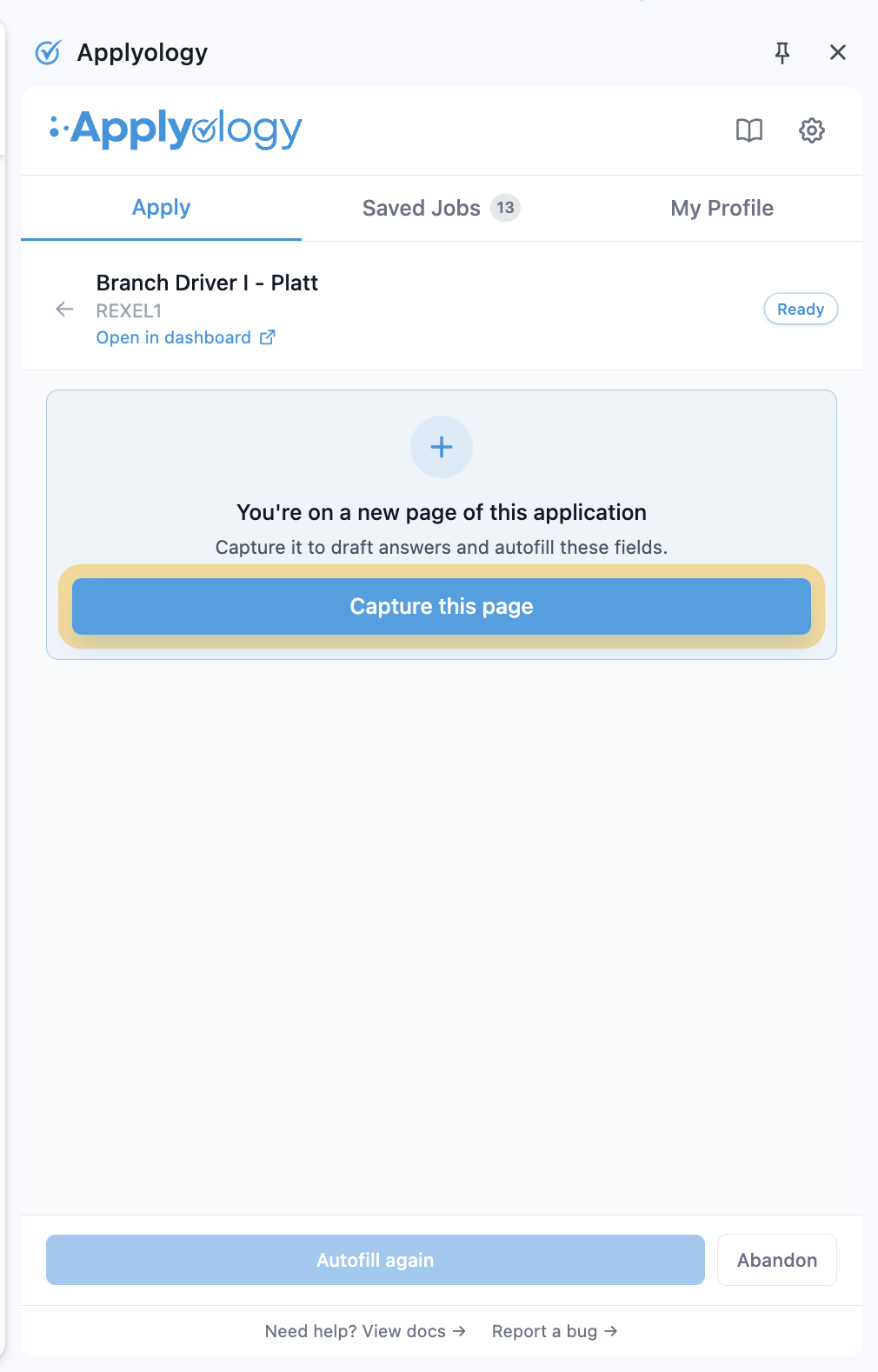
Click Capture this page to draft answers and autofill the new page's fields.
Submit
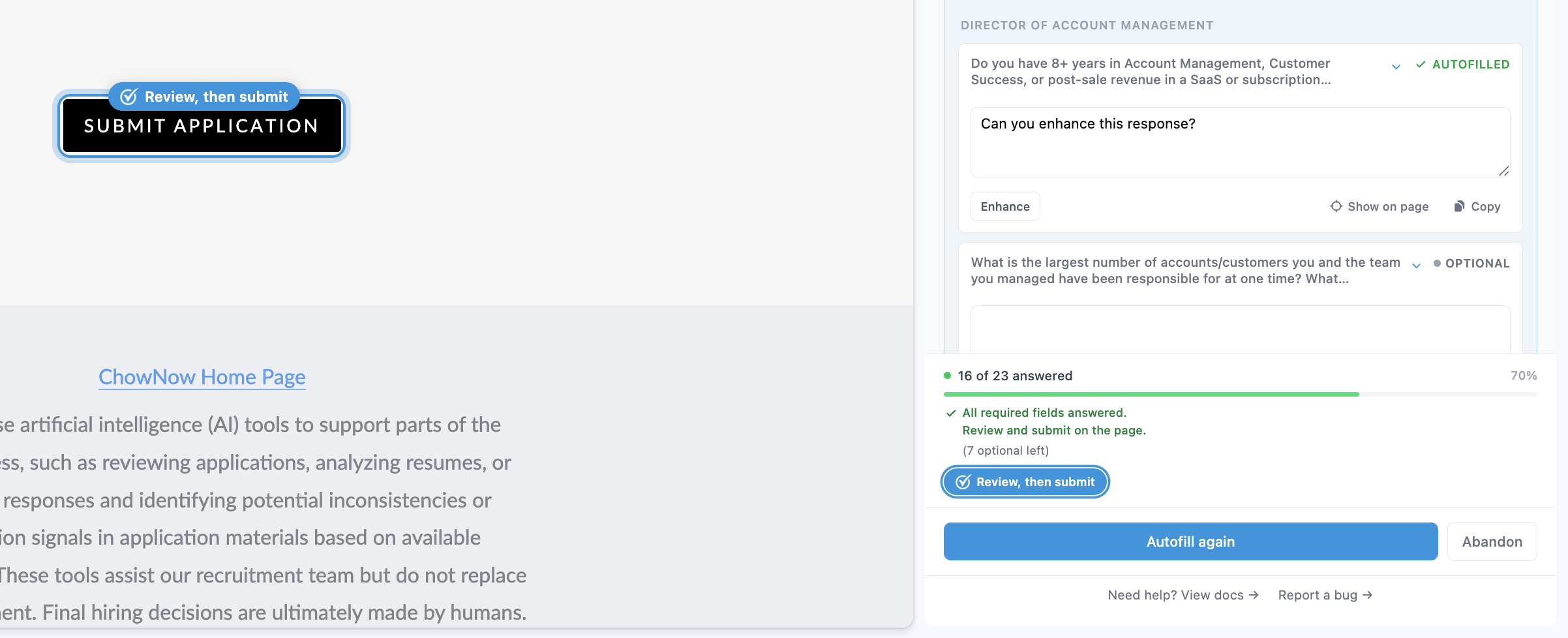
When every required field is answered, the bottom of the panel turns green - "All required fields answered. Review and submit on the page." - with a count of any optional fields still left. The action becomes Ready to continue (when there's more to do on the form) or Review, then submit (on the final page).
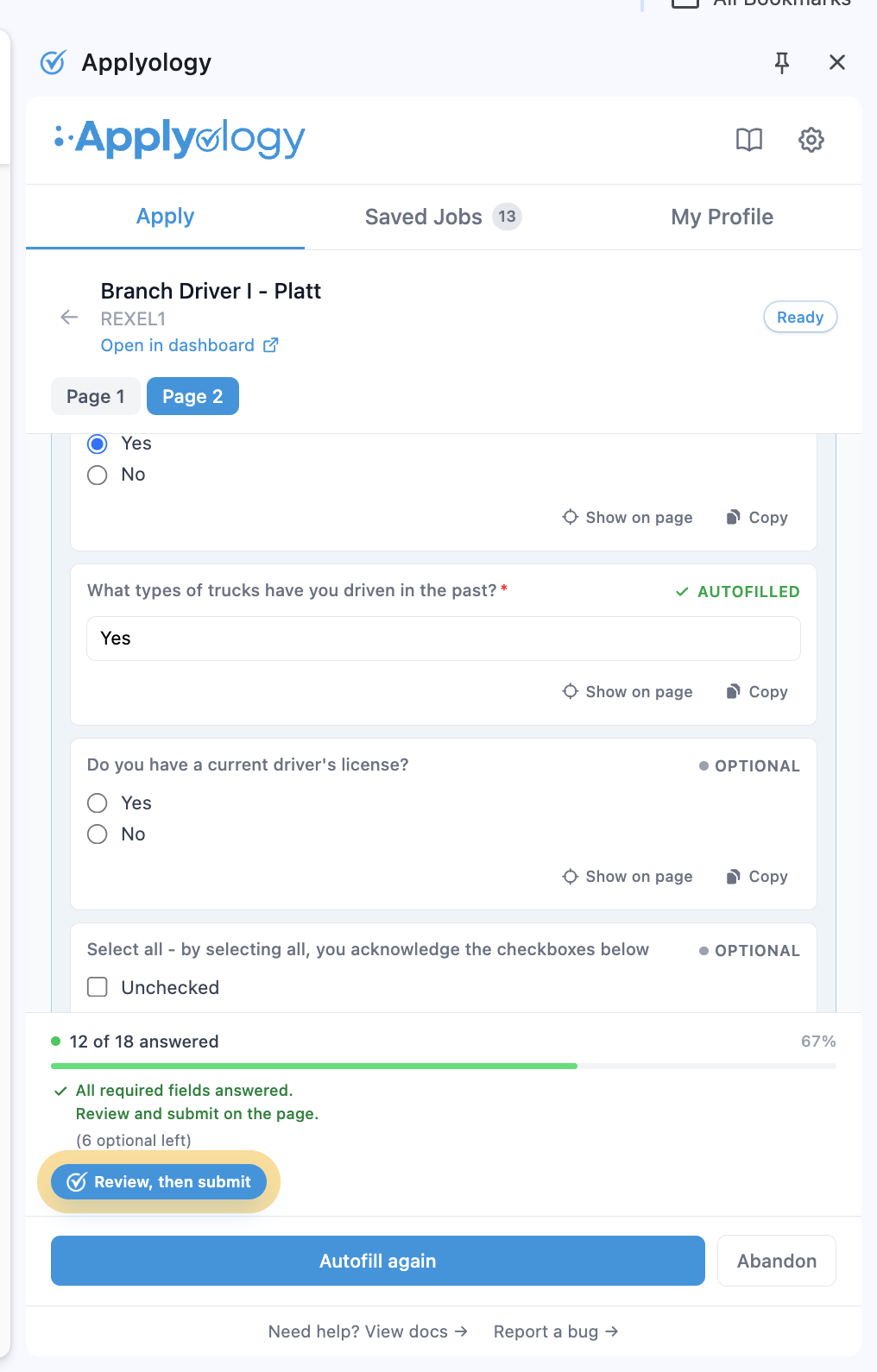
You submit on the employer's page yourself. Applyology rings the employer's Submit application button so you know exactly where to click - it never submits for you, and you handle any CAPTCHAs, logins, or verification steps.
Marked complete automatically
When you submit on a supported ATS, Applyology detects the confirmation page and marks the application complete on its own - with a quick celebration.
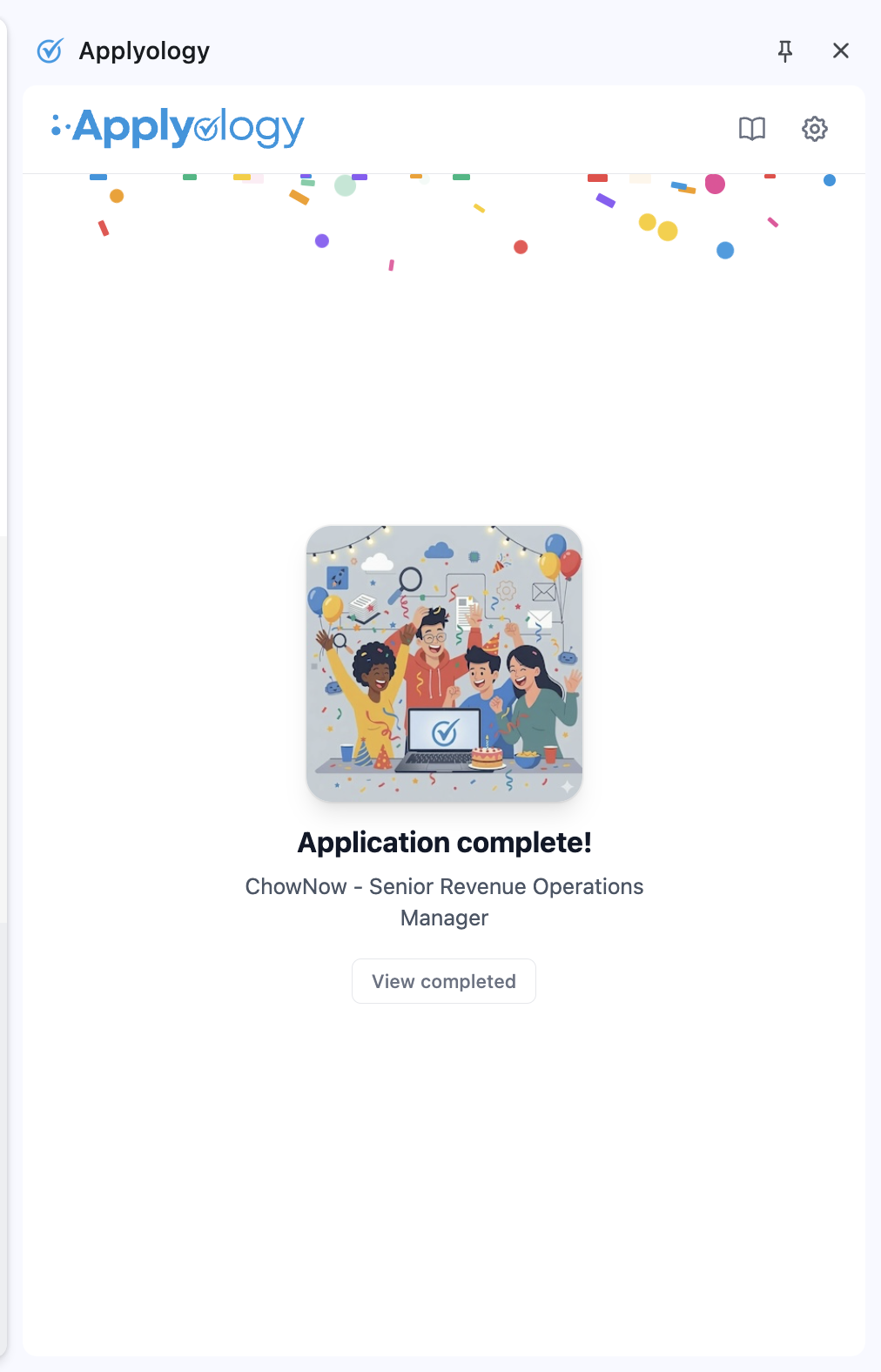
The application moves to your Completed list and becomes a read-only record you can revisit any time, including the resume that was used.
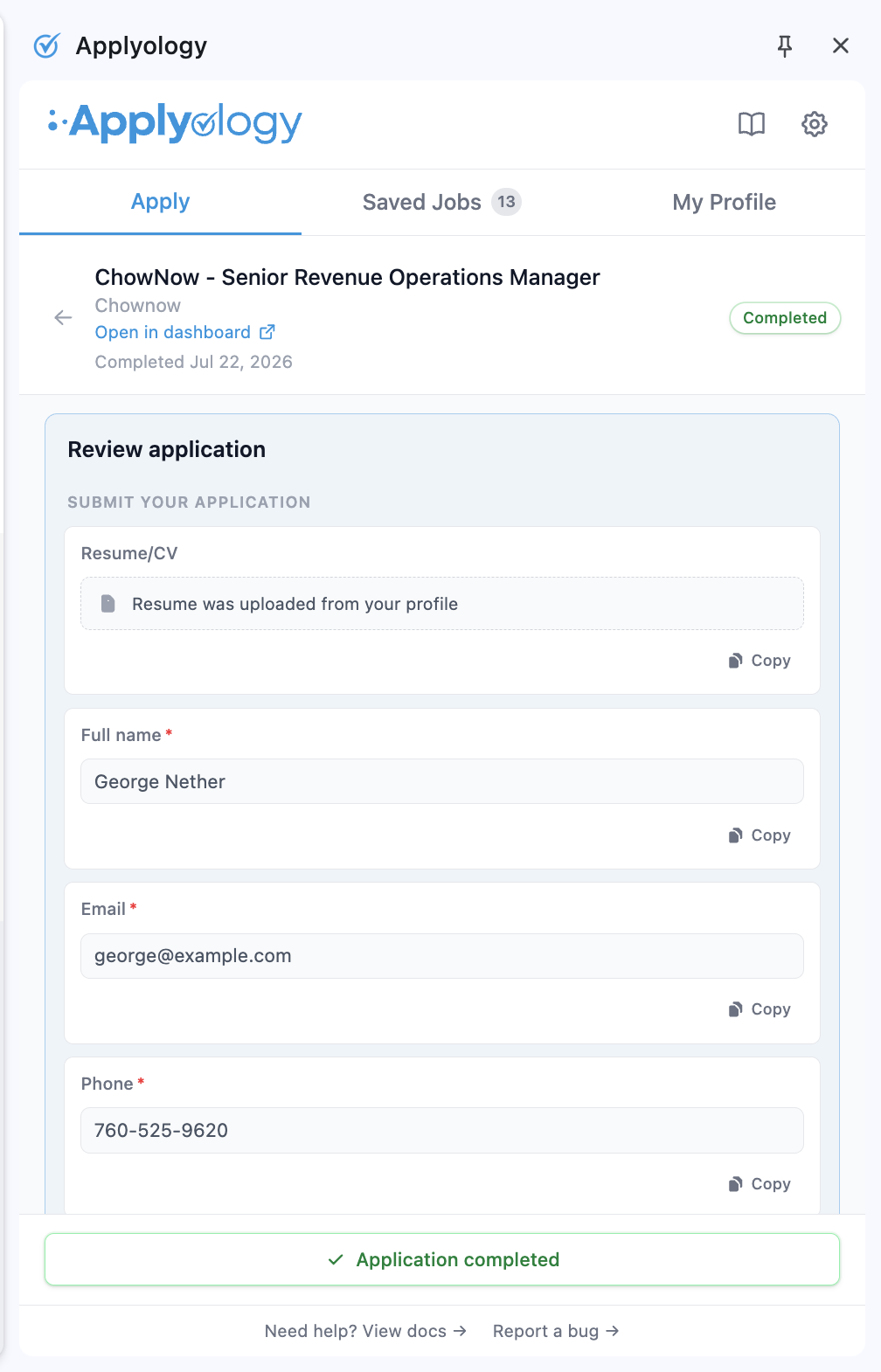
Continue where you left off
You don't have to finish in one sitting. Reopen an in-progress application - from the In Progress segment, or just by returning to its tab - and the extension re-attaches automatically. Click Autofill … answers to re-fill the page with your saved answers.
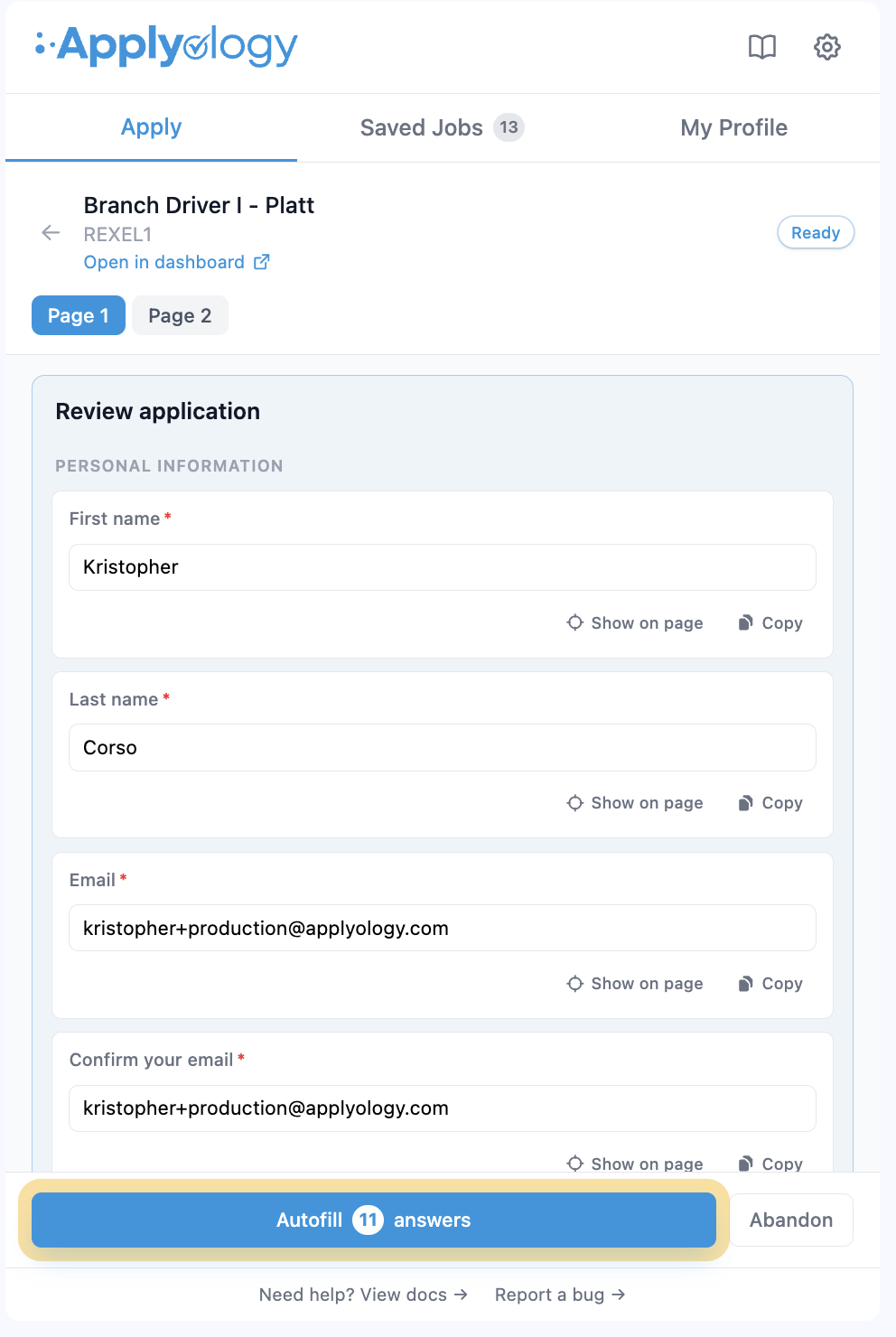
To stop working on a draft, click Abandon; it moves out of your In Progress list. Employers sometimes remove a posting before you finish - if the application tab redirects to a generic "current openings" page, abandon it to keep your list clean.
Track your activity
The Apply tab has two segments, each with a count: In Progress and Completed. Each in-progress card shows the application title, company, and a progress bar (for example, "32 of 53 answered · 60%"). Jobs you've saved but not started live in the separate Saved Jobs tab.
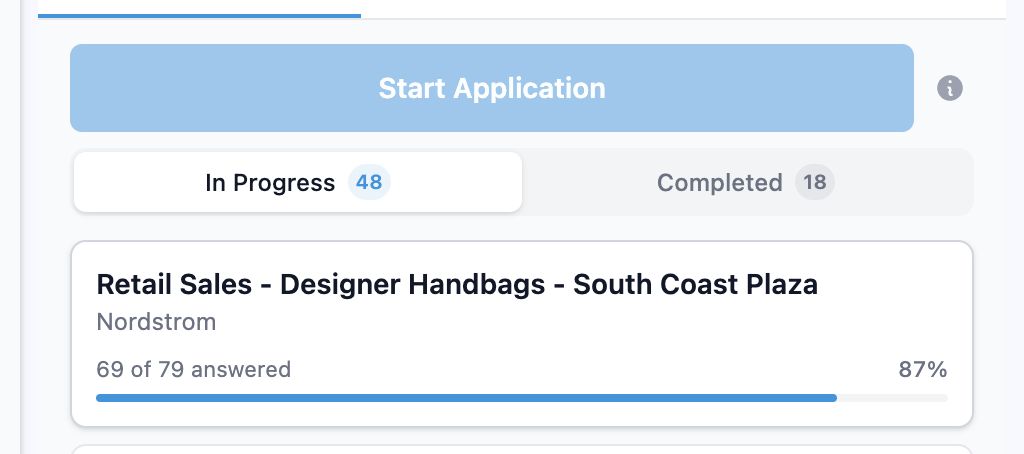
You can also follow every application - In Progress, Completed, or Abandoned - and review its captured answers from the Applications page on your dashboard.
Supported ATS platforms
The extension captures and autofills on Greenhouse, Lever, Ashby, SmartRecruiters, and Workday - and every role on the Job Listings page comes from one of these, so anything you save there works with the extension. If you browse directly to a posting on a site outside these, Start Application stays disabled. We're expanding ATS support over time.
Each platform builds its form a little differently - some are single-page, others walk you through several steps. See Supported ATS platforms for a per-platform guide to what to expect on each one.